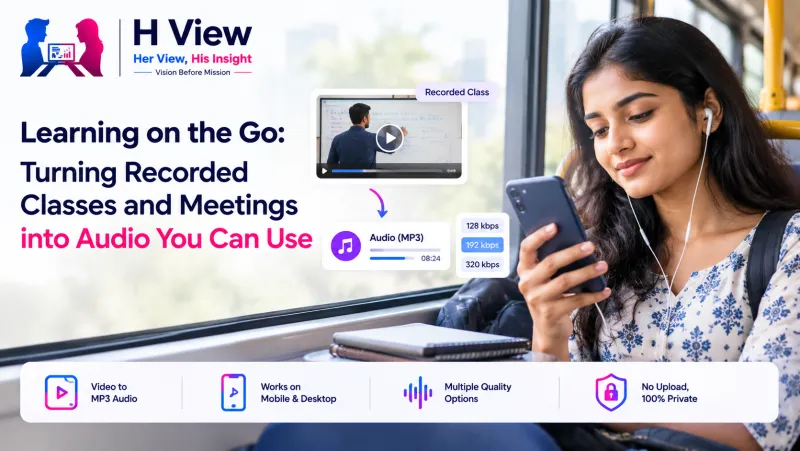
Learning on the Go: Turning Recorded Classes and Meetings into Audio You Can Use
Recorded lectures and meetings eat phone storage and mobile data, and most of them are just people talking. Here's how to turn recorded classes and meetings into small MP3 files you can revise on the move, with permission first.
Most recorded classes and meetings are mostly speech, so you rarely need the video. Extract the audio as an MP3 at 128 kbps with the free H View Video to MP3 tool, and a heavy recording becomes a small file you can play on any phone, on the bus, in the kitchen or on a walk, without streaming data.
Online and hybrid learning left many of us with folders full of recorded lectures, coaching sessions and team meetings. We tell ourselves we'll rewatch them. We rarely do, because sitting in front of a screen for another hour is hard. Listening is easier to fit into a day.
Why Is Audio Better for Revision?
| Recorded video | Extracted MP3 | |
|---|---|---|
| Storage | Large, especially in HD | A small fraction of the size |
| Data to share or download | Heavy on mobile data | Light |
| When you can use it | When you can watch a screen | Commute, chores, walks |
| Plays on | Depends on format | Every phone and computer |
Slides and diagrams still matter, of course. Keep the video for visual sessions, or take screenshots of key slides, and use audio for revision and lectures that are mostly explanation.
How Do I Turn a Recording into Audio?
- Cut out long breaks or irrelevant parts first with the Video Trimmer.
- Open Video to MP3 and add the recording.
- Choose 128 kbps, which is plenty for speech.
- Extract and download. Name files by date and topic so they're easy to find.
Higher bitrates sound better for music but add size without helping speech, as MDN's audio codec guide explains. The tool uses FFmpeg in your browser, so recordings aren't uploaded anywhere.
 Also readHow to Extract Audio from a Video as MP3: Lectures, Interviews and Voice Notes→
How Can I Use the Audio Well?
- Revise in short bursts: 15–20 minutes at a time is easier to absorb than a full lecture.
- Speed it up: many audio players allow 1.25× or 1.5× for familiar topics.
- Transcribe key parts for notes, or to share minutes after a meeting.
- Make a playlist by subject before exams.
Is It Okay to Extract Audio from Any Recording?
Only from recordings you made or have permission to use. Many coaching institutes and companies restrict sharing their sessions. Meeting recordings may include colleagues who didn't agree to being shared outside the team. Use the audio for your own learning, and ask before you forward it.
Her View
For women balancing work, study and home, the “free hour” to watch a lecture rarely comes. Audio fits into the gaps we actually have: while cooking, on the commute, putting a child to sleep. Making learning portable is one of the most practical ways to make it possible.
 Also readJPG, PNG or WebP: Which Image Format Should You Use, and When?→
His Insight
Converting to audio is also a data decision. In many parts of India, mobile data and phone storage are real constraints. A small MP3 can be shared over a weak connection and kept on a basic phone, which means more people in a study group can actually use the recording.
H View Verdict
If a recording is mostly talk, keep it as audio. Trim it, extract at 128 kbps, name it well and listen in the gaps of your day, with permission for anything that isn't yours. Free and private, right in your browser.
Frequently Asked Questions
What bitrate should I use for lecture audio?
128 kbps is enough for speech and keeps files small.
Can I extract audio from a Zoom or Google Meet recording?
Yes, if the recording file is on your device and you have permission to use it.
Will I lose the slides?
Yes, the MP3 is audio only. Keep the video or take screenshots of important slides.
Is my recording uploaded?
No. Extraction happens in your browser and the file stays on your device.
Step-by-step guide: How to extract audio from a video as MP3.
H View stories follow our editorial policy. Spotted an error? Tell us and we will correct it.
Rate this article
One tap is enough. No comment needed.
Was this article helpful?
Your answer goes straight to our editors.


Comments0
No comments yet. Start the conversation.