
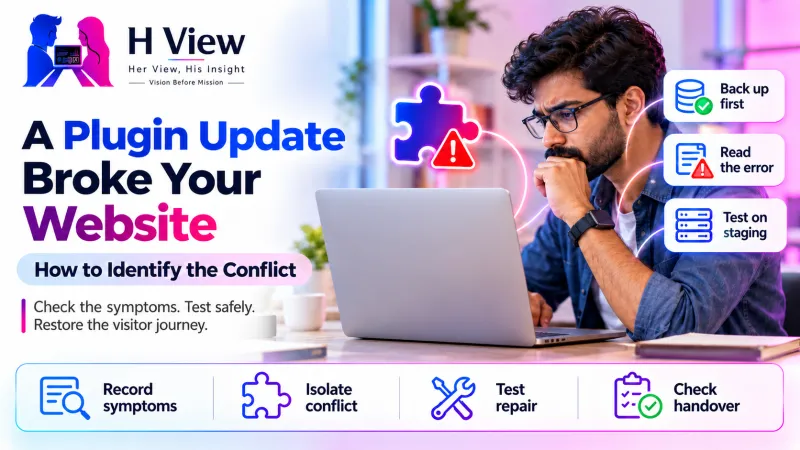
A Plugin Update Broke Your Website: How to Identify the Conflict
A plugin update can expose a conflict without proving its cause. Learn how to collect evidence, test safely and confirm that the customer journey works again.
If a plugin update breaks your WordPress website, preserve the current state, identify the affected feature and check the error evidence before changing anything else. Test a suspected conflict on a staging copy where possible, then restore the agreed functionality and check the visitor journey. An update happening immediately before a failure is a useful clue, but it is not proof of the cause.
Record the exact symptom
Isolate the conflict on staging
Test the repaired journey
For a small business, a broken enquiry form can be more expensive than a visibly broken homepage. Customers may still browse and assume their message reached you, while your team waits for enquiries that never arrive. The practical aim is therefore to recover the important journey safely, establish what failed and avoid introducing a second problem during the repair.
What does a plugin conflict actually mean?
Plugins share the same WordPress installation, database and server resources. Two components can disagree about a script, a function, a dependency or the format of stored information. An updated plugin can also expose an older theme's incompatibility, or require a PHP capability that the hosting environment does not provide. The component named in an error is a starting point for investigation rather than an automatic verdict against its developer.
Separate the symptom from the suspected explanation. “The contact page opens, but pressing Send produces a server error” is more useful than “WordPress is broken.” Record the public URL, the time the behaviour started, the versions involved and whether logged-out visitors see the same thing. Keep private enquiry data and credentials out of screenshots shared with support.
What should you do before disabling plugins?
First, pause unrelated work and establish whether a usable recovery point exists. A complete recovery plan covers both website files and the database; a folder containing only theme files cannot recover recent orders or changed settings. Check when the backup was made, where it is stored and who can restore it. If the site accepts orders, note the risk of losing transactions created after an older database backup.
Next, check the update history and any administrator error email. WordPress Recovery Mode may provide access when a fatal error prevents normal administration, although its availability and delivery email are not guaranteed. Use a trusted administrator route and verify the domain before following a recovery link. A hosting provider can help retrieve the relevant server log when the dashboard is unavailable.
| Observed symptom | Useful next evidence | What it does not prove |
|---|---|---|
| Critical error across the site | PHP error and time of occurrence | That every plugin is faulty |
| Only the editor fails | Editor console and request failures | That the public site is also down |
| Layout changed after updating | Published markup, generated styles and cache state | That restoring the database is necessary |
| Form appears successful without mail | Submission record and delivery logs | That the message reached an inbox |
 Also readWebsite Not Appearing on Google? Start with These Checks→
How can you isolate the conflict safely?
A staging copy lets you reproduce the failure without repeatedly interrupting visitors. It should reflect the affected site's relevant versions and settings, while preventing real payments, customer emails and unintended indexing. An inaccurate staging copy can create false reassurance, so record any differences before using its result to approve a live change.
- Reproduce one precise failure and record the expected result.
- Review the error evidence and recent changes to narrow the suspect list.
- Change one component at a time on staging and repeat the same test.
- Restore the previous test state before trying a different explanation.
- Document the combination that fails and the combination that works.
A controlled plugin test is different from switching everything off on a busy store. Disabling a payment, membership or security component may change what visitors can do even if the homepage still looks normal. If a live diagnostic change is unavoidable, agree its timing, visitor impact and reversal method first. Keep someone available to check the site immediately afterwards.
Should you roll back the updated plugin?
A rollback can be a temporary recovery option when the cause is established and a trustworthy previous package is available. It is not automatically safe: the older release may have a security weakness, and some updates change database structures that older code cannot understand. Ask the developer about compatibility and supported recovery steps before treating a version change as a harmless undo button.
Reinstalling from an unofficial download is a poor shortcut. Obtain software through the original vendor or an established distribution channel, retain licence access and record the version deployed. When the update includes an important security correction, the longer-term plan should resolve compatibility and return to a supported release rather than leaving an old version indefinitely.
A practical example: the form fails after an optimisation update
Imagine a consultancy updates its optimisation plugin and then notices that the enquiry button stops responding. This is an illustrative scenario, not an HView client result. The contact page still loads, so the team initially suspects its form service. A browser check instead shows a missing JavaScript dependency, and staging tests show that a newly enabled script-delay setting affects the form.
The useful repair is a narrow configuration adjustment followed by a full test, not a permanent removal of every optimisation feature. The team checks a valid submission, an invalid email address, the stored enquiry and the receiving inbox. It then repeats the journey on a phone and a logged-out browser. Recording that sequence makes the next update easier to assess.
What should the handover include?
A repair handover should explain the symptom, the evidence supporting the cause, the change made and the checks completed. It should also identify what remains uncertain. “Homepage checked” is not enough when the original problem involved checkout, a member account or a booking confirmation. Those journeys need explicit acceptance criteria agreed with the owner.
For future updates, maintain an inventory of essential plugins and assign an owner to the update routine. Test higher-impact changes separately, retain recent recovery points and avoid changing the theme, PHP version and several plugins in one unrecorded session. The goal is a manageable process that a small team can repeat, rather than a complicated checklist nobody follows.
 Also readHow to Optimize Your Website for Google AI Overviews and AI Mode in 2026→
Her View, His Insight
Her View: A business owner needs an explanation that connects the technical fault with the interrupted customer action. A useful support conversation starts with what the visitor cannot complete and ends with evidence that the journey works again.
His Insight: The fastest sustainable repair usually comes from reducing uncertainty. Keeping the test small and documenting each change can save more time than trying several unrelated fixes together, especially when the website has live transactions.
Frequently asked questions
Does a conflict mean the plugin is badly made?
Not necessarily. A conflict can involve another plugin, the theme, custom code or hosting requirements. Report the reproducible combination and error evidence so the responsible developer can assess it.
Can I delete the plugin and reinstall it?
Deletion may remove settings or data depending on the plugin's uninstall behaviour. Check its documentation and preserve the necessary information before removing it; deactivation and deletion are different actions.
How do I know the repair is complete?
Repeat the original failing action and check its downstream outcome. For an enquiry, that means more than seeing a success message: confirm the agreed storage and delivery behaviour as well.
Need help tracing the conflict?
HView can assess WordPress and Elementor repair issues and agree a written scope before making changes. Share the affected URL, exact symptoms and recent updates through Digital Solutions. Do not send passwords or customer records in the first message.
Sources and further reading
H View stories follow our editorial policy. Spotted an error? Tell us and we will correct it.
Rate this article
One tap is enough. No comment needed.
Was this article helpful?
Your answer goes straight to our editors.








Comments0
No comments yet. Start the conversation.