
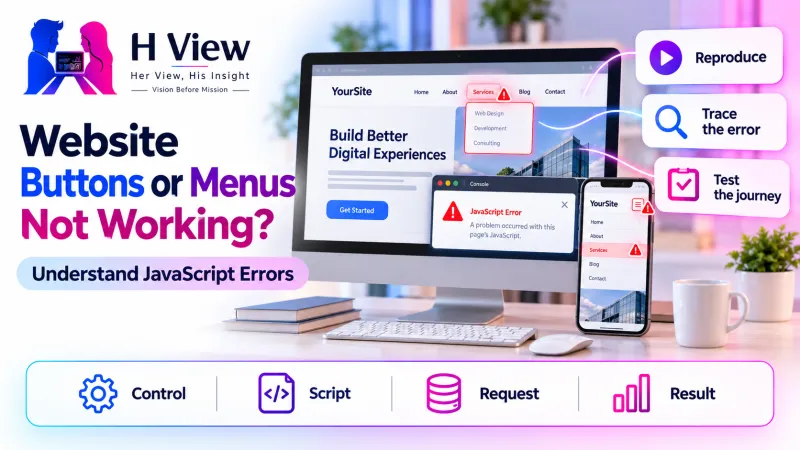
Website Buttons or Menus Not Working? Understand JavaScript Errors
A button can look normal while its behaviour fails. Learn how to trace broken menus, script requests and visitor interactions without making random changes.
If website buttons or menus stop working, first identify whether the control is a link, a form button or a JavaScript interaction. Reproduce the problem as a visitor, note the affected device and inspect the browser’s error and network evidence. A visible JavaScript error is a clue; it does not automatically explain every broken control on the page.
Reproduce the visitor action
Trace the relevant error
Retest the complete journey
A menu that looks finished can still leave visitors stranded. Someone may tap the mobile navigation repeatedly, assume the business has closed and leave without reading the service page. The useful repair is therefore more specific than making a red message disappear from a developer console. The intended action must work for the people using it, including keyboard users and visitors on smaller screens.
Why can a button look normal but do nothing?
The appearance and behaviour of a control come from different parts of a website. HTML supplies its structure, CSS controls its presentation, and JavaScript may add an interaction. A blue rectangle can be styled perfectly even when its script failed to load. Conversely, the script may be working while an invisible overlay intercepts every click.
Some controls need no JavaScript at all. A normal link should navigate to its destination, and a properly configured form can submit directly to a server. Before investigating a script, establish what the element is supposed to do. An empty destination, a disabled state or a button with the wrong type can resemble a JavaScript failure.
What should you record before changing anything?
Write down the exact page, the control’s visible label and the expected result. Record whether the failure happens after opening the page, after accepting cookies or only after scrolling. These details help reproduce a timing problem that might otherwise disappear when a developer tests a different sequence.
Compare a clean visitor session with the administrator session without changing the site. Test a second device where practical. If only mobile navigation fails, do not assume every script on the website is broken. The mobile menu may use a separate component, breakpoint or event handler.
| Observed symptom | Possible explanation | Useful evidence |
|---|---|---|
| Every interactive control fails | A shared script failed or stopped during initialisation | First relevant error and failed script requests |
| Only one button fails | Incorrect selector, destination or component logic | The element’s markup and its intended action |
| Mobile menu fails after a banner appears | Overlay or stacking problem | Whether another element covers the control |
| Works before optimisation is enabled | Changed execution order, delay or bundling | Controlled comparison with the same page version |
| Button sends a request but nothing changes | Server response or interface handling problem | Request status, response and displayed feedback |
 Also readElementor Changes Not Showing on the Live Website? What to Check→
How do you trace the failure safely?
- Reproduce the visitor journey. Start from a fresh page load and repeat the same actions. Avoid testing only an already open administrator tab.
- Inspect the first relevant console error. Note its file, line and timing. Later errors can be consequences of an earlier failure, while unrelated extension messages can be noise.
- Check script requests. A missing file, blocked resource or incorrect response can prevent behaviour from loading. Confirm the requested URL and response rather than guessing from the filename.
- Check the actual control. Look for an overlay, disabled state, duplicate identifier or incorrect link destination. Confirm that the expected element receives the interaction.
- Test one suspected change on staging. Keep a recoverable copy and change one setting or component at a time. Retest the original sequence after each controlled change.
The browser console is a diagnostic tool, not a repair button. Pasting code from an unfamiliar source into it is unnecessary and can be dangerous. An owner can collect an error message and pass it to the developer without running commands or exposing account information.
Could optimisation be changing when scripts run?
Performance tools sometimes combine, defer or delay scripts. These features can help a site when configured correctly, but they also change assumptions about execution order. A menu might expect a library to exist before its own setup runs, or a delayed handler might not be ready for the first tap.
A useful investigation compares the same page with a narrowly scoped optimisation change on staging. Disabling every performance feature on the live website may hide the cause and create other problems. Once the dependency is understood, the repair may involve an exclusion, a corrected dependency declaration or an update to the affected component.
Browser caching can also preserve an old script beside new markup. Check whether the requested asset version matches the deployment. Clearing a cache once is a diagnostic step; a lasting repair should make future asset changes reach visitors reliably.
An illustrative case: the menu opens only on the second visit
Imagine a local training business whose mobile menu fails on the first visit but works after refreshing. This is an illustrative example, not a reported HView client result. The owner suspects the menu plugin because the problem appeared after an update, but the developer first repeats the first-visit sequence with the cookie banner visible.
The investigation reveals two separate observations: the menu’s script is delayed, and a banner overlaps part of the header on one screen size. Correcting only one issue would leave an inconsistent experience. On a staging copy, the team adjusts the script configuration and banner positioning separately, then tests fresh visits, returning visits and keyboard navigation.
The handover records the actual cause, changed settings and devices tested. It does not claim that the entire website is error-free because one menu opens. The owner receives a short acceptance checklist that can be repeated after the next relevant update.
What makes a repaired interaction complete?
A working click is only the beginning. A menu should indicate whether it is open, remain usable with a keyboard and avoid trapping focus. A form button should prevent confusing duplicate submissions while showing useful progress and a real success or failure result. Controls should remain readable and reachable at common mobile sizes.
Test the surrounding journey as well. Opening a navigation panel is not useful if its links point to missing pages. A contact button is not complete if it opens a form that cannot deliver messages. Follow the action until the visitor reaches the intended outcome.
Her View / His Insight
Her View: Describe the failure in the visitor’s language: “I tapped Services and nothing opened.” That observation helps a team protect the real journey instead of arguing about which technical component deserves blame.
His Insight: Keep the technical trail precise. The failing request, first relevant error and controlled comparison are more useful than a screenshot containing dozens of unrelated warnings. Evidence makes the repair easier to test and maintain.
Frequently asked questions
Does one console error mean the whole website is broken?
No. Some errors affect one component, and others originate from browser extensions or optional services. Connect the error to a reproducible failure before treating it as the cause.
Should I remove JavaScript to make the page faster?
Remove unnecessary code only after understanding its role. Navigation, forms and accessibility features may depend on particular scripts. Measure performance and test functionality together.
Can a button fail even when there are no JavaScript errors?
Yes. An overlay, incorrect destination, disabled state or failed server response may cause the problem without an obvious script exception. The visible symptom needs a broader investigation.
Give visitors a reliable next step
If a broken interaction is blocking enquiries, HView’s Digital Solutions service can assess the affected journey and agree a written scope. For WordPress sites, see WordPress repair services. A useful enquiry includes the page URL, device, expected action and a short description of what actually happens.
References and further reading
H View stories follow our editorial policy. Spotted an error? Tell us and we will correct it.
Rate this article
One tap is enough. No comment needed.
Was this article helpful?
Your answer goes straight to our editors.







Comments0
No comments yet. Start the conversation.