
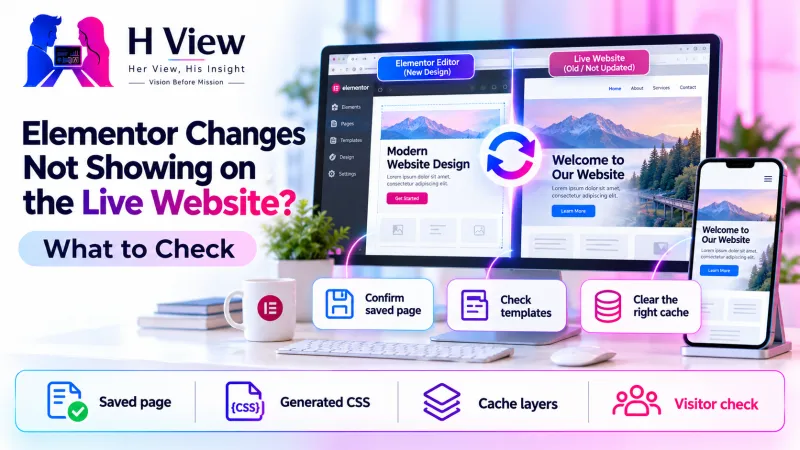
Elementor Changes Not Showing on the Live Website? What to Check
The editor and public page can show different versions. Check the saved page, template, generated CSS and cache before rebuilding anything.
When Elementor changes do not appear on the live website, first confirm that you updated the correct published page and then compare the saved version with a logged-out visit. Old generated styles, browser storage, server caching or a CDN can show an earlier version, but the cause can also be a template or responsive setting. Identify which version is being served before repeating the edit.
Confirm the saved page
Check templates and generated CSS
Test the visitor version
A business owner might change a phone number, see the correct number in the editor and still receive calls to the old one. That is more than a cosmetic annoyance. It shows why a website update is not complete until a visitor can see it in the place that matters. The following checks distinguish a missing save from a delayed or incorrectly targeted change.
Did the change reach the correct published page?
Start with the exact public URL rather than the page title. A website can contain a draft copy, a translated version and an active landing page with similar names. Editing one does not update the others. If the address redirects, record the final destination and make sure the editor belongs to that destination rather than an abandoned version.
Check the save or update result and whether a publication workflow is holding the revision for review. A preview can show unsaved work or a revision that ordinary visitors cannot see. Do not assume that closing the editor confirms a save. Reopen the page and verify the changed value is still present before moving to cache troubleshooting.
Why can the editor and live page disagree?
The editor and the public page do not always assemble content in the same way. A header might come from a theme template, a popup from another document, and a product layout from a template condition. Editing the visible page will not necessarily replace information inherited from one of those sources. Repeatedly changing the same widget can waste time if the active output comes from somewhere else.
Responsive settings create another possible mismatch. A desktop element can be hidden on mobile while a separate mobile element still contains the older text. Check whether duplicate sections or device-specific visibility settings exist. The aim is to identify the source of the visible element, not to force a broad style override that happens to hide the symptom on one screen.
| What you observe | What to investigate | A useful comparison |
|---|---|---|
| Old text everywhere | Published document and page cache | Saved editor versus logged-out page |
| New text but old styling | Generated CSS and cached assets | Markup versus requested stylesheet |
| Only mobile differs | Responsive visibility and mobile caching | Same URL at both widths |
| Only header or footer differs | Template conditions and shared sections | Page content versus theme template |
 Also readA Plugin Update Broke Your Website: How to Identify the Conflict→
How should you test caching without guessing?
A private window is a useful first comparison because it starts a different browsing session. It does not bypass every server or CDN cache, so a private-window failure does not prove the content was never saved. Compare the same URL and device conditions, and avoid treating a random query parameter as a permanent repair.
Where a developer is available, ask which layer served the old response. Browser network details and response headers can distinguish an origin response from an edge cache hit. A screenshot alone cannot show that route. Record the URL, change time and observed response so the host can investigate a specific event instead of receiving a vague report that the website is unreliable.
When should you regenerate Elementor files?
Elementor's guidance includes clearing generated files and data when styles or published changes become inconsistent. The exact tool wording can vary by version, so use the current help instructions and the controls actually available in your installation. Regenerating assets is relevant when the saved content is correct but the generated output is stale; it is not a replacement for saving the right document.
After that operation, clear the relevant site cache and any hosting or CDN layer that still serves the older response. Purge the affected page or assets where the platform supports it rather than automatically flushing everything on a busy site. A full purge can increase server work while caches refill, so choose the scope deliberately and check the public page again afterwards.
- Confirm the public URL, published document and saved revision.
- Check whether the element belongs to a shared template or responsive duplicate.
- Compare the logged-in editor with a logged-out browser visit.
- Regenerate the relevant Elementor output when evidence points to stale assets.
- Purge the appropriate cache layer and repeat the original visitor test.
Could custom CSS or an optimisation plugin be involved?
A selector with higher priority can override a new style even when the correct stylesheet loads. Custom CSS, theme styles and plugin output can all participate in that result. A developer should inspect the winning rule rather than repeatedly adding stronger declarations. An excessive chain of overrides makes future maintenance harder and can produce different results across devices.
Optimisation settings can also serve combined or delayed assets that no longer match the updated page. Test suspected settings on staging and change one variable at a time. Avoid permanently disabling every performance or security feature just because the layout improves during a broad test. The useful result identifies the specific setting and an appropriate exclusion or compatible configuration.
A practical example: a new offer appears only to staff
Imagine a training company updates a course price in Elementor. Staff see the new price while logged in, but customers continue seeing the previous offer. This is an illustrative scenario, not an HView case result. Reopening the editor confirms the saved change, and the public request shows the older cached page being delivered by the hosting layer.
The team purges the affected landing page and checks a logged-out desktop visit and a phone using another connection. They also inspect the header banner and checkout summary, which draw their prices from different sources. Clearing the page cache fixes one display, but the acceptance test is only complete after every place presenting the offer agrees with the approved price.
What should a reliable update routine look like?
Write a small acceptance list before editing: the pages affected, the content source, the important devices and any linked journey. If changing a contact number, include click-to-call links and shared footers. If changing an offer, include landing pages and the relevant purchase or enquiry path. The routine should reflect how visitors use the information rather than the editor's internal structure.
Record cache ownership in the handover notes. A small site may use a plugin, host cache and external CDN at the same time, with different people controlling them. Knowing who can purge each layer reduces avoidable delays. Keep a dated screenshot of the verified public result when the change has business significance.
 Also readHTML Contact Form Not Sending Messages? How Form Submission Works→
Her View, His Insight
Her View: Customers do not distinguish between a stale cache and a missed update. Verify important information as a visitor would see it, especially prices, contact details and opening times.
His Insight: A mismatch becomes easier to solve once you name the two versions being compared. “Saved revision shows the new text, but the CDN returns the previous page” is a useful diagnosis; “Elementor ignores changes” is only a symptom.
Frequently asked questions
Does incognito mode bypass the CDN?
No. It changes the browser session, but a hosting cache or CDN may still return a stored public page. Check the actual serving layer when the mismatch persists.
Should I rebuild the page if regenerating files does not help?
First investigate templates, responsive duplicates and CSS conflicts. Rebuilding can reproduce the same underlying issue and creates more content to maintain.
Why does only one section remain unchanged?
It may come from a separate template, widget or shared document. Identify the active source before editing another copy or adding a global override.
Need help with a stubborn live mismatch?
Read our Elementor troubleshooting guide if the editor itself will not open. For a saved-versus-live mismatch, share the public URL and expected change through HView Digital Solutions; our repair page explains the scoped support process.
Sources
H View stories follow our editorial policy. Spotted an error? Tell us and we will correct it.
Rate this article
One tap is enough. No comment needed.
Was this article helpful?
Your answer goes straight to our editors.











Comments0
No comments yet. Start the conversation.