
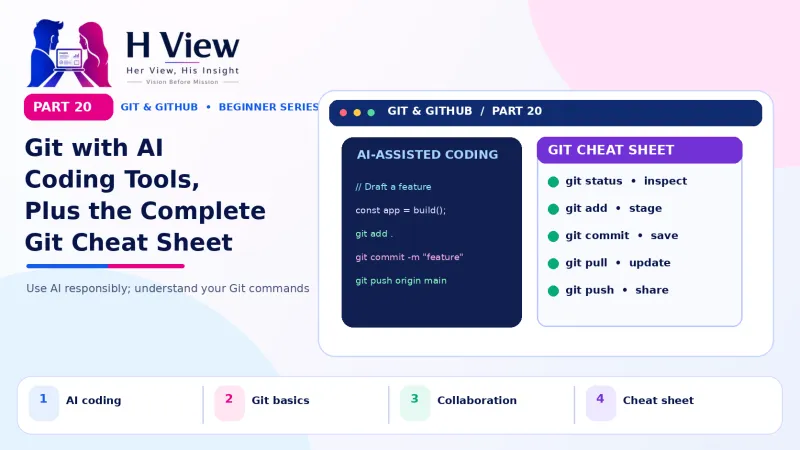
Git with AI Coding Tools, Plus the Complete Git Cheat Sheet (Part 20)
AI tools write code fast; Git keeps it safe. Learn a simple routine for coding with AI, then keep our complete Git cheat sheet and series recap handy. The final Part 20 of our visual Git series.
When you code with AI tools, use Git as your safety net. Commit a checkpoint before every AI change, let the AI work on its own branch, review its diff line by line, test the result, then commit it or restore the checkpoint. This simple routine lets you move fast with AI without ever losing a working version of your website.
Remember Sneha from Part 1, who lost a whole weekend when an AI tool broke her uncle's bakery website? Three months later, she still uses AI every day, probably more than before. The difference is that she now uses it fearlessly. Last week an AI assistant rewrote the hospital site's navigation and accidentally removed the emergency phone number from every page. It took her four minutes to spot it in the diff and restore it. "AI makes me fast," she says. "Git makes me safe." Welcome to the final part of our 20-part Git and GitHub for Beginners series. Over the last 19 parts you went from "What is version control?" to automating checks with GitHub Actions. This Part 20 brings it all together for the way many people now build websites, with AI assistants, and ends with a complete cheat sheet for your desk.
Your one-minute summary
- Commit before every AI change: a clean checkpoint to return to
- One branch per AI task: main stays safe while the AI experiments
- Review the diff: never commit AI code you have not read
- Test, then decide: commit the good, restore the bad
- Never paste passwords or API keys into AI chats or let AI hardcode them
- Treat AI pull requests like a new teammate's: helpful, but reviewed
Why does Git matter more in the age of AI?
AI coding assistants are now part of how most people learn to code. GitHub's Octoverse 2025 report found that 80% of new developers on GitHub use Copilot in their first week. AI tools can edit many files in seconds. That is their strength, and also their risk: a single prompt can fix one thing and quietly break three others.
Coding with AI: with and without Git
Without Git (Sneha in Part 1)
- "The AI changed something, but I don't know what"
- Asking the AI to undo, hoping it remembers
- Copy-pasting old code from chat history
- Afraid to try bigger AI changes
With Git (Sneha today)
- Every AI edit visible in a diff
- One command restores the last working version
- AI experiments isolated on branches
- Freedom to try bold ideas safely
What is the safe routine for coding with AI?
Use the same five steps whether you work with GitHub Copilot in VS Code, ChatGPT, Claude, Gemini or any AI-powered editor.
The safe AI coding loop
git status clean? If not, git commit -m "Before AI: booking form"git switch -c ai/booking-form for bigger changesgit diff, read every line, test in the browser and on mobilegit restore . or delete the branchThis takes seconds per change and saves hours of debugging.
 Also readWhy Every Web Builder Needs Git, Even If You Work Alone (Part 3)→
What should I look for when reviewing AI-generated code?
Read the diff as if a well-meaning but brand-new teammate wrote it. These are the problems AI changes most often introduce:
| Watch for | Why it matters | Quick check |
|---|---|---|
| Deleted code you did not ask to change | Features silently disappear, like the hospital's phone number | Look for large red (−) blocks in git diff |
| Hardcoded keys or passwords | Security leak once pushed (Part 10) | Search the diff for "key", "secret", "password" |
| Many files changed for a small request | Hard to review, easy to break | git diff --stat shows the count |
| New packages or libraries | Possible fake, outdated or unsafe packages | Check package.json changes and verify names |
| Code that "looks right" but is untested | AI can be confidently wrong | Run it; test forms, links and mobile layout |
How do AI tools work with Git and GitHub directly?
Where AI meets Git
A real example: the hospital navigation
git diff --stat shows header.html lost 12 linesThe complete Git cheat sheet
Here are the commands from all 20 parts, grouped by task. Bookmark this section.
Setup (Parts 5 and 6)
| Command | What it does |
|---|---|
git --version | Check Git is installed |
git config --global user.name "Name" | Set your name for commits |
git config --global user.email "you@example.com" | Set your email for commits |
git config --global init.defaultBranch main | Name new repositories' first branch main |
Start and save (Parts 7 and 8)
| Command | What it does |
|---|---|
git init | Turn a folder into a repository |
git status | See what has changed |
git add file / git add . | Stage one file / everything |
git commit -m "Message" | Save a snapshot |
git log --oneline | Short history |
git diff / git diff --staged | Unstaged / staged changes |
Sync with GitHub (Part 9)
| Command | What it does |
|---|---|
git remote add origin URL | Connect to a GitHub repository |
git push -u origin main | First push of a branch |
git push / git pull | Upload / download commits |
git clone URL | Copy a repository to your computer |
Undo (Part 11)
| Command | What it does |
|---|---|
git restore file | Discard uncommitted edits |
git restore --staged file | Unstage, keep edits |
git commit --amend | Fix the last commit (before pushing) |
git revert ID | Safely reverse a pushed commit |
git stash / git stash pop | Put work aside / bring it back |
git reflog | Find "lost" commits |
Branches and merging (Parts 12 and 13)
| Command | What it does |
|---|---|
git branch | List branches |
git switch -c name | Create and switch to a branch |
git switch main | Go back to main |
git merge name | Merge a branch into the current one |
git merge --abort | Cancel a merge |
git branch -d name | Delete a merged branch |
For every option of every command, the official Git reference is the definitive source.
What did we cover in the whole series?
Your 20-part journey
Sneha's journey in one picture
What should I do next?
Your next 30 days with Git
- Put every new project under Git from day one
- Publish your portfolio on GitHub Pages and add the link to your CV
- Write a profile README
- Use a branch and pull request for every feature, even alone
- Add one GitHub Actions check to a project
- Make your first open source contribution, even a documentation fix
- Follow the safe AI coding loop every time you use an AI assistant
Her View
When we started this series, many readers had never heard the word "commit". If you have followed along, you now have a skill that professional developers use every day, and a safety net that makes learning with AI far less frightening. Be proud of that. Keep building, keep committing and keep helping the next beginner who asks, "What is GitHub?", just as Arjun helped Sneha.
 Also readGit Branches Explained with Pictures: Work on Ideas Without Breaking Your Site (Part 12)→
His Insight
AI changes how fast code is written, not the need to control it. The developers who thrive with AI are the ones who review diffs, keep changes small, use branches and protect main with automatic checks. Git is the system that makes all of that possible. Master the five-step AI loop and the cheat sheet, and you have a professional workflow.
H View Verdict
Git and AI are a powerful pair: AI brings speed, Git brings safety. Checkpoint, branch, review, test and decide. With the 20 parts of this series and the cheat sheet above, you have everything you need to build websites and software confidently, alone or in a team. Thank you for learning with H View.
Self-assessment: final quiz
Ready? This final quiz covers the whole series. Tap an option for each question. You will see right away whether you got it, with a short explanation, and your score at the end. Take your time, and try again as often as you like.
Git and GitHub final quiz: 10 questions
1. What should you do before asking an AI tool to change your code?
- Delete the .git folder
- Commit a checkpoint
- Push --force
- Turn off Git
A checkpoint lets you compare with and return to a working version.
2. Which command shows how many files an AI changed?
- git init
- git diff --stat
- git clone
- git branch -d
--stat summarises changed files and line counts.
3. The AI broke your styling. How do you discard its uncommitted change to style.css?
- git restore style.css
- git push
- git merge style.css
- git fork
git restore returns the file to the last committed version.
4. Is it safe to paste your .env file into an AI chat?
- Yes, AI chats are private
- No, never share real keys or passwords
- Only on weekends
- Only for public repos
Treat secrets as private everywhere, including AI tools.
5. How should you treat a pull request opened by an AI agent?
- Merge immediately
- Review and test it like a teammate's PR
- Ignore it
- Force push over it
AI work needs the same review and checks as human work.
6. What is the difference between Git and GitHub? (Part 2)
- They are the same
- Git is the tool; GitHub is a website hosting Git projects
- GitHub is older
- Git only works online
Git records history on your computer; GitHub stores and shares it online.
7. What are Git's three areas, in order? (Part 4)
- Working folder, staging area, repository
- GitHub, laptop, cloud
- Branch, merge, push
- Draft, review, publish
Edit, stage with git add, save with git commit.
8. A bad commit is already pushed. The safe undo is (Part 11)
- git reset --hard
- git revert
- Delete the repository
- git push --force
Revert reverses a commit without rewriting shared history.
9. Which file keeps passwords and API keys out of Git? (Part 10)
- README.md
- .gitignore, listing your .env file
- index.html
- package.json
.gitignore stops Git tracking your secrets file.
10. Which free GitHub feature publishes a static website? (Part 18)
- GitHub Issues
- GitHub Pages
- GitHub Desktop
- GitHub Mobile
GitHub Pages hosts static sites at username.github.io.
Frequently asked questions
Can AI tools replace learning Git?
No. AI can suggest commands and messages, but you still need to understand what they do, especially for undo, merges and anything that touches shared history.
Should AI-generated code go on a separate branch?
For anything larger than a tiny edit, yes. A branch keeps main safe and makes the AI's changes easy to review or discard.
Can I let AI write my commit messages?
You can use AI suggestions as a starting point, but read and edit them so they accurately describe what changed and why.
Where can I practise everything from this series?
Create a practice repository and repeat Parts 7 to 13 on it: commit, branch, merge, conflict, undo. Breaking and fixing a practice project is the fastest way to build confidence.
H View stories follow our editorial policy. Spotted an error? Tell us and we will correct it.
Rate this article
One tap is enough. No comment needed.
Was this article helpful?
Your answer goes straight to our editors.







Comments0
No comments yet. Start the conversation.