
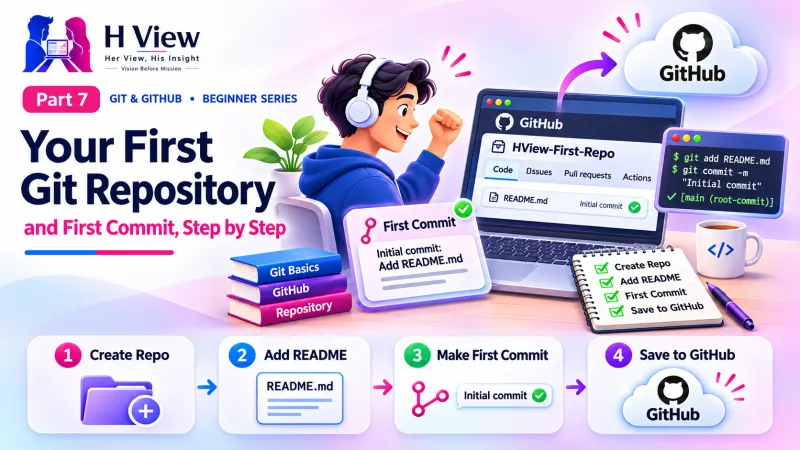
Your First Git Repository and First Commit, Step by Step (Part 7)
Build a tiny portfolio page, turn it into a Git repository and make your first commit, using the terminal, VS Code or GitHub Desktop. Part 7 of our visual Git and GitHub series.
To make your first commit, open your project folder in a terminal and run git init to create a repository. Then run git add . to stage your files and git commit -m "First commit" to save the snapshot. Check the result with git log. You can do the same with buttons in VS Code or GitHub Desktop.
Sneha remembers the exact moment: Sunday evening, laptop on the dining table, her mother asking what she was smiling at. On the screen was a single line, 1a2b3c4 Add bakery homepage. Her first commit. It looked tiny, but it meant her work could never be lost the way it was that weekend in Part 1. In Part 4 you learned the three areas, in Part 5 you installed Git and in Part 6 you created a GitHub account. Now, in Part 7, you will create a small portfolio page, turn it into a Git repository and save your own first snapshot. It takes about 15 minutes.
Your one-minute summary
- git init turns a normal folder into a Git repository
- git status shows what has changed; run it often
- git add . stages all changes; git add file stages one file
- git commit -m "message" saves a snapshot
- git log --oneline shows your history
- Good commit messages are short, specific and start with a verb
What will we build?
A one-page portfolio site with two files: index.html and style.css. It is deliberately tiny, so you can focus on Git rather than code. In Part 18 we will publish this same project online for free with GitHub Pages.
Today's plan
Step 1: How do I create the project folder?
Create a folder called my-portfolio somewhere easy to find, such as Documents. Avoid OneDrive, iCloud or Google Drive sync folders, as sync tools can interfere with Git's hidden folder. Open the folder in VS Code (File, Open Folder) and create index.html with this content:
| index.html |
|---|
<!DOCTYPE html><html><head><title>Sneha Reddy</title></head><body><h1>Hi, I am Sneha</h1><p>I build websites for local businesses in Guntur.</p></body></html> |
Replace the name and city with your own. Save the file.
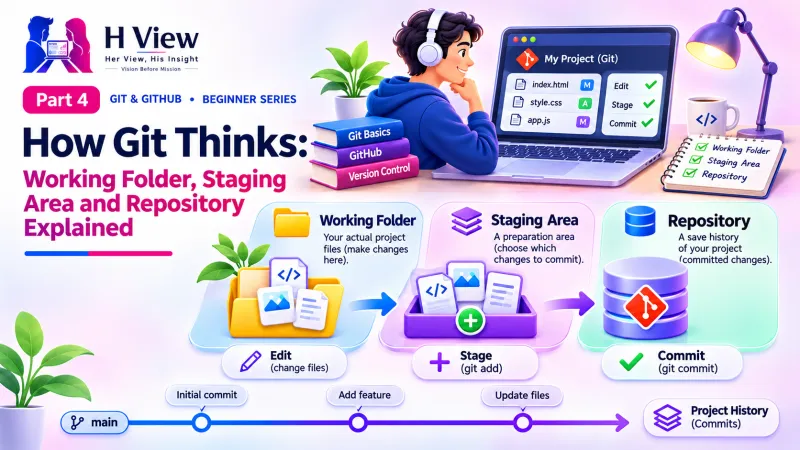 Also readHow Git Thinks: Working Folder, Staging Area and Repository Explained (Part 4)→
Step 2: How do I turn a folder into a Git repository?
Open a terminal inside the folder. In VS Code, use Terminal, New Terminal; it opens in the right place automatically. Then run git init:
| You type | Git replies (roughly) |
|---|---|
git init | Initialized empty Git repository in .../my-portfolio/.git/ |
git status | On branch main. No commits yet. Untracked files: index.html |
Git has created the hidden .git folder from Part 4. Your index.html is "untracked": Git can see it but is not recording it yet. Notice "On branch main", thanks to the setting you configured in Part 5.
Step 3: How do I make my first commit?
Two commands: stage, then commit.
| You type | What happens |
|---|---|
git add index.html | index.html moves to the staging area |
git status | Shows "Changes to be committed: new file: index.html" |
git commit -m "Add homepage with intro" | Git saves the snapshot and prints its short ID, such as [main (root-commit) 1a2b3c4] |
git log --oneline | 1a2b3c4 Add homepage with intro |
git log is your first commit. It has a unique ID, your name and email from Part 5, a date and your message. Whatever you do to these files from now on, this version is safe.Where your file travelled
The three areas from Part 4, now on your own laptop.
Step 4: How do I commit a second change?
Let us add some style. Create style.css with a line such as body { font-family: sans-serif; background: #f5f3ff; }, and add <link rel="stylesheet" href="style.css"> inside the <head> of index.html. Now:
The second commit
How do I do the same with VS Code buttons?
VS Code shows the three areas visually. Click the Source Control icon on the left sidebar.
- If the folder is not a repository yet, click Initialize Repository. This is
git init. - Changed files appear under Changes. Hover over a file and click + to stage it. This is
git add. - Staged files move to Staged Changes.
- Type a message in the box at the top and click Commit. This is
git commit. - Click any file to see a side-by-side diff in red and green.
How do I do it with GitHub Desktop?
In GitHub Desktop, choose File, then Add local repository and pick your my-portfolio folder. If it is not a repository yet, the app offers to create one. Changed files appear on the left with tick boxes; ticked files are staged. Write a summary in the box at the bottom left and click Commit to main. The History tab shows your commits.
| Action | Terminal | VS Code | GitHub Desktop |
|---|---|---|---|
| Create repository | git init | Initialize Repository | Add local repository, create |
| See changes | git status, git diff | Source Control panel | Changes tab |
| Stage | git add | + button | Tick boxes |
| Commit | git commit -m | Commit button | Commit to main |
| See history | git log | Timeline / Graph view | History tab |
How do I write a good commit message?
A commit message is a note to your future self. Six months from now, "Fix contact form email" will be useful; "changes" will not. The git commit documentation recommends a short summary line, ideally under about 50 characters.
Commit messages: weak vs strong
Weak
- update
- changes
- final final
- asdf
- fixed stuff
Strong
- Add contact form to homepage
- Fix menu overlap on mobile
- Update prices for Diwali offer
- Remove unused images
- Change heading font to Poppins
Start with a verb (Add, Fix, Update, Remove, Change), and describe what the change does.
What are common first-commit problems?
Problem and fix
"Please tell me who you are"
- Git does not know your name and email
- Run the two git config --global commands from Part 5
"not a git repository"
- Your terminal is in the wrong folder
- Use cd, or open a terminal from VS Code
"nothing to commit"
- You have not saved the file, or already committed it
- Save and run git status
A strange editor opened
- You ran git commit without -m
- Type a message, save and close
Before Part 8, make sure you have
- A my-portfolio folder with a hidden .git folder inside
- At least two commits in
git log --oneline - Staged and committed once using buttons in VS Code or GitHub Desktop
- Written commit messages that start with a verb
- Run
git statusand understood the reply
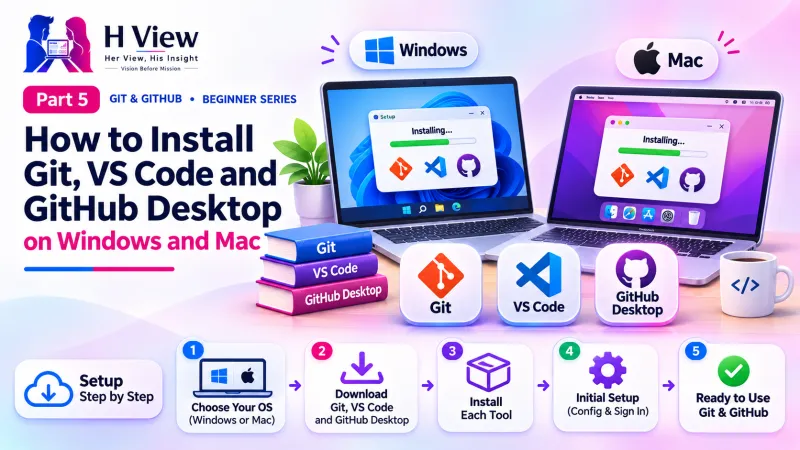 Also readHow to Install Git, VS Code and GitHub Desktop on Windows and Mac (Part 5)→
Her View
Your first commit deserves a small celebration. It marks the moment your work stopped being fragile. Many learners say this is when Git finally "clicks", because the abstract ideas suddenly become a real line of history on their own screen. Take a screenshot of your first git log; one day you will smile at it, just like Sneha does.
His Insight
Build the habit now: run git status before and after every Git command. It always tells you which area your changes are in and often suggests the next command. Commit small, logical units of work with clear messages. These two habits prevent most beginner mistakes.
H View Verdict
git init, git add and git commit are the heart of Git, and you have now used all three. Your project has a real history. In Part 8 we learn to read that history in depth with git status, git log and git diff.
Self-assessment: test yourself
Ready? Tap an option for each question. You will see right away whether you got it, with a short explanation, and your score at the end. Take your time, and try again as often as you like.
First commit quiz: 10 questions
1. Which command turns a normal folder into a Git repository?
- git start
- git init
- git new
- git create
git init creates the hidden .git folder that holds the repository.
2. What does the dot in git add . mean?
- Nothing
- Only HTML files
- All changes in the current folder
- The last file edited
The dot means the current folder, so all its changes are staged.
3. Which is the best commit message?
- update
- final final
- Fix menu overlap on mobile
- asdf
It starts with a verb and says exactly what changed.
4. Git says "Please tell me who you are". What fixes it?
- Reinstall Git
- Set user.name and user.email with git config
- Create a new folder
- Log in to GitHub
Git needs an author name and email for every commit.
5. In VS Code, clicking + next to a changed file is the same as
- git commit
- git add
- git push
- git init
The + button stages the file, just like git add.
6. Right after git init, your index.html is
- Committed
- Pushed
- Untracked
- Deleted
Git sees the file but does not record it until you add and commit.
7. Which command shows your history as one line per commit?
- git status
- git log --oneline
- git init
- git add
git log --oneline shows the short ID and message of each commit.
8. Why avoid creating projects inside OneDrive or Google Drive sync folders?
- They are too fast
- Sync tools can interfere with the hidden .git folder
- Git cannot read Word files
- They cost money
Sync tools may change .git files and cause problems; use GitHub for backup.
9. In GitHub Desktop, ticking a file's checkbox is the same as
- Staging it
- Deleting it
- Pushing it
- Renaming it
Ticked files are included in the next commit, like git add.
10. After your first commit, is the project on GitHub yet?
- Yes, automatically
- No, commits stay on your computer until you push
- Only if the file is HTML
- Only on weekdays
Commits are local; git push sends them to GitHub (Part 9).
Frequently asked questions
Is my first commit on GitHub now?
Not yet. Commits are saved on your computer. We send them to GitHub with git push in Part 9.
How often should I commit?
Whenever you finish a small, meaningful piece of work, such as a fixed bug or a new section. Many developers commit several times an hour.
Can I change a commit message after committing?
Yes, for the most recent commit, with git commit --amend -m "New message", as long as you have not pushed it yet. Part 11 covers undoing safely.
Can I use git init in an existing project?
Yes. Running git init in any folder with files starts tracking it from that point onwards. Earlier versions are not recovered, but every future change is.
H View stories follow our editorial policy. Spotted an error? Tell us and we will correct it.
Rate this article
One tap is enough. No comment needed.
Was this article helpful?
Your answer goes straight to our editors.








Comments0
No comments yet. Start the conversation.