

Create a GitHub Account, Secure It and Connect It to Your Computer (Part 6)
Sign up for GitHub, choose a professional username, switch on two-factor authentication and connect your computer so you can push code. Part 6 of our visual Git and GitHub series.
To create a GitHub account, go to github.com, click Sign up and enter your email, a password and a username. Then turn on two-factor authentication and connect your computer, either by signing in through GitHub Desktop or VS Code, or by setting up an SSH key. Account passwords alone no longer work for pushing code.
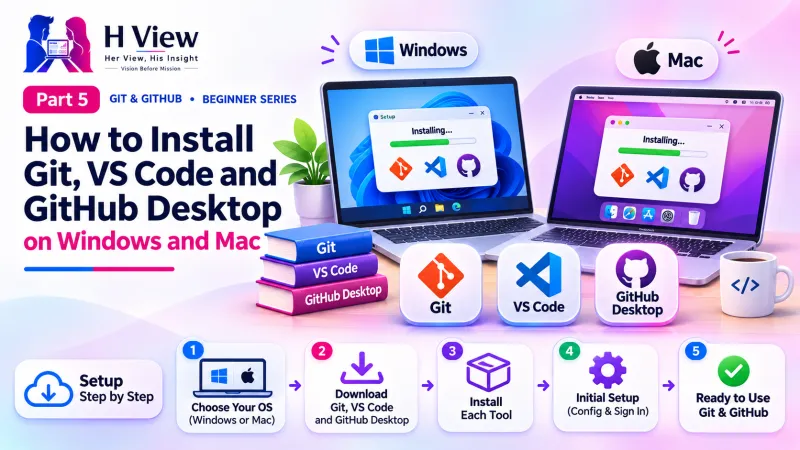
Sneha almost chose the username "cutecoder_sneha_2003". Arjun stopped her just in time. "This name will appear on every project link you send to a client. Choose something you would happily print on a visiting card." In Part 5 you installed Git, VS Code and GitHub Desktop. Git now works on your computer, but it has nowhere online to send your work. In this Part 6 we create that online home, choose a professional name and secure it properly, because your GitHub account will soon hold your portfolio, client work and reputation.
Your one-minute summary
- Sign up free at github.com; choose a professional username
- Use the same email you set in Git (or GitHub's private noreply email)
- Turn on two-factor authentication (2FA) with an authenticator app
- Since 13 August 2021, GitHub no longer accepts account passwords for Git operations
- Connect your computer by signing in through an app (easiest) or with an SSH key
How do I create a GitHub account?
Signing up takes about five minutes, and the Free plan is enough for everything in this series.
Creating your GitHub account
If GitHub asks about plans, choose Free. You can upgrade later if you ever need to.
How should I choose a GitHub username?
Your username appears in every project link you share, such as github.com/snehareddy/bakery-site, and in free website addresses like snehareddy.github.io. Treat it like a professional email address.
Username: good vs avoid
Good choices
- snehareddy, sneha-reddy, sreddy-dev
- Your real name or a stable brand name
- Short and easy to spell aloud on a phone call
Avoid
- cutecoder_sneha_2003, sneha.lovesbiryani
- Names tied to one college year or job
- Long names full of numbers and underscores
git config user.email, your commits still link to your profile, without showing your real email to the world. Also readGit vs GitHub vs GitLab vs Bitbucket: What Is the Difference? (Part 2)→
Why do I need two-factor authentication on GitHub?
Two-factor authentication (2FA) means logging in needs your password plus a one-time code from your phone. Even if someone steals your password, they cannot get in. GitHub takes this seriously: its documentation notes that since March 2023 it has required users who contribute code on GitHub.com to enable 2FA.
Turning on 2FA
Recovery codes are your only way in if you lose your phone. Do not skip that step.
Layers that protect your account
How do I connect Git on my computer to GitHub?
Your computer must prove it is you before GitHub accepts your pushes. Since 13 August 2021, GitHub no longer accepts your account password for Git operations. Instead you use one of these methods:
Three ways to connect, from easiest
1. Sign in through an app (easiest)
- GitHub Desktop: File, Options, Accounts, Sign in
- VS Code: click "Sign in with GitHub" when it asks
- Your browser handles the login safely
2. HTTPS with a credential helper
- Git for Windows includes Git Credential Manager
- The first push opens a browser login
- Your login is then remembered securely
3. SSH key (popular with developers)
- Create a key pair on your computer
- Add the public key to GitHub
- No login prompts afterwards
Pick one. Sneha started with option 1 and tried SSH a month later.
Option 1: Sign in with GitHub Desktop or VS Code
In GitHub Desktop, go to File, Options (Windows) or GitHub Desktop, Settings (Mac), choose Accounts and click "Sign in". Your browser opens, you approve, and you are done. VS Code works the same way: the first time you push or clone, it offers "Sign in with GitHub".
Option 2: HTTPS from the terminal
On Windows, the Git for Windows installer includes Git Credential Manager. The first time you push from Git Bash, a window opens for you to log in to GitHub in the browser. After that, Git remembers your login securely. On a Mac, installing the GitHub CLI and running gh auth login is the simplest equivalent.
Option 3: Create an SSH key
An SSH key is a pair of files: a private key that stays on your computer and a public key you give to GitHub. Run these in Git Bash or Terminal:
| Step | Command or action |
|---|---|
| 1. Create the key | ssh-keygen -t ed25519 -C "sneha@example.com" and press Enter to accept the default location |
| 2. Show the public key | cat ~/.ssh/id_ed25519.pub and copy the line it prints |
| 3. Add it to GitHub | Settings, then "SSH and GPG keys", then "New SSH key"; paste and save |
| 4. Test the connection | ssh -T git@github.com; type "yes" the first time |
.pub goes to GitHub. The other file, id_ed25519 without .pub, is like your house key. Never paste it anywhere, email it or commit it to a repository.How do I set up my GitHub profile?
A tidy profile makes a good first impression on clients and recruiters. Spend ten minutes on these basics:
Profile setup checklist
- Add a clear profile photo
- Write a one-line bio, such as "Web developer in Guntur, building websites for local businesses"
- Add your city, website or LinkedIn link
- Turn on two-factor authentication and save recovery codes
- Choose whether to keep your email private
- Later: pin your best projects to the top of your profile
You can even create a profile README: make a public repository with exactly the same name as your username, and GitHub shows its README.md on your profile page. We cover READMEs in Part 17.
What does the GitHub home screen show?
Finding your way around GitHub
Before Part 7, make sure you can
- Log in to github.com with your new account
- Pass the 2FA check with your authenticator app
- Find your saved recovery codes
- See your account in GitHub Desktop or VS Code, or pass
ssh -T git@github.com - Explain why your password alone cannot push code
Her View
Online security can feel like one more chore, but 2FA is the digital version of locking your front door. Your GitHub account will hold work you are proud of, and possibly code your clients rely on. Setting it up once, calmly, protects all of that. And a thoughtful profile, with your real name, city and a friendly bio, helps the right people find you.
 Also readWhat Is Version Control? Git and GitHub for Beginners (Part 1)→
His Insight
Choose your connection method based on where you work. If you mostly use GitHub Desktop or VS Code, sign in through the app. If you use the terminal on several machines, SSH keys save time. Either way, use an authenticator app rather than SMS for 2FA, store recovery codes offline and never commit keys or tokens to any repository.
H View Verdict
A GitHub account is free, quick to create and worth securing from day one. With 2FA switched on and your computer connected, you are ready to create your first real repository. That is exactly what we do in Part 7: git init, your first commit and your first project.
Self-assessment: test yourself
Ready? Tap an option for each question. You will see right away whether you got it, with a short explanation, and your score at the end. Take your time, and try again as often as you like.
GitHub account quiz: 10 questions
1. Since 13 August 2021, what does GitHub NOT accept for Git operations?
- SSH keys
- Your account password
- Personal access tokens
- Signing in through GitHub Desktop
Passwords were replaced by tokens, SSH keys and app sign-in.
2. Which SSH key file is safe to give to GitHub?
- id_ed25519
- id_ed25519.pub
- Both
- Neither
Only the public key (.pub) is shared. The private key never leaves your computer.
3. Why save 2FA recovery codes?
- To share with friends
- To log in if you lose your phone
- To speed up pushes
- They are required for SSH
Recovery codes let you access your account without your authenticator.
4. Which is the best GitHub username for a professional profile?
- cutecoder_sneha_2003
- snehareddy
- temp-account-1
- sneha.lovesbiryani
A short, real-name username is easy to remember and share.
5. Which command tests an SSH connection to GitHub?
- git --version
- git push
- ssh -T git@github.com
- git config --list
ssh -T git@github.com confirms GitHub recognises your key.
6. What is the easiest way for a beginner to connect their computer to GitHub?
- Email your password to GitHub
- Sign in through GitHub Desktop or VS Code
- Share your private SSH key
- Use an old Git version
App sign-in opens a secure browser login with no keys to manage.
7. What does "Keep my email addresses private" give you?
- A paid plan
- A noreply email address for your commits
- A new username
- Free hosting
GitHub provides a noreply address that still links commits to your profile.
8. Which 2FA method does GitHub recommend over SMS?
- Email codes
- An authenticator (TOTP) app
- No 2FA
- Writing the password twice
Authenticator apps are more secure than SMS codes.
9. Which address would Sneha's free personal website use?
- sneha.com
- snehareddy.github.io
- github.com/sneha.html
- snehareddy.git
GitHub Pages user sites use username.github.io (Part 18).
10. How do you show a README on your GitHub profile page?
- Upload a PDF in Settings
- Create a public repo with the same name as your username
- Email GitHub support
- Pin any repository
GitHub displays the README of the repository named after your username.
Frequently asked questions
Is a GitHub account free?
Yes. The Free plan includes unlimited public and private repositories, which is plenty for learning, portfolios and small client projects.
Can I change my GitHub username later?
Yes, in Settings. GitHub redirects many old links, but some, such as old GitHub Pages addresses, may break, so choose carefully at the start.
Do I need SSH if I use GitHub Desktop?
No. Signing in through GitHub Desktop is enough for pushing and pulling from that app.
What if I lose my phone and my recovery codes?
Account recovery becomes difficult and may not be possible. That is why GitHub recommends storing recovery codes safely and adding a second method, such as a passkey or security key.
H View stories follow our editorial policy. Spotted an error? Tell us and we will correct it.
Rate this article
One tap is enough. No comment needed.
Was this article helpful?
Your answer goes straight to our editors.











Comments0
No comments yet. Start the conversation.