
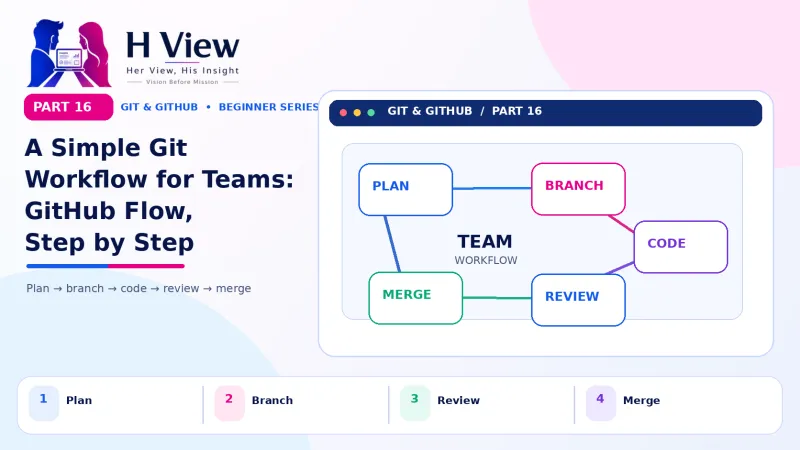
A Simple Git Workflow for Teams: GitHub Flow, Step by Step (Part 16)
Put branches, pull requests and reviews together into one simple team routine: GitHub flow. Add collaborators, protect main and follow daily habits that prevent chaos. Part 16 of our Git series.
The simplest Git workflow for teams is GitHub flow: main always stays working; every change starts on a new branch; work is shared through a pull request; a teammate reviews it; and it is merged and deployed. Add branch protection so nobody can push to main directly, and a small team can work together smoothly.
Word spread about the bakery website. Within two months, Sneha had more requests than she could handle alone, so she teamed up with two college friends, Ravi and Anu, to form a small web studio in Guntur. Their first big client was a local hospital. On day three, Ravi pushed a change straight to main that overwrote Anu's work from the morning. Nobody had done anything "wrong"; they simply had no agreed way of working. That evening they sat down with chai and agreed on GitHub flow. You now know all the pieces: branches, merging, pull requests and forks. This Part 16 closes Module 4 by fitting them into a routine any small team can follow.
Your one-minute summary
- GitHub flow: branch → commit → pull request → review → merge → deploy
- main is always deployable
- Invite teammates as collaborators (or use an organisation)
- Protect main with branch protection rules
- Agree on naming, commit messages and PR size
- Daily habit: pull in the morning, push before you leave
What is GitHub flow?
GitHub flow is a lightweight, branch-based workflow described in GitHub's own documentation. It has few rules, which makes it ideal for small teams and websites that are updated often.
GitHub flow in six steps
Repeat for every feature, fix or content change, however small.
How do I set up a repository for a team?
Before the first branch, spend 15 minutes setting up the repository properly.
Team repository setup
 Also readYour First Git Repository and First Commit, Step by Step (Part 7)→
What is branch protection, and why use it?
Branch protection rules stop accidents like Ravi's. With a rule on main, GitHub can refuse direct pushes, require a pull request, require one or more approvals and require automatic checks to pass before anything is merged. GitHub explains the options in its guide to protected branches.
| Rule | What it prevents | Recommended for beginners? |
|---|---|---|
| Require a pull request before merging | Direct, unreviewed pushes to main | Yes |
| Require approvals (1) | Merging without a second pair of eyes | Yes, for teams of 2+ |
| Require status checks to pass | Merging code that fails automatic tests | Yes, once you add Actions (Part 19) |
| Block force pushes | Rewriting main's history | Yes |
| Restrict deletions | Deleting main by mistake | Yes |
What does a real team day look like?
One day at Sneha's studio, with GitHub flow
Nobody waited for anyone, nobody overwrote anyone and main stayed working all day.
What rules should a small team agree on?
The studio's team agreement
- Never push directly to main; always use a pull request
- Branch names: feature/, fix/, content/ plus a short description
- Commit messages start with a verb: Add, Fix, Update, Remove
- Keep pull requests small; split big features
- Every PR has a description, testing steps and screenshots for visual changes
- Review within one working day
- Delete branches after merging
- Pull main every morning; push before you leave
How is GitHub flow different from Git flow?
You may hear of "Git flow", an older and more structured model. It uses long-lived main and develop branches plus special release and hotfix branches. It suits software with planned version releases, such as mobile apps. For websites that update frequently, GitHub flow is simpler and usually enough.
Two popular workflows
GitHub flow
- One long-lived branch: main
- Short feature branches and PRs
- Deploy often, even daily
- Best for websites, small teams and beginners
Git flow
- main plus develop, release and hotfix branches
- More ceremony and planning
- Planned, versioned releases
- Best for products with formal release cycles
How do teams communicate on GitHub?
Where conversations belong
What are common team problems and fixes?
| Problem | Likely cause | Fix |
|---|---|---|
| Frequent merge conflicts | Long-lived branches, large PRs | Smaller PRs, merge daily, pull main into branches |
| Main breaks often | Direct pushes, no review | Branch protection, required approvals, Actions checks |
| PRs wait for days | No review owner | Agree a review rota and response time |
| Nobody knows what is in progress | Work tracked in chats only | Issues and a Projects board |
Before Part 17, make sure you can
- List the six steps of GitHub flow
- Invite a collaborator to a repository
- Add a branch protection rule to main
- Write a short team agreement
- Explain when Git flow might be a better fit
Her View
A good workflow is really about respect: for teammates' time, for the client's live website and for the shared work. Clear rules remove awkwardness, so nobody has to ask "did you just overwrite my changes?". When everyone follows the same rhythm, teams feel calmer, kinder and more confident, and friendships survive working together.
 Also readHow to Install Git, VS Code and GitHub Desktop on Windows and Mac (Part 5)→
His Insight
Start with the lightest process that works: GitHub flow, one required approval and protection on main. Add automatic checks once you have them. Watch two things informally: how long PRs wait for review and how often main breaks. If either grows, tighten the process; if neither does, keep it simple.
H View Verdict
GitHub flow turns everything you have learned into a calm, repeatable team routine. Protect main, work on branches, review through pull requests and merge often. That completes Module 4. In Module 5, we explore GitHub beyond code, starting in Part 17 with README files, Issues and Projects.
Self-assessment: test yourself
Ready? Tap an option for each question. You will see right away whether you got it, with a short explanation, and your score at the end. Take your time, and try again as often as you like.
Team workflow quiz: 10 questions
1. In GitHub flow, main should always be
- Empty
- Working and deployable
- Experimental
- Deleted after each release
Only reviewed, working changes reach main.
2. Which setting stops people pushing directly to main?
- .gitignore
- Branch protection rule requiring pull requests
- Making the repo public
- git stash
Branch protection can require all changes to arrive through PRs.
3. What is the first step of GitHub flow?
- Merge
- Deploy
- Create a branch
- Delete main
Every change starts on a new branch from an up-to-date main.
4. Git flow is best suited for
- A personal blog
- Products with planned, versioned releases
- One-page websites
- Learning Git
Git flow's release branches suit formal release cycles.
5. What helps most to reduce merge conflicts in a team?
- Larger pull requests
- Small PRs merged often
- Fewer commits
- Force pushing
Small, frequent merges keep branches close to main.
6. What caused the problem on day three at Sneha's studio?
- A slow laptop
- A direct push to main with no agreed workflow
- A virus
- GitHub was down
Without rules, a direct push overwrote a teammate's work.
7. Where do you invite a teammate to a repository?
- In the README
- Settings, then Collaborators
- In a commit message
- Through git push
Collaborators are added in the repository settings.
8. What is a good daily team habit?
- Never pull
- Pull main in the morning, push before leaving
- Push only on Fridays
- Work only on main
This keeps everyone in sync and work backed up.
9. How do you notify a teammate in a PR comment?
- Use CAPITAL LETTERS
- Use an @mention, like @ravi
- Delete the PR
- Push to main
@mentions send notifications to that person.
10. How many approvals work well for a small team?
- Zero
- One
- Five
- Everyone in the company
One approval adds a second pair of eyes without slowing work.
Frequently asked questions
Do I need GitHub flow if I work alone?
A light version helps: branch, pull request and merge. It gives you a review step and clean history, and makes adding a teammate later easy.
How do I add someone to my repository?
Open the repository, go to Settings, then Collaborators, and invite them by username or email. They must accept the invitation.
Should clients have access to the repository?
Often read access is enough, so they can see progress. Many freelancers share pull request links or a staging site instead of repository access.
How many approvals should a team require?
One approval works well for small teams. Larger or more sensitive projects may require two.
H View stories follow our editorial policy. Spotted an error? Tell us and we will correct it.
Rate this article
One tap is enough. No comment needed.
Was this article helpful?
Your answer goes straight to our editors.










Comments0
No comments yet. Start the conversation.