
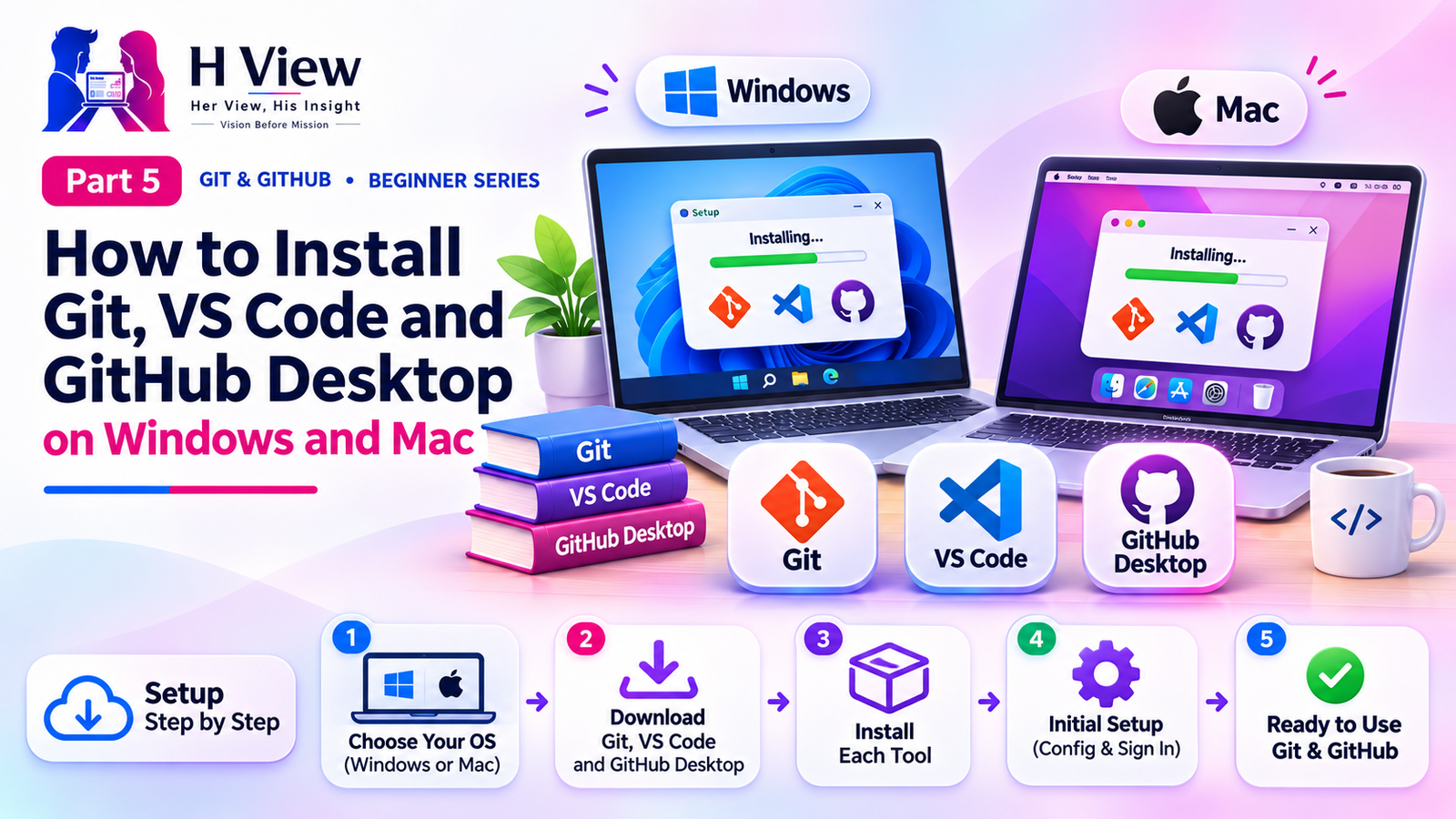
How to Install Git, VS Code and GitHub Desktop on Windows and Mac (Part 5)
A step-by-step guide to installing Git, VS Code and GitHub Desktop on Windows and Mac, plus the three settings every beginner should configure once. Part 5 of our visual Git series.
To install Git, download the free installer from git-scm.com on Windows, or type git --version in Terminal on a Mac and accept the prompt. Then install VS Code as your editor and, if you prefer buttons to commands, GitHub Desktop. Finally, tell Git your name and email once. The whole setup takes about 15 minutes.
Sneha kept putting this step off. "What if I install something wrong and break my laptop?" she asked. Arjun's reply was simple: "Make a cup of chai. By the time it cools, you will be done." He was right. Module 1 of this series gave you the ideas: version control, Git vs GitHub, why Git matters and the three areas. Now Module 2 makes it real. In this Part 5, we install three free tools and configure Git so it is ready for your first project.
Your one-minute summary
- Git: the version control engine (required)
- VS Code: a free code editor with Git built in (recommended)
- GitHub Desktop: a free app for Git with buttons (optional)
- Set user.name, user.email and init.defaultBranch main once
- Check it worked with git --version
- All three tools are free for Windows and Mac
Which tools do beginners need to install?
You need Git itself. VS Code and GitHub Desktop are friendly ways to use it. Many beginners install all three and decide later which they like best.
Your Git toolkit
Git (required)
- The engine that records history
- Used through the terminal or other apps
- Download: git-scm.com
VS Code (recommended)
- Free editor from Microsoft
- Built-in Source Control panel for Git
- Download: code.visualstudio.com
GitHub Desktop (optional)
- Free app from GitHub
- Commit and push with buttons
- Download: desktop.github.com
Only download from these official websites, never from third-party download sites.
How do I install Git on Windows?
Git for Windows comes as a normal installer. The default options are fine for beginners; only two screens are worth a second look.
Installing Git on Windows
maingit --versionThe installer also adds Git Bash, a terminal window that understands Git commands.
If git --version replies with something like git version 2.x, Git is installed. The exact number does not matter as long as it is a recent version.
 Also readGit vs GitHub vs GitLab vs Bitbucket: What Is the Difference? (Part 2)→
How do I install Git on a Mac?
Macs make this easy. Open the Terminal app (press Command and Space, type "Terminal") and run git --version. If Git is missing, macOS offers to install Apple's Command Line Developer Tools, which include Git. Click Install and wait a few minutes.
| Your computer | Easiest way to get Git | Check it worked |
|---|---|---|
| Windows 10 or 11 | Git for Windows installer from git-scm.com | Open Git Bash, run git --version |
| Mac | Run git --version in Terminal and accept the install prompt | Run git --version again |
| Mac with Homebrew | brew install git | git --version |
| Ubuntu or Debian Linux | sudo apt install git | git --version |
How do I install VS Code?
Download VS Code from code.visualstudio.com and run the installer. On Windows, tick "Add to PATH" and "Open with Code" when asked; these make life easier later. VS Code detects Git automatically, so there is nothing extra to connect.
Inside VS Code, the Source Control icon on the left sidebar (it looks like a branching line) shows your changes, lets you stage them with a plus button and commit with a message box. It is the same three areas from Part 4, shown as buttons.
A tour of the VS Code window
How do I install GitHub Desktop?
Download it from desktop.github.com, available for Windows and macOS. When it opens, it asks you to sign in to GitHub; you can skip this and come back after Part 6, where we create your account. GitHub Desktop shows changed files on the left, a coloured diff on the right and a commit box at the bottom left.
Should I use the terminal, VS Code or GitHub Desktop?
Use whichever helps you learn. They all use the same Git underneath, so a commit made in one shows up in the others. Sneha uses VS Code for daily work and the terminal when she wants to understand exactly what is happening.
| Terminal | VS Code | GitHub Desktop | |
|---|---|---|---|
| Learning curve | Steeper at first | Gentle | Gentlest |
| Works with any Git host | Yes | Yes | Best with GitHub |
| Shows diffs visually | Text only | Yes | Yes |
| Every Git feature available | Yes | Most | Common ones |
| Good for | Understanding Git deeply | Daily coding | Absolute beginners |
What settings should I configure after installing Git?
Git needs to know who you are, because every commit records an author. Open Git Bash (Windows) or Terminal (Mac) and run these commands once, using your own details:
| Command | What it does |
|---|---|
git config --global user.name "Sneha Reddy" | Sets the name shown on your commits |
git config --global user.email "sneha@example.com" | Sets your email; use the same one as your GitHub account |
git config --global init.defaultBranch main | Names the first branch "main" in new projects |
git config --global core.editor "code --wait" | Uses VS Code when Git needs you to write a message |
git config --list | Shows all your settings to check them |
main as the default branch name, and Git 2.28 added the init.defaultBranch setting so your computer can match it. Setting it now avoids a confusing "main vs master" mismatch when you push in Part 9.The one-time setup, start to finish
Sneha finished before her chai went cold.
What are common installation problems?
Problem and fix
"git is not recognized" on Windows
- Close and reopen your terminal
- Or restart so Windows picks up the new PATH
Mac install prompt does not appear
- Run
xcode-select --installin Terminal
Office laptop blocks installers
- Ask your IT team; many companies already provide Git
Wrong email on commits
- Run the user.email command again
- Future commits use the new email
Before Part 6, make sure you can
- Run
git --versionand see a version number - Open VS Code and find the Source Control icon
- See your name and email in
git config --list - Confirm
init.defaultBranch=mainappears in the list - Optionally, open GitHub Desktop
Her View
Installing developer tools can feel intimidating, especially the first time a black terminal window appears. Remember that every expert once typed git --version for the first time too. Take it slowly, follow the steps in order, and celebrate when you see that version number. Setup is the hardest emotional step; from here, it gets more fun.
 Also readWhat Is Version Control? Git and GitHub for Beginners (Part 1)→
His Insight
Use the same email for Git and your GitHub account so your commits link to your profile and count on your contribution graph. If you want to keep your personal email private, GitHub offers a "noreply" address in its email settings that you can use instead. And always download tools from official sites; fake download pages are a common way malware spreads.
H View Verdict
Three free tools and five configuration commands are all you need. Install Git, add VS Code, optionally add GitHub Desktop, and introduce yourself to Git once. In Part 6, we create your GitHub account, secure it with two-factor authentication and connect it to your computer.
Self-assessment: test yourself
Ready? Tap an option for each question. You will see right away whether you got it, with a short explanation, and your score at the end. Take your time, and try again as often as you like.
Installation quiz: 10 questions
1. Which command checks that Git is installed?
- git start
- git --version
- git install
- git check
git --version prints the installed version number.
2. Which tool is required, not optional?
- Git
- VS Code
- GitHub Desktop
- Chrome
Git is the engine. VS Code and GitHub Desktop are friendly ways to use it.
3. Why should you set user.email?
- To receive newsletters
- Every commit records an author email
- To speed up Git
- It is needed to install VS Code
Git stamps each commit with your name and email.
4. Since October 2020, new GitHub repositories use which default branch name?
- master
- trunk
- main
- default
GitHub switched new repositories to main on 1 October 2020.
5. On a Mac, what happens if you run git --version without Git installed?
- Nothing
- The Mac restarts
- macOS offers to install the Command Line Developer Tools
- GitHub opens
macOS prompts you to install Apple's developer tools, which include Git.
6. What is Git Bash?
- A paid Git plan
- A terminal window installed with Git for Windows
- A GitHub website
- A virus
Git for Windows adds Git Bash so you can type Git commands.
7. Where should you download Git from?
- Any free download site
- The official site, git-scm.com
- A WhatsApp forward
- An email attachment
Official sites avoid fake installers and malware.
8. In VS Code, which icon shows your Git changes?
- Explorer
- Extensions
- Source Control
- Settings
The Source Control panel shows changes and lets you stage and commit.
9. Which command shows all your Git settings?
- git config --list
- git log
- git show settings
- git status
git config --list prints every configured value.
10. Windows says "git is not recognized" right after installing. What should you try first?
- Reinstall Windows
- Close and reopen the terminal
- Buy a Mac
- Delete VS Code
A fresh terminal picks up the updated PATH.
Frequently asked questions
Is Git free to download?
Yes. Git, VS Code and GitHub Desktop are all free to download and use.
Do I need GitHub Desktop if I have VS Code?
No. VS Code's Source Control panel covers everyday Git work. GitHub Desktop is a nice extra if you prefer a dedicated app.
Can I install Git on a Chromebook or phone?
Chromebooks with Linux enabled can install Git with sudo apt install git. Phones are not practical for Git work, though the GitHub Mobile app is useful for reviewing.
What if I entered the wrong name or email?
Run the same git config --global command again with the correct value. It replaces the old setting for future commits.
git --version works. It is the first proof that you are now a Git user. Next up, Part 6: Create your GitHub account and connect it to your computer.H View stories follow our editorial policy. Spotted an error? Tell us and we will correct it.
Rate this article
One tap is enough. No comment needed.
Was this article helpful?
Your answer goes straight to our editors.






Comments0
No comments yet. Start the conversation.