
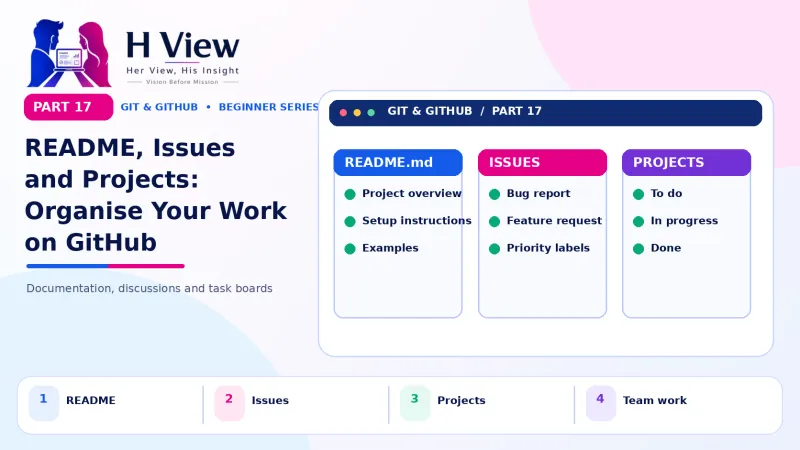
README, Issues and Projects: Organise Your Work on GitHub (Part 17)
GitHub is more than code storage. Write a README that sells your project, track bugs and client requests with Issues, and plan work on a Projects board. Part 17 of our visual Git series.
A README is the front page of your repository, written in Markdown, that explains what the project is and how to use it. GitHub Issues are a to-do list for bugs, ideas and requests, each with its own discussion. GitHub Projects arranges those issues on a board or table so you can plan who does what and when. Together, they turn a code folder into a well-organised project.
By now Sneha's studio had five clients, and their requests arrived everywhere: WhatsApp voice notes, emails, phone calls and, once, a note handed over at a wedding. "Change the clinic timings." "Add Telugu text to the banner." "The menu photo looks blurry." Things were being forgotten. Anu finally said, "If it is not on GitHub, it does not exist." That rule changed everything. Module 5 of this series looks at GitHub beyond code. In Part 16 we built a team workflow; this Part 17 adds the tools that keep it organised, and that make student portfolio projects look professional too.
Your one-minute summary
- README.md appears on your repository's home page
- Markdown uses simple symbols: # for headings, - for lists, ** for bold
- A repository named after your username shows its README on your profile
- Issues track bugs, tasks and requests, with labels and assignees
- Projects show issues as a board, table or roadmap
- Link everything: Closes #12 in a pull request closes the issue
What is a README, and why does it matter?
When anyone opens your repository, GitHub shows the README below the file list. It is the first thing a recruiter, client or contributor reads. GitHub's guide About READMEs describes it as the place to tell people why your project is useful, what they can do with it and how they can use it.
What a good README includes
How do I write Markdown?
Markdown is plain text with a few symbols that GitHub turns into formatting. You can learn the basics in ten minutes; GitHub's basic formatting guide covers everything.
| You type | You get |
|---|---|
# Sri Lakshmi Bakery Website | A large heading |
## Features | A smaller heading |
**bold** and *italic* | bold and italic |
- Online cake booking | A bullet point |
1. Clone the repo | A numbered step |
[Live demo](https://snehareddy.github.io) | A clickable link |
 | An image |
`git status` | Inline code |
- [ ] Add Telugu banner | A checkbox task list |
snehareddy/snehareddy, and add a README.md. GitHub shows it at the top of your profile page. Use it for a short introduction, your skills and links to your best projects. Also readForks and Open Source: How to Contribute to Other People's Projects on GitHub (Part 15)→
What are GitHub Issues?
An issue is a single trackable item: a bug, a feature idea, a client request or a question. Each issue gets a number (#1, #2...), a title, a description and its own comment thread. GitHub's About issues guide explains all the options.
Anatomy of a good issue
How do issues connect to code?
- Mention an issue anywhere with its number: "Related to #12".
- Write
Closes #12in a pull request; merging the PR closes the issue automatically. - Create a branch directly from an issue using the "Create a branch" link in its sidebar.
- Use issue templates (Settings, Features, Issues) to ask reporters for the details you need.
How can freelancers use Issues with clients?
Instead of chasing client requests across WhatsApp, email and calls, turn each request into an issue. You get one list, one discussion per request and a record of what was done.
From a WhatsApp voice note to done
What is GitHub Projects?
GitHub Projects is a flexible planning tool that pulls issues and pull requests into one view. You can switch between layouts without losing anything.
Three ways to view a project
Board
- Columns such as To do, In progress, Done
- Drag cards between columns
- Great for daily work
Table
- Spreadsheet-like rows
- Sort and filter by label, assignee or status
- Great for planning
Roadmap
- Items on a timeline
- Uses start and target dates
- Great for launches and deadlines
The studio's board on a Monday morning
How do I create a project board?
- On your profile or repository, open the Projects tab and click New project.
- Choose the Board template.
- Add existing issues with + Add item, or type a quick draft task.
- Rename columns to suit you, for example Backlog, This week, In review, Done.
- Turn on built-in automations so items move to Done when issues close.
What other GitHub features help organise work?
- Discussions: a forum-style space for questions and ideas that are not tasks.
- Wiki: longer documentation pages for a project.
- Releases: named versions, such as "v1.0, launched for Sankranti", with notes and downloadable files.
- Labels and milestones: shared across issues and pull requests for easy filtering.
Before Part 18, make sure you can
- Write a README with a title, screenshot, features and setup steps
- Use Markdown for headings, lists, links and images
- Create a profile README repository
- Open an issue with labels and an assignee
- Create a Projects board and add issues to it
Her View
A thoughtful README is an act of hospitality. It welcomes visitors, explains your work and shows you care about the people who will use it. Many talented builders lose opportunities because their projects have no description at all. Ten minutes of clear writing can make a recruiter stay, a client trust you or a stranger contribute.
 Also readGit push, Git pull and Git clone: Syncing Your Work with GitHub (Part 9)→
His Insight
Keep one source of truth. If every request becomes an issue and every change links to one, you always know what is pending, what is done and why something changed. For freelancers, the closed-issues list becomes an effortless monthly report. Start with three labels (bug, feature, content) and a simple board; add structure only when you need it.
H View Verdict
README files present your work, Issues capture every task and Projects show the big picture. Together they make GitHub a complete workspace, not just storage. Next, in Part 18, we put your portfolio online for free with GitHub Pages.
Self-assessment: test yourself
Ready? Tap an option for each question. You will see right away whether you got it, with a short explanation, and your score at the end. Take your time, and try again as often as you like.
README, Issues and Projects quiz: 10 questions
1. In Markdown, how do you write a large heading?
- # Heading
- **Heading**
- - Heading
- [Heading]
A single # makes the largest heading; ## makes a smaller one.
2. How do you show a README on your GitHub profile page?
- Upload it to Settings
- Create a public repo with the same name as your username
- Name it PROFILE.md
- Pin any repository
GitHub displays the README of the repository matching your username.
3. What is a GitHub issue?
- An error in Git
- A trackable item such as a bug, task or request
- A merge conflict
- A paid feature
Issues track work and discussion, each with a number.
4. Which Projects layout shows items on a timeline?
- Board
- Table
- Roadmap
- Wiki
Roadmap places items on a calendar using dates.
5. What does "- [ ] Add footer" create in Markdown?
- A link
- A heading
- A checkbox task
- An image
Task lists use - [ ] for unchecked and - [x] for checked items.
6. What was Anu's rule for the studio?
- Only use WhatsApp
- If it is not on GitHub, it does not exist
- Never write READMEs
- Work only on main
One source of truth stops requests being forgotten.
7. How do you write a clickable link in Markdown?
- <link>
- [text](https://example.com)
- **text**
- # text
Square brackets hold the text; round brackets hold the address.
8. Which issue field shows who is working on it?
- Label
- Assignee
- Milestone
- Title
The assignee is the person responsible for the issue.
9. How can a closed-issues list help a freelancer?
- It deletes old work
- It works as a monthly report of work done
- It increases prices
- It hides bugs
Closed issues are a clear record to share with clients.
10. What is the difference between an issue and a pull request?
- They are the same
- An issue describes work; a PR contains the code that does it
- Issues are only for bugs
- PRs are only for documentation
Link them with "Closes #number" so merging the PR closes the issue.
Frequently asked questions
Is README.md required?
No, but repositories without one look unfinished. Every public project should have at least a title, a description and how to use it.
Are GitHub Issues and Projects free?
Yes, both are available on the Free plan for public and private repositories.
Can clients create issues?
Anyone can open issues on a public repository. For a private one, the client needs access. Many freelancers create issues on the client's behalf instead.
What is the difference between an issue and a pull request?
An issue describes what needs doing. A pull request contains the code that does it. Link them with "Closes #number".
H View stories follow our editorial policy. Spotted an error? Tell us and we will correct it.
Rate this article
One tap is enough. No comment needed.
Was this article helpful?
Your answer goes straight to our editors.








Comments0
No comments yet. Start the conversation.