
How Git Thinks: Working Folder, Staging Area and Repository Explained (Part 4)
Git moves your changes through three areas: the working folder, the staging area and the repository. Part 4 of our visual Git series explains them with a simple courier-parcel analogy.
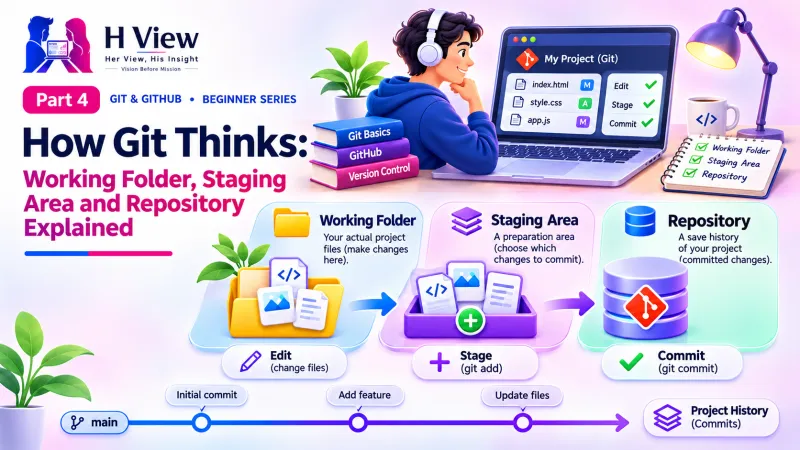
Git works with three areas. The working folder is where you edit files. The staging area is where you choose which changes go into the next snapshot. The repository is where Git permanently stores your committed snapshots. Every change you make travels through these three areas in that order.
Sneha's first reaction to the word "staging area" was honest: "Why can't Git just save everything? Why the extra step?" Arjun answered with a question: "When you send Diwali sweets to your aunt in Bengaluru by courier, do you throw them at the courier one by one?" She laughed, and the whole idea clicked. So far we have covered what version control is, Git vs GitHub and why every web builder needs Git. In this Part 4 we use Arjun's courier story to explain how Git thinks, before we install anything in Part 5.
Your one-minute summary
- Working folder: your normal project files, where you edit
- Staging area: a "ready to save" list of chosen changes
- Repository: the hidden .git folder holding every commit
- git add moves changes to staging; git commit saves them to the repository
- Each commit gets a unique ID, a 40-character code by default
- Files can be untracked, modified, staged or committed
What are the three areas in Git?
The three areas are the working folder, the staging area and the repository. The official Pro Git book calls them the working tree, the staging area (also called the "index") and the Git directory. Different names, same idea.
The three areas of Git
Edit, then add, then commit. This is the heartbeat of Git.
How does the courier-parcel analogy explain Git?
When you send a parcel, you gather things on your table, choose what goes in the box, then seal the box and hand it over with a tracking number. Git works exactly the same way.
| Sending a parcel | Git area | Command |
|---|---|---|
| Items spread out on your table | Working folder | (you edit files) |
| Putting chosen items into the box | Staging area | git add |
| Sealing the box and writing a label | Creating a commit with a message | git commit -m "..." |
| Tracking number on the receipt | Commit ID (hash) | Shown by git log |
| Courier warehouse where parcels are kept | Repository (.git folder) | (stored automatically) |
| Sending to another city | Uploading to GitHub | git push (Part 9) |
From table to warehouse
The half-done pricing section stays on the table for tomorrow.
 Also readGit vs GitHub vs GitLab vs Bitbucket: What Is the Difference? (Part 2)→
What is the staging area in Git, and why does it exist?
The staging area is a preparation zone between your files and your history. It exists so you can build clean, focused commits instead of saving everything at once. One commit can say "Fix mobile menu" and contain only those changes, which makes history easy to read and easy to undo.
- Choose precisely: stage one file, several files or even part of a file.
- Review before saving: check what is staged before you commit.
- Group related changes: one commit per idea, not one commit per day.
You add changes to the staging area with git add. For example, git add style.css stages one file, and git add . stages every change in the current folder.
What is a Git repository?
A repository, often called a "repo", is the complete history of your project. On your computer it lives in a hidden folder called .git inside your project folder. You never need to open it, but it is worth knowing it is there: delete it and the history is gone, while your current files remain.
What Sneha's bakery project folder looks like
Files she sees and edits
- index.html
- menu.html
- style.css
- images/
Hidden .git folder (the repository)
- Every commit ever made
- Commit messages, authors and dates
- Branches (Part 12)
- Settings, such as the GitHub address
Your project folder plus its .git folder together make a Git repository.
What is a commit ID, or hash?
Every commit gets a unique ID made of letters and numbers, such as 3f9a2c1e8b.... It is 40 characters long by default, and Git usually shows just the first seven. Git calculates it from the commit's content, so no two different commits share an ID. You will use these IDs to compare versions or jump back in time.
Anatomy of a commit
The "parent" link is what chains commits into a timeline.
What states can a file be in?
From Git's point of view, every file in your project is in one of four states. Knowing them makes git status messages easy to read.
The life of a file in Git
Files cycle between modified, staged and committed as you work.
How does this look in a real session?
Here is a short, realistic example. Do not try it yet; we set up Git in Part 5 and run these commands for real in Part 7.
| Sneha does this | Git command | Where the change is |
|---|---|---|
| Edits the header in index.html | (none) | Working folder, file is "modified" |
| Checks what changed | git status | Git lists index.html as modified |
| Chooses the change | git add index.html | Staging area |
| Saves the snapshot | git commit -m "Update header text" | Repository, with a new commit ID |
| Looks at history | git log --oneline | Shows "3f9a2c1 Update header text" |
Before Part 5, make sure you can
- Name the three areas of Git in order
- Explain the staging area with the courier-box analogy
- Say what git add and git commit each do
- Say where the repository lives on your computer
- Name the four states a file can be in
Her View
The staging area confuses almost everyone at first, and that is normal. It helps to think of it as a moment of care before you save: you pause, look at what you are about to record and choose deliberately. That small habit of reviewing your own work before you commit is a skill that serves you well beyond Git, in writing, design and any craft.
 Also readWhat Is Version Control? Git and GitHub for Beginners (Part 1)→
His Insight
The three-area model is the key to every Git command you will ever learn. When something feels confusing, ask: "Which area is this change in, and which area do I want it in?" Most commands simply move changes between areas. Aim for small commits that each do one thing; they are easier to review, easier to undo and easier to explain.
H View Verdict
Git thinks in three areas: you edit in the working folder, choose in the staging area and save in the repository. Learn this model once and the rest of Git becomes predictable. That completes Module 1, the ideas. In Part 5 we start Module 2 by installing Git, VS Code and GitHub Desktop.
Self-assessment: test yourself
Ready? Tap an option for each question. You will see right away whether you got it, with a short explanation, and your score at the end. Take your time, and try again as often as you like.
Three areas quiz: 10 questions
1. What is the correct order a change travels through?
- Repository, staging, working folder
- Working folder, staging area, repository
- Staging, working folder, repository
- GitHub, repository, staging
You edit in the working folder, stage with git add, then commit to the repository.
2. Which command moves changes into the staging area?
- git commit
- git add
- git push
- git log
git add stages changes; git commit saves the staged changes as a snapshot.
3. Where does the repository live on your computer?
- In the Downloads folder
- Only on GitHub
- In a hidden .git folder inside the project
- In the Windows registry
The .git folder inside your project holds the full history.
4. In the courier analogy, the commit ID is like
- The items on the table
- The empty box
- The tracking number
- The delivery van
Like a tracking number, each commit ID uniquely identifies one snapshot.
5. A brand-new file that Git has never seen is
- Untracked
- Staged
- Committed
- Pushed
New files are untracked until you git add them.
6. Why does the staging area exist?
- To slow Git down
- To let you choose exactly what goes into each commit
- To upload files to GitHub
- To delete old files
Staging lets you build clean, focused commits.
7. What does git add . do?
- Adds a full stop to your files
- Stages every change in the current folder
- Creates a new repository
- Pushes to GitHub
The dot means "this folder", so all its changes are staged.
8. What is the "index" in Git?
- The homepage file
- Another name for the staging area
- A list of GitHub users
- The first commit
Index is the older technical name for the staging area.
9. You edited a file after committing it. Its state is now
- Untracked
- Modified
- Deleted
- Pushed
Edits after the last commit make a tracked file "modified".
10. What links commits together into a timeline?
- The file names
- Each commit's parent link
- The GitHub URL
- The commit message length
Every commit points to its parent, forming a chain of history.
Frequently asked questions
Can I skip the staging area?
Yes. git commit -a -m "message" stages and commits all changes to files Git already tracks in one step. New files still need git add first. Beginners benefit from staging deliberately until it becomes a habit.
Is the staging area the same as the index?
Yes. "Index" is the older technical name, and "staging area" is the friendlier name used in most tutorials and in Git's own documentation.
What happens if I delete the .git folder?
Your current files stay, but all history, branches and settings are lost. If the project is on GitHub, you can download the history again.
Does GitHub have a staging area?
No. Staging happens on your computer. GitHub only receives commits after you push them.
H View stories follow our editorial policy. Spotted an error? Tell us and we will correct it.
Rate this article
One tap is enough. No comment needed.
Was this article helpful?
Your answer goes straight to our editors.












Comments0
No comments yet. Start the conversation.