
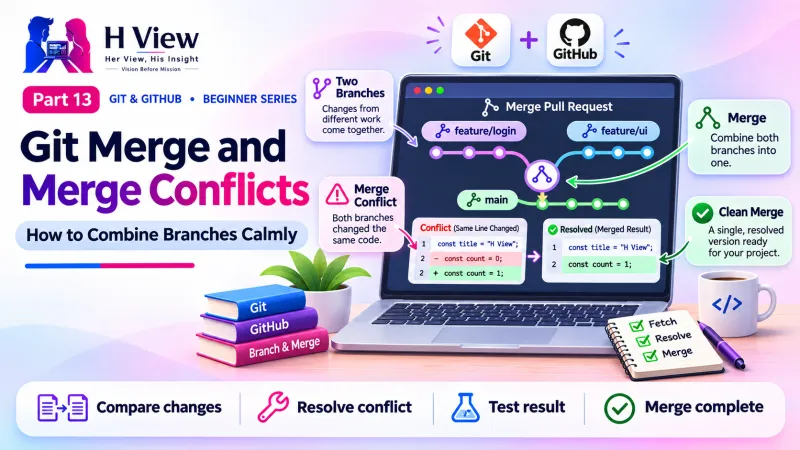
Git Merge and Merge Conflicts: How to Combine Branches Calmly (Part 13)
Merging brings a branch's work back into main. Learn fast-forward and three-way merges, read conflict markers, and resolve a merge conflict step by step in VS Code. Part 13 of our Git series.
To merge a branch, switch to the branch you want to update, usually main, and run git merge feature-branch. Git combines the work automatically. If both branches changed the same lines, Git stops with a merge conflict. You then choose which version to keep, remove the conflict markers, stage the file and commit.
The cake booking system was finally ready. Sneha switched to main, typed git merge feature/cake-booking, pressed Enter and saw a word that made her stomach drop: CONFLICT. While she built the booking page, she had also changed the homepage heading on main for Diwali, and her branch had changed the same heading differently. She was sure she had broken everything. She had not. A merge conflict is not an error; it is Git politely asking a question it cannot answer alone. In Part 12 you built work on a branch while main stayed safe. This Part 13 shows how to bring it home, why conflicts happen and how to resolve them calmly.
Your one-minute summary
- git switch main then git merge feature/cake-booking
- Fast-forward merge: main simply moves ahead, no extra commit
- Three-way merge: Git creates a merge commit joining both lines
- A conflict happens when both branches changed the same lines
- Resolve, then git add and git commit; or git merge --abort to back out
- Small, short-lived branches mean fewer conflicts
How do I merge a branch into main?
Merging always happens "into" the branch you are currently on. So first move to main, update it, then merge your feature branch into it.
Merging a feature branch
What is the difference between a fast-forward and a merge commit?
It depends on whether main changed while you worked on your branch. The Pro Git book describes both cases in detail.
Two kinds of merge
Fast-forward
- main had no new commits since you branched
- Git just moves main forward to your latest commit
- No extra commit; history stays a straight line
- Message: "Fast-forward"
Three-way merge
- main and your branch both have new commits
- Git compares both with their common ancestor
- Creates a "merge commit" with two parents
- Message mentions the merge strategy
Either way, if the changes touch different lines, Git merges them automatically.
 Also readYour First Git Repository and First Commit, Step by Step (Part 7)→
Why do merge conflicts happen?
A conflict happens when both branches changed the same part of the same file in different ways, and Git cannot know which version is right. In Sneha's case:
- On main, she changed the homepage heading to "Happy Diwali from Sri Lakshmi Bakery".
- On her branch, she had changed the same heading to "Order your custom cake online".
- When she merged, Git saw two different edits on one line and asked her to decide.
Changes to different files, or to different parts of the same file, merge cleanly. Conflicts are about overlapping edits only.
When does Git need your help?
What do conflict markers mean?
When a conflict happens, Git writes both versions into the file, separated by markers. Here is what Sneha saw in index.html:
| Line in the file | Meaning |
|---|---|
<<<<<<< HEAD | Start of the version on your current branch (main) |
<h1>Happy Diwali from Sri Lakshmi Bakery</h1> | main's version |
======= | Divider between the two versions |
<h1>Order your custom cake online</h1> | The incoming branch's version |
>>>>>>> feature/cake-booking | End of the incoming version |
How do I resolve a merge conflict, step by step?
Resolving a conflict
git add index.html marks the conflict as resolvedgit commit creates the merge commit; test the site, then pushChanged your mind halfway? git merge --abort returns everything to how it was before the merge.
How does VS Code help with conflicts?
VS Code highlights conflicts in colour and adds clickable options right above each one:
- Accept Current Change: keep main's version.
- Accept Incoming Change: keep the branch's version.
- Accept Both Changes: keep both, one after the other, then edit as needed.
- Compare Changes: view the two side by side.
VS Code also offers a three-panel merge editor ("Resolve in Merge Editor") that shows each side and the result. After resolving, click + to stage the file and then Commit.
GitHub Desktop detects conflicts too and offers to open the file in your editor; once resolved, it shows a "Continue merge" button. On GitHub.com, simple conflicts in a pull request can be resolved in the browser, as described in GitHub's guide to resolving a merge conflict on GitHub.
How can I avoid merge conflicts?
Fewer conflicts, less stress
- Pull main before you create a branch
- Keep branches small and merge within days, not weeks
- Merge or pull main into your branch regularly if it lives longer
- Agree with teammates who is editing which files
- Avoid reformatting whole files in a feature branch
- Commit and push often so others see your changes early
What about rebase?
You will hear about git rebase, another way to combine branches by replaying your commits on top of main for a straight-line history. It is useful but rewrites commits, so it carries the same warning as Part 11: never rebase commits others have already pulled. For beginners, git merge is the safer default, and everything in this series works without rebase.
Merge cheat sheet
Before Part 14, make sure you can
- Merge a feature branch into main
- Explain fast-forward vs three-way merge
- Read the three conflict markers
- Resolve a conflict in VS Code and finish with a commit
- Cancel a merge with
git merge --abort
Her View
The first merge conflict often feels like an alarm going off. It is not. It is a conversation: two good ideas met in the same place, and Git is asking you to choose. Approach it calmly, read both versions and decide what serves the project best. Often, as Sneha found, the best answer combines the two.
 Also readHow to Install Git, VS Code and GitHub Desktop on Windows and Mac (Part 5)→
His Insight
Conflicts are a symptom of branches drifting apart. The cure is small, frequent merges. If a conflict looks complicated, abort, pull main into your branch, resolve there with time to test, and then merge into main. Always test the site after a merge before pushing, because code can merge "cleanly" and still not work together.
H View Verdict
Merging is how branch work becomes real, and conflicts are a normal, manageable part of it. With VS Code's buttons and a clear process, you can resolve most conflicts in minutes. In Part 14, we move the merge to GitHub with pull requests, where others can review your work before it reaches main.
Self-assessment: test yourself
Ready? Tap an option for each question. You will see right away whether you got it, with a short explanation, and your score at the end. Take your time, and try again as often as you like.
Merge quiz: 10 questions
1. To merge feature/cake-booking into main, you first
- Switch to feature/cake-booking
- Switch to main
- Delete main
- Run git clone
Merging happens into the branch you are on, so switch to main first.
2. When does a merge conflict happen?
- Every merge
- When files are new
- When both branches changed the same lines
- When you forget to push
Overlapping edits need a human decision.
3. What does the ======= line mean?
- End of file
- The divider between the two versions
- A syntax error
- A comment
It separates your version (above) from the incoming version (below).
4. After editing a conflicted file, what marks it as resolved?
- git push
- git add file
- git branch
- Closing VS Code
Staging the file tells Git the conflict is resolved; then commit.
5. Which command cancels a merge in progress?
- git reset --hard
- git merge --abort
- git revert
- git stash pop
--abort restores the state before the merge started.
6. A fast-forward merge happens when
- Both branches changed the same line
- main had no new commits since the branch was created
- You use --force
- The branch is deleted
Git simply moves main forward; no merge commit is needed.
7. In VS Code, which button keeps main's version?
- Accept Current Change
- Accept Incoming Change
- Compare Changes
- Discard
"Current" is the branch you are on, here main.
8. Two branches changed different files. What happens on merge?
- Always a conflict
- Git merges them automatically
- Git deletes one
- The merge fails
Only overlapping edits need your help.
9. Why test the site after a clean merge?
- Git requires it
- Changes can merge as text yet clash in behaviour
- To earn GitHub points
- It is not needed
Git merges text, not meaning; testing catches logical clashes.
10. Which habit reduces conflicts the most?
- Huge branches merged monthly
- Small branches merged often
- Never pulling main
- Reformatting every file
Small, frequent merges keep branches close to main.
Frequently asked questions
Are merge conflicts bad?
No. They are normal when people, or one person on two branches, edit the same lines. They simply need a decision.
Can I merge main into my feature branch?
Yes, and it is a good habit for longer branches. On your branch, run git merge main to bring in the latest work and resolve any conflicts early.
Why did my merge succeed but the site broke?
Git merges text, not meaning. Two changes can merge cleanly but clash in behaviour, such as two CSS rules for the same button. Always test after merging.
Should I delete branches after merging?
Yes. Once merged, the commits live in main. Delete the branch locally with git branch -d and on GitHub with the "Delete branch" button.
H View stories follow our editorial policy. Spotted an error? Tell us and we will correct it.
Rate this article
One tap is enough. No comment needed.
Was this article helpful?
Your answer goes straight to our editors.






Comments0
No comments yet. Start the conversation.