
Git Branches Explained with Pictures: Work on Ideas Without Breaking Your Site (Part 12)
A branch is a safe parallel copy of your project for trying new ideas. Learn to create, switch, push and delete branches, with pictures and real website examples. Part 12 of our Git series.
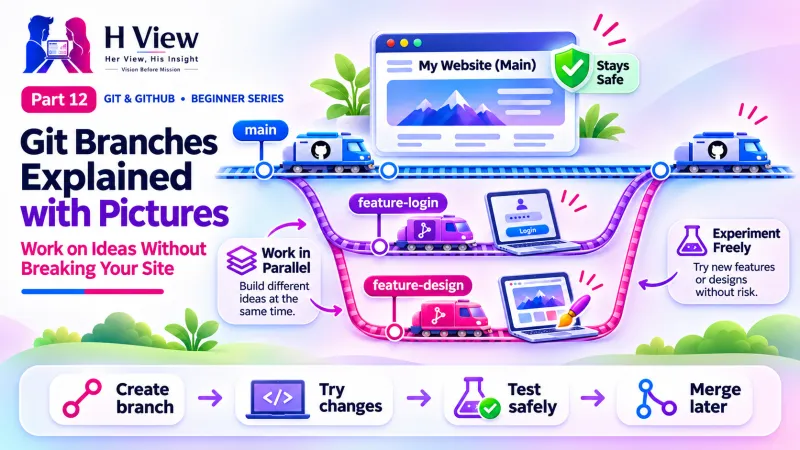
A Git branch is a separate line of work inside the same project. You create a branch to build a new feature or try an idea, while the main branch keeps your working website safe and untouched. When the new work is ready, you merge it back into main; if it fails, you simply delete the branch.
Sneha's uncle wanted two things at once: a "Diwali specials" page ready by Friday, and a complete online booking system for custom cakes, which would take two weeks. "If I start the booking system on the live site, it will be half-broken for days," Sneha worried. "And if the Diwali page needs a quick fix meanwhile?" Arjun smiled. "That is exactly what branches are for." Branches are why professional teams can build ten features at once without stepping on each other, and why solo builders like Sneha can experiment fearlessly. This Part 12 opens Module 4, branches and teamwork, building on everything from Part 4 to Part 11.
Your one-minute summary
- A branch is a parallel line of commits; main stays safe
- git switch -c name creates a branch and moves to it
- git switch main goes back to main
- git branch lists branches; the current one has a star
- Branches are cheap and fast; use one per feature
- Merging branches back is Part 13
What is a branch, in simple words?
Imagine writing an exam answer in a fair notebook. Before trying a risky new approach, you work it out in a rough notebook. If it works, you copy it into the fair notebook. If not, you tear out the page. The fair notebook never gets messy. In Git, main is the fair notebook and a branch is the rough notebook.
Main and a feature branch
main
- Your live, working website
- Only finished, tested work arrives here
- Always safe to deploy
feature/cake-booking
- Starts as a copy of main
- Holds commits for one new feature
- Merged into main when ready, or deleted
Both branches live in the same folder. Git swaps the files when you switch.
Technically, a branch is just a lightweight label pointing at a commit, as the Pro Git book explains. That is why creating one is instant, even in a huge project. Nothing is copied; Git simply starts a new line of commits from that point.
Why should I use branches?
Why branches matter
 Also readWhy Every Web Builder Needs Git, Even If You Work Alone (Part 3)→
How do I create and switch branches?
Git 2.23 introduced git switch as a clearer way to move between branches. Older tutorials use git checkout, which still works.
| What you want | Command | Older equivalent |
|---|---|---|
| See all branches | git branch | (same) |
| Create a branch and move to it | git switch -c feature/cake-booking | git checkout -b feature/cake-booking |
| Go back to main | git switch main | git checkout main |
| Rename the current branch | git branch -m new-name | (same) |
| Delete a merged branch | git branch -d feature/cake-booking | (same) |
| See branches as a graph | git log --oneline --graph --all | (same) |
What does working on a branch look like?
Sneha's two weeks with branches
Watching files appear and disappear as you switch is the moment branches "click" for most people.
git stash from Part 11, before you switch.What should I name my branches?
Short, lowercase names with hyphens work best. Many teams use a prefix to show the type of work:
| Prefix | Use for | Example |
|---|---|---|
feature/ | New features | feature/whatsapp-button |
fix/ | Bug fixes | fix/mobile-menu-overlap |
design/ | Visual experiments | design/diwali-theme |
content/ | Text and image updates | content/new-prices |
Avoid spaces, vague names like "test2" or "new", and personal names alone.
How do I share a branch on GitHub?
Branches are local until you push them. The first push of a new branch needs -u, just like in Part 9:
git push -u origin feature/cake-bookinguploads the branch.- On GitHub, the branch dropdown above the file list shows all branches, and GitHub often suggests "Compare & pull request" for a freshly pushed branch. We use that in Part 14.
- Teammates can fetch it with
git fetchand thengit switch feature/cake-booking.
How do branches work in VS Code and GitHub Desktop?
- VS Code: the current branch name is shown at the bottom left of the window. Click it to create a new branch or switch to another.
- GitHub Desktop: the "Current branch" button at the top opens a list with a "New branch" button. "Publish branch" pushes it to GitHub.
Real-life uses for a solo web builder
What are common branch mistakes?
Mistake and fix
Working on main by accident
- Check the branch name in VS Code or git status before starting
Branches that live for months
- They drift from main and become hard to merge
- Keep them short
Forgetting to pull main first
- git switch main and git pull before creating a branch
Deleting an unmerged branch
- git branch -d protects you; -D forces deletion, so be careful
Before Part 13, make sure you can
- Explain a branch with the rough-notebook analogy
- Create a branch with
git switch -c - Switch between main and your branch and see files change
- Name branches clearly with a prefix
- Push a branch to GitHub with
git push -u origin
Her View
Branches give you permission to try. You can explore a bold design, a new feature or a half-formed idea without risking what already works. Many beginners hold back because they worry about breaking the live site. A branch removes that worry, and creativity grows in the space it creates.
 Also readGit vs GitHub vs GitLab vs Bitbucket: What Is the Difference? (Part 2)→
His Insight
Use one branch per task, keep it short-lived and merge it soon. Always start new branches from an up-to-date main. Treat main as "always deployable": nothing goes there until it works. This single habit is the foundation of almost every professional Git workflow, including the one we cover in Part 16.
H View Verdict
Branches let you build new things beside your working site instead of on top of it. They are cheap, fast and safe. You now know how to create, switch, name and push them. In Part 13, we bring branches back together with merging, and learn to handle merge conflicts calmly.
Self-assessment: test yourself
Ready? Tap an option for each question. You will see right away whether you got it, with a short explanation, and your score at the end. Take your time, and try again as often as you like.
Branches quiz: 10 questions
1. Which command creates a new branch and switches to it?
- git branch -d name
- git switch -c name
- git push name
- git merge name
git switch -c creates and switches in one step.
2. In the notebook analogy, main is the
- Rough notebook
- Fair notebook
- Torn page
- Pen
main holds clean, finished work, like a fair notebook.
3. Which is the best branch name?
- test2
- new branch
- fix/mobile-menu-overlap
- sneha
It has a prefix, no spaces and describes the work.
4. What should you do before creating a new branch?
- Delete main
- Switch to main and pull the latest changes
- Reset --hard
- Clone again
Starting from an up-to-date main avoids conflicts later.
5. Why is creating a branch so fast?
- It copies only HTML files
- A branch is just a label pointing to a commit
- GitHub does it in the cloud
- It skips the staging area
Git does not copy files; it creates a lightweight pointer.
6. Sneha needs an urgent price fix while her booking branch is half-done. She should
- Fix it on the booking branch
- Switch to main, fix, commit and push
- Wait two weeks
- Delete the booking branch
main stays deployable; the feature branch waits untouched.
7. In VS Code, where do you see the current branch name?
- In the file names
- At the bottom left status bar
- In the title of every file
- Nowhere
The status bar shows the branch; click it to switch.
8. How do you push a new branch to GitHub for the first time?
- git push --force
- git push -u origin branch-name
- git clone branch-name
- git init branch-name
-u sets the upstream so later pushes need no extra arguments.
9. What is the older command equivalent to git switch -c?
- git branch -m
- git checkout -b
- git merge -c
- git stash
git checkout -b also creates and switches to a new branch.
10. Why keep branches short-lived?
- Git deletes old branches
- Long branches drift from main and cause harder merges
- GitHub charges for branches
- Branches expire after a week
Merging often keeps conflicts small and easy.
Frequently asked questions
How many branches can I have?
As many as you like. Branches are lightweight. Delete merged ones to keep your list tidy.
What is the difference between git switch and git checkout?
git checkout does many jobs, including switching branches and restoring files. git switch only switches branches, which makes it clearer for beginners. Both work.
Can I create a branch on GitHub's website?
Yes. Open the branch dropdown above the file list, type a new name and choose "Create branch". Then git fetch to see it on your laptop.
Is master the same as main?
Yes, both are just names for the default branch. GitHub has used main for new repositories since October 2020; older projects may still use master.
H View stories follow our editorial policy. Spotted an error? Tell us and we will correct it.
Rate this article
One tap is enough. No comment needed.
Was this article helpful?
Your answer goes straight to our editors.








Comments0
No comments yet. Start the conversation.