
HTTPS Warning on Your Website? Understand SSL Certificate Problems
Browser security warnings scare visitors away. Learn what each SSL error code means and the safe checks to restore a trusted HTTPS connection.
Short answer: An HTTPS warning means the browser could not verify your SSL certificate or secure connection. Common causes are an expired certificate, one that does not cover the exact domain (such as www), an incomplete installation, or a local device or network issue. Mixed content is a separate resource-loading problem that can also weaken an otherwise HTTPS page. The browser’s error code helps narrow the investigation.
Record hostname and error
Inspect certificate and origin
Verify renewal and secure resources
Last reviewed: 30 October 2026. Certificate-lifetime details are from Let’s Encrypt’s documentation, last updated July 2026.
What do visitors see?
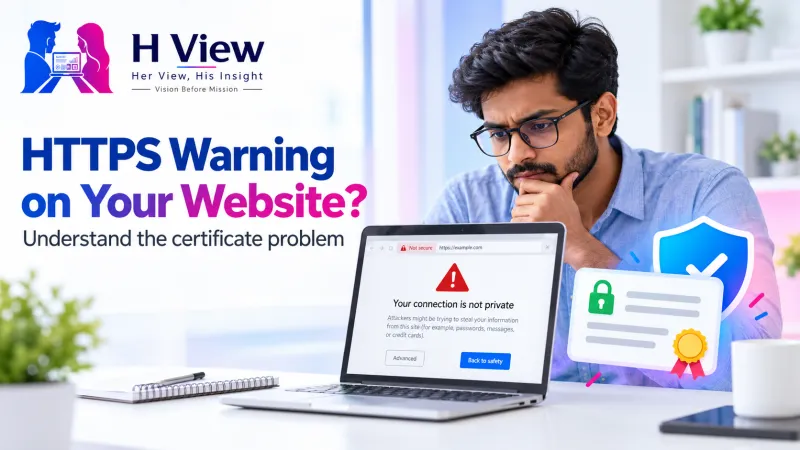
Chrome shows “Your connection is not private” with a code such as NET::ERR_CERT_DATE_INVALID. Firefox shows “Warning: Potential Security Risk Ahead”. In milder cases the page loads, but the address bar shows “Not secure” or a padlock warning. Any of these will make many visitors leave immediately.
What normally happens behind the scenes?
An SSL/TLS certificate (TLS stands for Transport Layer Security, the modern successor to SSL) proves that a server is allowed to represent a domain, and lets the browser encrypt the connection. The browser checks that the certificate is within its validity dates, issued by a trusted authority, matches the domain name, and is installed with its full chain of intermediate certificates. If any check fails, it shows a warning.
 Also readWebsite Security Basics: SSL, Backups, Updates and Spam Protection→
Read the error code
| Error or symptom | Likely cause | First check |
|---|---|---|
ERR_CERT_DATE_INVALID | Certificate expired, or the visitor’s device clock is wrong | Certificate expiry date; does it fail on every device? |
ERR_CERT_COMMON_NAME_INVALID | Certificate does not cover the exact hostname | Is www or the subdomain listed? |
ERR_CERT_AUTHORITY_INVALID | Self-signed certificate or missing intermediate chain | Run an online SSL checker |
| Mixed-content warning in developer tools | Mixed content | Browser console warnings |
| Warning only on office Wi-Fi or one laptop | Local antivirus or network interception | Test on mobile data |
Before you change anything
Note which addresses fail: https://example.in, https://www.example.in, and any subdomains. Check whether the problem appears on several devices and networks. Make sure you have login access to the place where the certificate is managed, which may be your hosting panel, your CDN (such as Cloudflare) or both.
Safe checks, in order
1. Rule out the visitor’s device
If only one device complains, check its date and time settings first. A wrong clock makes every certificate look expired or not yet valid. Also try mobile data instead of office Wi-Fi.
2. Inspect the certificate
Click the padlock or warning in the address bar and view the certificate. Check the “valid to” date and the list of names it covers. Free online SSL checkers can also confirm whether the intermediate chain is complete.
3. Fix an expired certificate
Many hosts offer automatically renewed certificates, often from Let’s Encrypt. Its default certificates currently last 90 days, with optional shorter-lived profiles; its published plan reduces the maximum to 45 days by February 2028. Use monitored automatic renewal rather than relying on a fixed manual reminder. If yours expired, re-issue it from the hosting panel and find out why automatic renewal failed. A common reason is DNS that no longer points to the host doing the renewal.
4. Cover every hostname
If www or a subdomain fails, re-issue the certificate including all the names visitors use, or redirect the uncovered name to one that is covered. Remember that a redirect can only happen after a secure connection succeeds, so the certificate must cover both names.
5. Check CDN and host settings agree
With Cloudflare or another CDN, there are two connections: visitor to CDN, and CDN to your server. Make sure the encryption mode suits your server’s certificate. Use the provider’s strict certificate-validation mode with a valid origin certificate, rather than leaving the origin unencrypted.
6. Remove mixed content
Open the browser console and look for “Mixed Content” messages. Update image, script and stylesheet links from http:// to https:// in your pages, theme and settings. On WordPress, also check that the site address settings use HTTPS.
7. Redirect HTTP to HTTPS
Once HTTPS works everywhere, add a permanent (301) redirect from HTTP to HTTPS, so old links and bookmarks reach the secure version.
What does success look like?
Every intended hostname establishes a trusted HTTPS connection without a certificate warning, on both mobile data and Wi-Fi. An SSL checker shows a complete chain and a future expiry date, and the console shows no mixed-content messages.
Fix or workaround?
Telling visitors to “click Advanced and proceed” is never acceptable. Switching to a CDN mode that leaves the origin connection unencrypted is not a suitable repair. Keep certificate verification enabled and correct the origin certificate or connection instead.
When should you stop and ask for help?
Ask for help if certificates keep failing to renew, if you see ERR_CERT_AUTHORITY_INVALID on every device, if a domain has recently moved hosts or DNS providers, or if you suspect the warning comes from interception rather than your server.
How to prevent it happening again
- Use automatic renewal and set up monitoring that alerts you before expiry, as Let’s Encrypt recommends.
- Update the certificate whenever you add a subdomain or change DNS.
- Keep all internal links on HTTPS.
- Read website security basics for the full routine.
 Also readLanding Page or Full Website: Which Does Your Business Need First?→
Her View
A security warning damages trust instantly, especially for first-time visitors from ads or WhatsApp. A simple calendar reminder to check your certificate monthly costs nothing and prevents an embarrassing week.
His Insight
With certificate lifetimes getting shorter, manual renewal is becoming impractical. If anything in your setup needs a person to renew a certificate by hand, plan to automate it before 2027.
Related reading: Domain, hosting and DNS explained, why your website may not show on Google and keeping server software up to date.
HView Digital Solutions
Still seeing a security warning?
We can check your certificate, renewal set-up, redirects and mixed content, and tell you exactly what is causing the warning.
Diagnosis ₹299, credited against an accepted repair.
Describe your problemFrequently asked questions
Is SSL the same as TLS?
People use “SSL” out of habit, but modern secure connections use TLS. Certificates are still commonly called SSL certificates.
Do I need a paid certificate?
For most business websites, a free, automatically renewed certificate gives the same encryption. Paid certificates may include extra validation or support.
Why does the warning appear only on www?
The certificate probably covers only the non-www name. Re-issue it to include both.
Does HTTPS affect search results?
Google has long encouraged HTTPS, and browser warnings will certainly drive visitors away, so treat it as essential.
Sources
H View stories follow our editorial policy. Spotted an error? Tell us and we will correct it.
Rate this article
One tap is enough. No comment needed.
Was this article helpful?
Your answer goes straight to our editors.








Comments0
No comments yet. Start the conversation.