
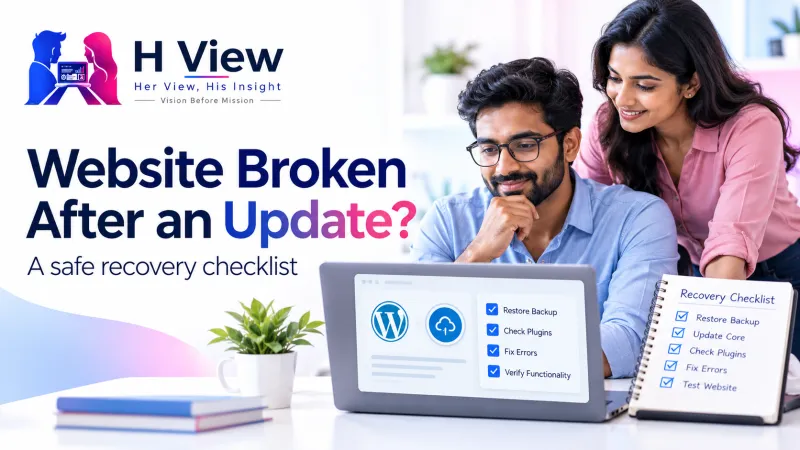
Website Broken After a WordPress Update? A Safe Recovery Checklist
A safe, step-by-step checklist for a website broken after a WordPress update: find what changed, use recovery mode and restore without making it worse.
Short answer: If your website is broken after a WordPress update, first find what changed: core, a plugin, a theme or PHP. Check for a recovery-mode email, then assess the failing component or a suitable backup. Avoid reinstalling everything at once.
Record the exact update
Recover the affected component
Test before restoring service
Last reviewed: 30 October 2026. Recovery-mode behaviour described here has been part of WordPress core since version 5.2.
What might you see?
Breakage after an update takes several forms. The message “There has been a critical error on this website” may replace your pages. The site may load without its styling, a menu may vanish, a form may stop sending, or only the admin area may fail. Sometimes visitors see a normal site while you see errors in the dashboard.
What normally happens during an update?
An update replaces files for WordPress core, a plugin or a theme with a newer version. While it runs, WordPress briefly shows a maintenance message. If the new files expect a newer PHP version, clash with another plugin, or the update is interrupted halfway, the site can stop working.
Since WordPress 5.2, when a plugin or theme causes a fatal PHP error, WordPress can show a critical-error message and attempt to email the administrator a recovery-mode link; delivery and detection depend on the error and mail configuration. Logging in through that link pauses the faulty extension for your session so you can deal with it from the dashboard.
 Also readElementor Stuck on Loading? Safe Checks Before Changing Your Website→
Narrow down the cause
| What changed | Typical symptom | Where to look |
|---|---|---|
| A plugin update | Critical error, or one feature stops | Recovery email, Plugins screen |
| A theme update | Layout, header or footer looks wrong | Appearance → Themes, child theme files |
| WordPress core update | Several older plugins misbehave at once | Dashboard → Updates, plugin changelogs |
| PHP version changed by the host | Errors mentioning deprecated or undefined functions | Site Health → Info → Server, host notices |
| Interrupted update | Stuck “maintenance” message | A leftover .maintenance file in the site root |
Before you change anything
Write down exactly what was updated and when. Your host’s control panel, an activity-log plugin or the update emails WordPress sends can help. Check whether your host has an automatic backup from before the update, and note its time. If you run an online shop, consider showing a short maintenance notice instead of letting customers reach a broken checkout.
A safe recovery checklist
1. Check your admin email for the recovery link
Look for an email from WordPress about a technical problem, including your spam folder. It names the plugin or theme that caused the error and includes a recovery link that expires after a while. Log in through it, and the faulty extension is paused for your session only.
2. Deactivate or roll back only the culprit
From recovery mode, deactivate the named plugin. If you need it running, ask its developer whether a fix is coming, or install the previous version on staging to confirm it works before using it on the live site. Keep old versions only as a short-term measure, since updates often contain security fixes.
3. If you cannot log in at all
Ask your host to help, or use their file manager to rename the suspect plugin’s folder inside wp-content/plugins/, for example by adding -off to the end. WordPress will treat it as deactivated. Rename it back after the issue is solved. If a maintenance message persists, first confirm that no update process is still running and take a copy of the file. Only after confirming an interrupted update has finished should an administrator remove a leftover .maintenance file from the site root.
4. Restore a backup when the cause is unclear
If several things changed at once and the site handles important traffic, restoring the last good backup is often the safest move. Remember that a full restore also brings back older content, so new orders, comments or form entries made since that backup may need to be recovered separately.
5. Re-apply updates one at a time on staging
Once the site is stable, repeat the updates on a staging copy one by one, testing after each. This shows exactly which update causes the problem, which helps when you report it to the developer.
What does success look like?
Pages load normally, the dashboard has no error notices, and your key features work: forms send, checkout completes on a test order, and logins succeed. Site Health should show no new critical issues.
Fix or workaround?
Pausing a plugin or staying on its old version gets the site working, but neither is a fix. The fix is an updated, compatible plugin, a maintained replacement, or a corrected setting, applied after testing.
When should you stop and ask for help?
Stop and ask for help if no recovery email arrives and you cannot access files, if the database shows errors, if payments or bookings are affected, or if you see unfamiliar files, users or redirects. Those last signs can mean a security issue, and recovery mode is not designed for hacked sites.
How to reduce the chance next time
- Update on staging first, then live.
- Keep a backup you have actually tested restoring.
- Avoid updating many plugins at once on a busy day.
- Make sure the admin email address is monitored, so recovery emails reach someone.
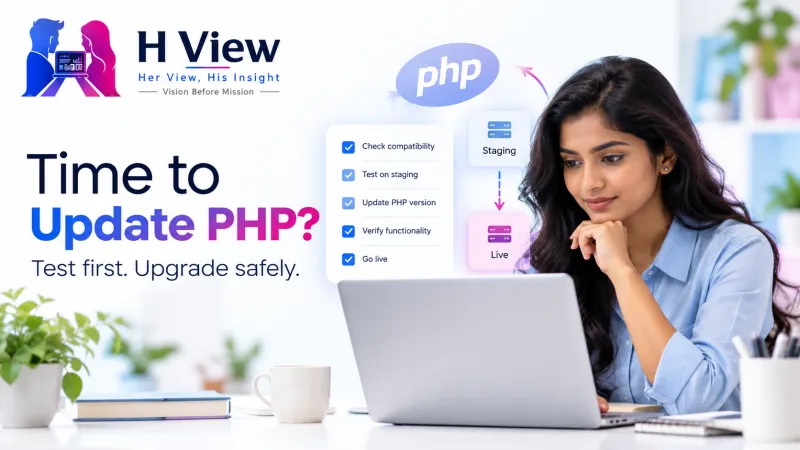 Also readWordPress Says Your PHP Version Is Outdated: What Should You Do?→
Her View
Panic usually leads to reinstalling WordPress or deleting plugins, which can make recovery harder. A short written note of what changed, and when, is the most valuable thing you can create in the first ten minutes.
His Insight
Auto-updates are convenient but remove that note-taking step. If you allow them, also keep an activity log and daily backups, so you can always answer the question “what changed?”
Related reading: Website security basics: backups and updates, WordPress says your PHP version is outdated, Elementor stuck on loading and choosing reliable WordPress plugins.
Frequently asked questions
What does “There has been a critical error on this website” mean?
A plugin, theme or custom code hit a fatal PHP error. WordPress shows this message instead of a blank page and emails the administrator a recovery link.
Can I disable automatic updates to avoid this?
You can, but you then take responsibility for applying security updates promptly. A tested staging routine is safer than never updating.
Will rolling back a plugin lose its settings?
Usually not, but some updates change the database. Restoring an older version after such a change can cause errors, so test on staging.
How long does the recovery link work?
It is valid for a limited time. If it expires, a later detected error may trigger another message, subject to email limits and successful delivery. Ask your host for help if no usable link arrives.
Sources
H View stories follow our editorial policy. Spotted an error? Tell us and we will correct it.
Rate this article
One tap is enough. No comment needed.
Was this article helpful?
Your answer goes straight to our editors.






Comments0
No comments yet. Start the conversation.