
WordPress Says Your PHP Version Is Outdated: What Should You Do?
The outdated PHP warning means your server runs an old PHP version. Here’s what it means, which version to choose and how to upgrade without breaking plugins.
Short answer: An outdated PHP version warning means your server runs PHP older than WordPress recommends, possibly without security fixes. Back up, check plugin compatibility, test the new version on staging, then switch the live site. WordPress.org currently recommends PHP 8.3 or greater.
Back up and record versions
Test a supported PHP branch
Verify key journeys after switching
Last reviewed: 30 October 2026. PHP support dates are from php.net’s Supported Versions page and the recommendation from WordPress.org’s requirements page.
What you see
In the WordPress dashboard you may see a notice saying your site is running an outdated or older version of PHP. Tools → Site Health lists it as a recommended improvement, or sometimes as critical. Your website probably still works perfectly, which is why this warning is so often ignored for months.
What is PHP, and why does the version matter?
PHP is the programming language WordPress is written in. Your host runs a particular version of it on the server, and every page request passes through it. Each PHP version is supported for a limited time. According to php.net, a branch gets two years of active support, followed by two more years of security fixes only, after which it reaches end of life and gets no updates at all.
As of today, php.net lists these dates:
| PHP version | Security fixes until | What it means for you |
|---|---|---|
| 8.1 and older | Already ended (8.1 on 31 Dec 2025) | Plan an upgrade now |
| 8.2 | 31 Dec 2026 | Upgrade within the next few weeks |
| 8.3 | 31 Dec 2027 | Meets the WordPress recommendation |
| 8.4 | 31 Dec 2028 | Good choice if your plugins support it |
| 8.5 | 31 Dec 2029 | Newest; check plugin support carefully |
WordPress will still run on older versions. WordPress.org says it works on PHP 7.4 and above, but warns that those versions have reached end of life and may expose your site to security vulnerabilities. HView recently covered a serious PHP flaw, PHP2Shell, which shows why staying on a supported branch matters.
 Also readPHP2Shell Explained: The Critical PHP Flaw Every Website Owner Must Patch Now→
Why can upgrading PHP break a website?
WordPress core is tested on new PHP versions, but your theme and plugins may not be. Older code can use functions that newer PHP versions have removed, or rely on behaviour that has changed. The result can be a “critical error” page, a broken admin screen or one feature that silently stops working, such as a form or a payment gateway.
Before you change anything
- Back up files and database, and confirm you know how to restore them.
- Note your current PHP version under Tools → Site Health → Info → Server.
- List your active plugins and theme, with versions, and test maintained updates on staging before applying them live. Compatibility fixes often arrive in ordinary updates.
- Check whether a staging site is available. Most good hosts offer one-click staging.
How do you upgrade PHP safely?
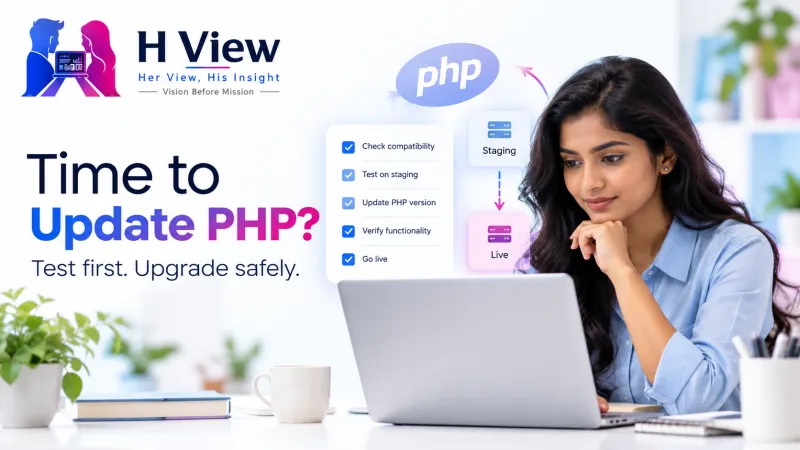
1. Check each plugin’s stated compatibility
On WordPress.org, each plugin page shows the minimum PHP version it requires and when it was last updated. A plugin that has not been updated for two or more years is a risk. For premium plugins, check the developer’s changelog or support pages for notes on PHP 8.3 or 8.4.
2. Switch PHP on staging first
In your hosting panel, change the staging site’s PHP version to your target (choose a supported branch that your host, theme and plugins support). Then browse the site as a visitor, log in, and test the features that earn money or leads: contact forms, checkout, bookings, search and any membership area.
3. Turn on logging, not on-screen errors
On staging, enable WP_DEBUG and WP_DEBUG_LOG, and set WP_DEBUG_DISPLAY to false so errors are logged rather than displayed. Protect the log from public access and disable debugging after the investigation. Look for “Fatal error” and “Deprecated” lines, and note which plugin folder they mention.
4. Resolve or replace problem plugins
Update the plugin, contact its developer, or choose a maintained alternative. Do not edit plugin files directly, because your changes will be overwritten by the next update.
5. Upgrade the live site at a quiet time
Once staging passes, switch the live site during low traffic, clear all caches and repeat the same tests. Keep the previous version noted so you can switch back quickly if something unexpected appears.
What does success look like?
Site Health no longer flags PHP, the debug log on staging shows no fatal errors, and all key features work. Many sites also load slightly faster on newer PHP, though you should measure rather than assume.
Fix or workaround?
Moving to a supported PHP version with compatible plugins is the fix. Staying on an old version because one plugin breaks is a temporary workaround. It should come with a plan and a date to replace that plugin.
When should you stop and ask for help?
Ask for help if a business-critical plugin is abandoned, if custom code was written for your site, if your host does not offer staging, or if switching versions on staging produces errors you cannot trace. Also ask your host directly if the PHP selector does not offer 8.3 or newer.
How to stop this becoming urgent again
- Put the security-support end date of your PHP version in your calendar.
- Review plugins every six months and remove abandoned ones.
- Read our website security basics for an update routine.
 Also readElementor Stuck on Loading? Safe Checks Before Changing Your Website→
Her View
The PHP notice feels technical, so it gets postponed. A simple rule helps: when Site Health shows it, book one hour on a weekday to check plugins on staging. Small, planned upgrades are far less stressful than an emergency upgrade after your host forces the change.
His Insight
Hosts regularly retire old PHP versions on their servers. If you wait, the upgrade may happen on their schedule instead of yours, possibly without warning. Owning the timing is the real benefit of acting early, more than any speed improvement.
Related reading: WordPress hosting for beginners in India, WordPress vs custom website vs builder and domain, hosting and DNS explained.
HView Digital Solutions
Not sure your plugins will survive a PHP upgrade?
We can check your theme and plugins for PHP compatibility, test the upgrade on a staging copy and switch the live site once it passes.
Simple WordPress fixes start at ₹499. PHP upgrades and complex plugin compatibility are scoped and quoted before work begins. To request help, select “Describe your problem” below and submit your website URL, the PHP version shown in Site Health, and a short description of what you need checked. An optional screenshot can help. You can also email connect@hview.in. Please do not send passwords or hosting logins.
Describe your problemFrequently asked questions
Which PHP version should I choose for WordPress?
WordPress.org recommends PHP 8.3 or greater. Choose 8.3 or 8.4 once your theme and plugins are confirmed compatible.
Can I skip several versions at once, for example from 7.4 to 8.3?
Yes, but there are more changes to test. Testing on staging is essential for big jumps.
Will upgrading PHP change my content or design?
It should not change content. Design problems usually come from a theme or plugin error, which staging testing will reveal.
What if my host only offers old versions?
Ask them when newer versions will be available. If there is no clear answer, consider moving to a host that supports current PHP.
Sources
- WordPress.org: Requirements
- php.net: Supported versions
- Elementor: System requirements (for Elementor sites)
H View stories follow our editorial policy. Spotted an error? Tell us and we will correct it.
Rate this article
One tap is enough. No comment needed.
Was this article helpful?
Your answer goes straight to our editors.






Comments0
No comments yet. Start the conversation.