

Best Digital Marketing Tools in 2026: What Marketers Actually Need and What They Can Skip
Open LinkedIn for a few minutes and you will probably come across a colourful graphic…
 Harika October 6, 2026
  By HarikaUpdated September 20, 20269 min read26 views
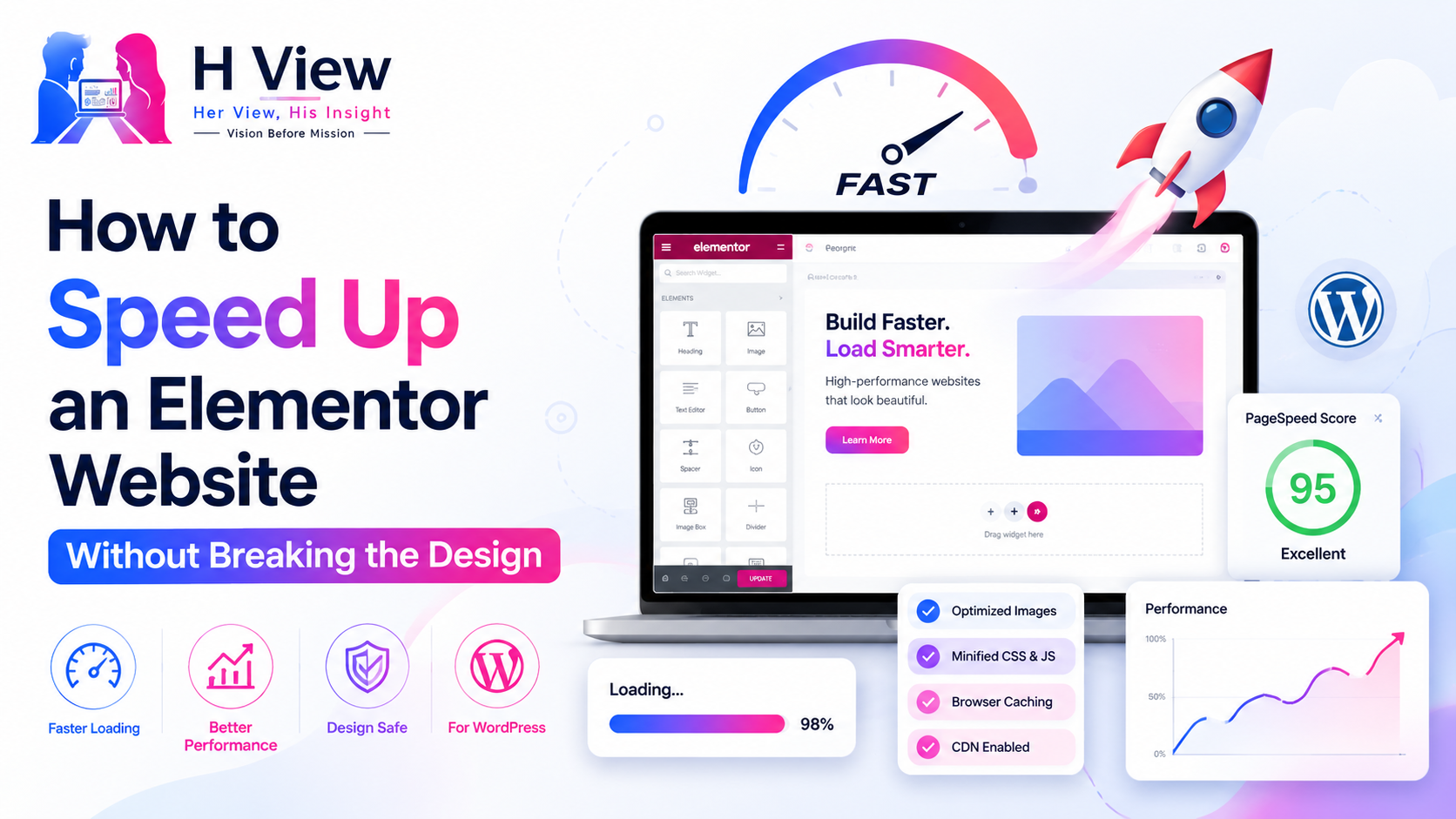
A beautiful Elementor website can slowly become a heavy website without anyone deliberately making it that way. A few additional plugins get installed, larger images replace the originals, another font is added for a new section, tracking scripts accumulate, and a homepage that once felt quick suddenly takes noticeably longer to appear on a phone.
That is usually when website owners start searching for ways to speed up Elementor. The problem is that performance advice often sounds deceptively simple: install a cache plugin, minify everything, remove CSS, delay JavaScript and switch on every optimization option you can find.
That approach can make a website faster. It can also leave you with a broken menu, missing animations, distorted layouts or a contact form that no longer behaves properly.
The better goal is not to chase the highest possible performance score. It is to make the website genuinely faster without damaging the experience you designed in the first place.
Elementor itself is rarely the only thing responsible for a slow website. A WordPress page is the result of several layers working together: hosting, WordPress, the theme, Elementor, plugins, images, fonts, database queries and third-party scripts.
Elementor’s own performance documentation recommends looking at factors such as hosting configuration, media optimization, plugins and performance settings when diagnosing slow websites. WordPress documentation similarly recommends reviewing unnecessary plugins because plugins can add processing work to every request.
Imagine a business website built with Elementor. The homepage contains a full-width hero image, an animated heading, testimonials, a Google Map, a WhatsApp widget, a popup, analytics, three different font families and six additional Elementor add-ons.
No single item looks unreasonable. Together, however, they create a much heavier page.
This is why the first rule of Elementor optimization should be simple: diagnose before optimizing.
Before touching a plugin setting, test a few important pages using PageSpeed Insights or another performance testing tool. Do not test only the homepage. A website may have a fast homepage while a product page, blog article or landing page performs very differently.
Google’s Core Web Vitals currently focus on three major aspects of real-world user experience: Largest Contentful Paint (LCP), Interaction to Next Paint (INP) and Cumulative Layout Shift (CLS). Google recommends good Core Web Vitals both for user experience and for Search, although a perfect performance report alone does not guarantee higher rankings.
In simple terms, LCP asks how quickly the important visible content appears. INP looks at how responsive the page feels when someone interacts with it. CLS measures whether content unexpectedly moves around while the page is loading.
Google’s guidance considers an LCP of 2.5 seconds or less a good target when achieved for at least 75% of page visits.
The important point is not to become obsessed with three numbers. Use them to identify where the experience is suffering.
Images are one of the easiest places to waste website performance.
A photograph exported directly from a camera or design application may be several megabytes even though it appears inside a relatively small Elementor container. The visitor still has to download that file.
Elementor itself identifies large or uncompressed images as a common cause of slow load times and recommends optimizing media.
The solution is not to remove every attractive photograph from your website. Instead, use images at sensible dimensions and compress them before or during upload. Modern image formats can also reduce file size significantly when used appropriately.
Pay particular attention to the hero section. On many Elementor websites, the hero image becomes the Largest Contentful Paint element because it occupies a large portion of the screen. A massive background image at the top of the homepage can therefore make the entire website feel slow even when everything below it is well optimized.
This is where performance optimization becomes a design decision rather than merely a plugin setting.
Older Elementor designs often contain layers of sections, columns and inner sections created simply to achieve spacing or alignment.
Modern Elementor containers provide a more efficient way of building many of these layouts. Elementor says properly using containers can reduce unnecessary HTML wrappers and improve the page’s Document Object Model, or DOM, structure.
That does not mean you should immediately rebuild an entire live website.
Start with pages that matter most. Look for areas where several nested structures exist only to position two or three elements. When a page is eventually redesigned or updated, simplify those structures instead of recreating the old complexity.
The same principle applies to widgets. If three Elementor add-on plugins are installed because each contributes one widget, ask whether those widgets are still necessary or whether the same design can now be achieved with Elementor itself.
Reducing unnecessary complexity is generally safer than trying to compensate for it with increasingly aggressive optimization settings.
Plugin count by itself is not a perfect measure of performance. Ten lightweight plugins can sometimes have less impact than one poorly designed plugin.
Still, every plugin deserves a reason to exist.
WordPress’s own performance guidance recommends deactivating and deleting unnecessary plugins and testing whether individual plugins significantly affect performance.
A common WordPress problem is plugin accumulation. Someone installs an image slider for a campaign, another plugin for temporary tracking, another for social sharing and another for a feature that was removed months later. The front-end feature disappears, but the plugin remains active.
Review the plugin list periodically. Do not randomly remove plugins from a live website, especially if you do not know what they control. Create a backup and, where possible, test changes on a staging website first.
That small precaution can be the difference between optimization and an emergency recovery job.
Caching is one of the most effective ways to improve WordPress performance because it can reduce the amount of repeated processing required to serve pages. WordPress’s performance documentation describes caching as one of the fastest ways to improve site performance.
However, activating every available optimization checkbox is not the same as configuring caching correctly.
CSS combining, JavaScript delays, minification and script deferral can produce excellent results, but aggressive settings can occasionally interfere with Elementor interactions, menus, popups, sliders or third-party tools.
Make one meaningful change at a time. Clear the relevant caches, open the website in a private browser window, and test desktop and mobile versions.
Check the header, menu, forms, buttons, popups, animations and any important conversion elements before moving on.
A score that improves from 70 to 90 is meaningless if your enquiry form quietly stops submitting.
A visually polished website can use several font weights without the designer realizing how many resources are being requested. Regular, medium, semibold, bold and italic versions may each require separate files.
Keep typography intentional. If the visual identity works with two font families and a limited number of weights, there is little reason to load six.
Third-party services can be even more difficult. Live chat tools, advertising scripts, analytics systems, heatmaps, social widgets, video embeds and external tracking platforms may all add network requests or JavaScript work.
Before adding another script, ask a practical question: Does this feature provide enough value to justify what it adds to the page?
That question applies far beyond Elementor.
You can optimize images and remove widgets all day, but a poorly performing server can still make the website feel slow.
Hosting affects how quickly WordPress can begin producing a response. Database health matters as well, particularly on websites that have existed for years and accumulated revisions, transients, logs, plugin tables and autoloaded options.
WordPress Site Health specifically warns that having too many autoloaded options can slow a website because those options are automatically loaded with page requests.
Database optimization should therefore be deliberate rather than aggressive. Never delete unfamiliar database tables simply because an optimization plugin labels them as unused. Back up the database first and understand what you are removing.
A website can feel perfectly fast on a powerful office computer connected to broadband while performing poorly for somebody using a mid-range smartphone on a weaker mobile network.
That user matters.
Google uses the mobile version of a website’s content for indexing and ranking under mobile-first indexing, which makes mobile usability especially important.
When testing your Elementor pages, pay attention to more than loading speed. Check whether the mobile menu responds quickly, whether content shifts while loading, whether buttons can be tapped easily and whether large images are being downloaded unnecessarily.
A website is not truly optimized because it received a green number on one desktop test.
It is optimized when real visitors can use it comfortably.
Speed optimization should never turn a carefully designed website into something lifeless. Visitors notice attractive presentation, clear typography and thoughtful visual hierarchy, so removing every image or animation in pursuit of a perfect score can solve the wrong problem. The smarter approach is to keep the elements that genuinely improve the experience and remove the invisible waste around them.
Treat Elementor performance like troubleshooting rather than housekeeping. Measure first, identify the largest bottleneck, change one variable and test again. That method may feel slower than activating ten optimization settings at once, but it gives you something far more useful: an understanding of what actually made the website faster and confidence that the change did not break something else.
The best Elementor optimization is often surprisingly ordinary. Use properly sized images. Avoid unnecessary plugins. Simplify overly complicated layouts. Configure caching carefully. Limit unnecessary scripts and fonts. Keep WordPress and the hosting environment healthy.
Most importantly, test after every significant change.
Google itself recommends good Core Web Vitals, but it also makes clear that page experience should be considered holistically rather than reduced to a single performance score.
Your customer does not care whether your homepage scored 96 instead of 91.
They care whether it opens quickly, looks right, responds when they tap something and allows them to complete whatever they came to do.
That is the performance target worth chasing.
Elementor can add front-end resources because it is a visual page builder, but Elementor alone should not automatically be blamed for a slow website. Hosting, images, plugins, fonts, scripts, page structure and caching can all contribute to performance problems.
Begin by testing the website and identifying the actual bottlenecks. Image optimization, removal of genuinely unnecessary plugins, cleaner page structures and properly configured caching are sensible starting points. Make changes gradually and test the website afterwards.
Caching itself is generally useful, but some advanced optimization options involving JavaScript, CSS or delayed scripts may interfere with certain website functions. Test menus, forms, popups and interactive elements whenever aggressive optimization settings are changed.
Not automatically. Remove animations that provide little value, but there is no need to eliminate every visual effect. Performance optimization should balance speed with design and usability.
No. Google recommends strong Core Web Vitals and good overall page experience, but achieving a perfect performance score does not guarantee top search rankings. Content quality, relevance and many other factors still matter.
You should certainly test it separately. Mobile visitors may experience different network speeds, viewport sizes and interaction issues. Responsive layouts, appropriately sized media and usable navigation all deserve specific mobile testing.
Harika is the co-founder of H View and covers AI, technology, gadgets, digital tools, online platforms, and modern internet trends. Her articles focus on simplifying complex topics with practical explanations, balanced opinions, and reader-first insights.
Share your real experience and help other readers decide better.
No community views yet. Be the first to share yours.

Open LinkedIn for a few minutes and you will probably come across a colourful graphic…
Harika October 6, 2026 
When an employee resigns, many organisations move quickly into replacement mode. The manager informs HR,…
Harika October 6, 2026 
For many corporate employees, the workday begins long before they actually start working. They wake…
Harika October 5, 2026 
Many projects begin with an assumption that sounds reasonable on paper: the client will explain…
Harika October 1, 2026