
One PDF for Every Application: How to Organise Certificates, Mark Sheets and IDs Before You Apply
Every application season, the same scramble: where's the Class 10 certificate, which scan is the clear one, why is this PDF 8 MB? A simple system to organise documents once, so every future application takes minutes.
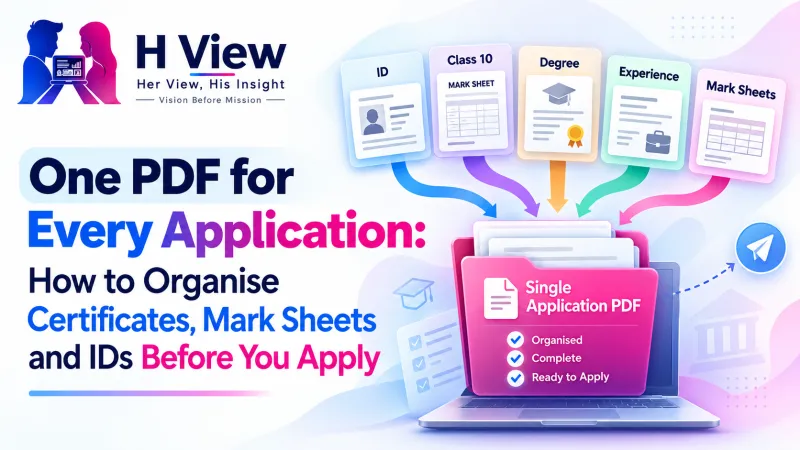
To organise documents for applications, scan each one once, name it clearly, keep a master folder, and build each application's PDF from those files in the order the form asks for. Free H View tools help you combine, reorder, split and compress the PDFs on your own device, so every future application takes minutes, not an evening.
Application season always brings the same scramble. The Class 10 certificate is a blurry WhatsApp photo from four years ago. The degree certificate is somewhere in email. The portal wants “all documents in a single PDF, maximum 2 MB,” and the deadline is tomorrow. A little organisation, done once, removes that panic for good.
Step 1: Build a Master Folder
Create one folder on your phone or laptop called “My Documents” and give every file a clear, consistent name:
| Document | Suggested file name |
|---|---|
| Aadhaar (masked) | 01-ID-Aadhaar-masked.pdf |
| PAN card | 02-ID-PAN.pdf |
| Class 10 certificate | 10-EDU-Class10.pdf |
| Class 12 certificate | 11-EDU-Class12.pdf |
| Degree and mark sheets | 12-EDU-Degree.pdf |
| Experience letters | 20-WORK-CompanyName.pdf |
| Photo and signature | 90-PHOTO.jpg, 91-SIGN.jpg |
Numbers at the start keep files in a sensible order automatically.
Step 2: Get Clean, Official Copies
- Fetch what you can as verified PDFs from DigiLocker.
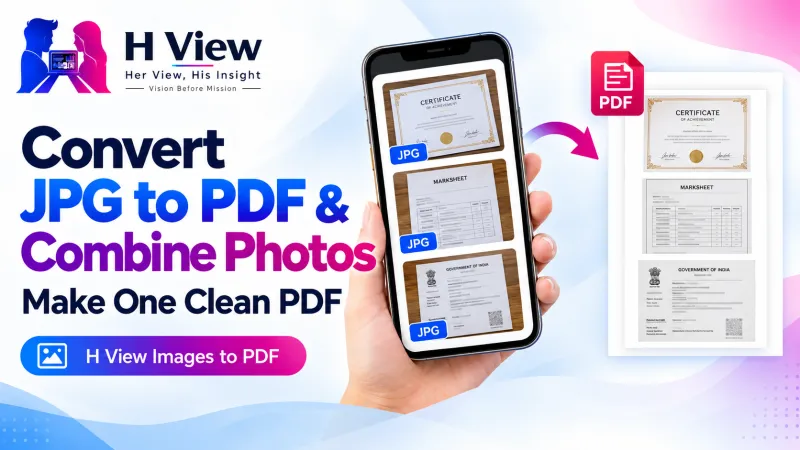
- For paper documents, photograph each page flat, in daylight, from directly above, then turn them into PDFs with Images to PDF.
- Keep a form-ready photo and signature, made with the Passport & Exam Photo Maker.
 Also readHow to Convert JPG to PDF and Combine Document Photos into One PDF, Free→
Step 3: Build Each Application's PDF
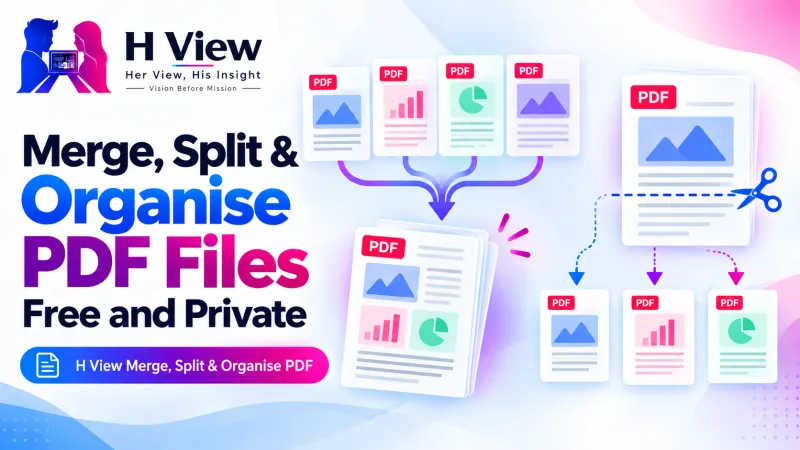
- Open Merge, Split & Organise PDF and add the files the form asks for.
- Drag the pages into the form's order. A common sequence is ID, then education from latest to earliest, then experience, but follow the notice.
- Remove blank or irrelevant pages, and rotate any sideways scans.
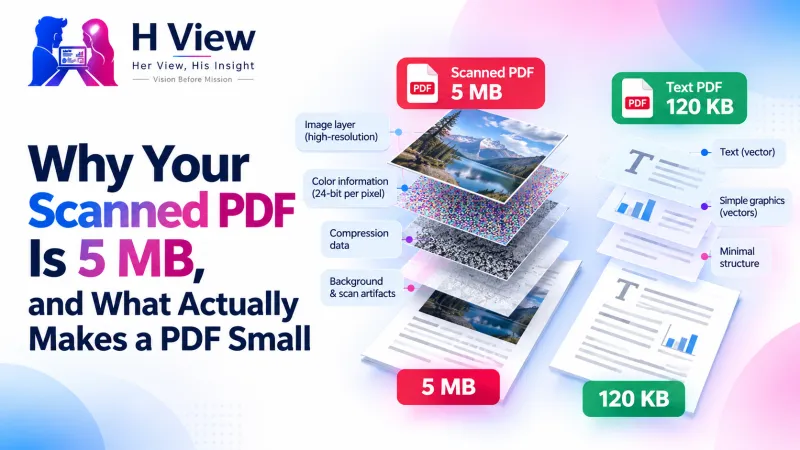
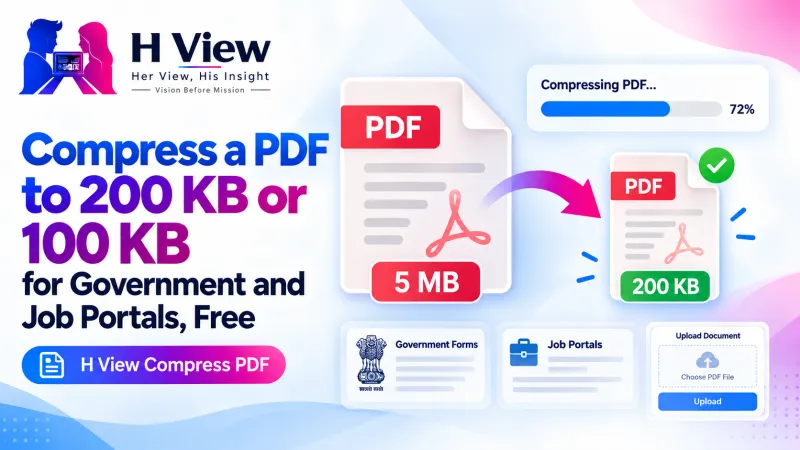
- Save as one PDF, then shrink it with Compress PDF if there's a size limit.
- Open the final PDF and check every page before uploading.
Why Does Order and Clarity Matter?
Reviewers often look at dozens of applications a day. A tidy, correctly ordered PDF with readable pages makes their job easier and avoids “document not legible” rejections. PDF is an open standard, as Adobe explains, so a well-made file looks the same on their screen as on yours.
Her View
For women returning to work after a career break, or moving cities after marriage, documents get scattered across homes, inboxes and old phones. Pulling them together once is quietly empowering. It means the next opportunity can be grabbed in an evening, not lost to paperwork.
 Also readWhy Your Scanned PDF Is 5 MB, and What Actually Makes a PDF Small→
His Insight
This is a systems problem, not a one-time task. The ten minutes you spend naming files and building a master folder pay off on every future application, loan, visa and KYC request. Back the folder up somewhere safe, and update it whenever you get a new certificate.
H View Verdict
Organise documents once: clean scans, clear names, one master folder. Then build each application PDF in minutes, in the right order and within the size limit, all with free tools that keep your files on your device.
Frequently Asked Questions
How do I combine all my certificates into one PDF?
Add them to Merge, Split & Organise PDF, drag the pages into order, keep “One PDF” selected and save.
What order should documents be in?
Follow the form's instructions. If none are given, ID first, then education from latest to earliest, then work experience is a sensible default.
My combined PDF is too large. What now?
Remove unnecessary pages, then use Compress PDF with “Exact size” to fit the limit.
Are my documents uploaded to H View?
No. All H View tools work in your browser, and your files stay on your device.
H View stories follow our editorial policy. Spotted an error? Tell us and we will correct it.
Rate this article
One tap is enough. No comment needed.
Was this article helpful?
Your answer goes straight to our editors.



Comments0
No comments yet. Start the conversation.