
How to Merge PDF Files and Split or Extract Pages for Free, Without Uploading Them
One portal wants every document in a single PDF; another wants just page 3 of your mark sheet set. Here's how to merge PDF files, extract pages, split long files and rotate sideways scans for free, in your browser.
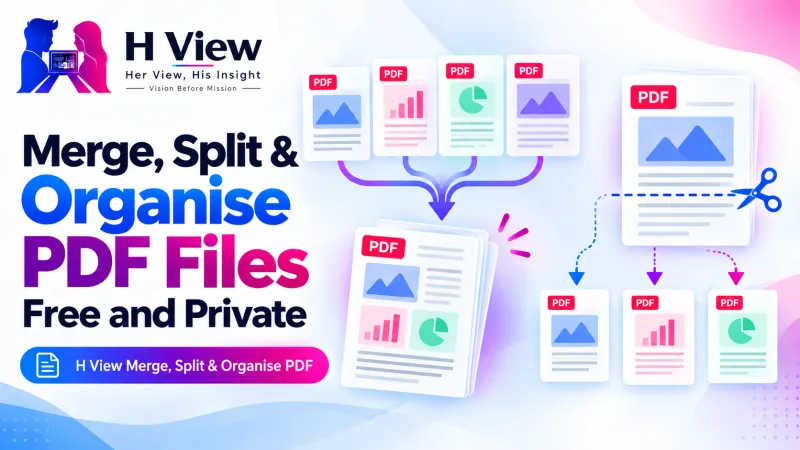
To merge PDF files for free, open H View Merge, Split & Organise PDF, add all your PDFs, drag the page thumbnails into the order you want, keep “One PDF” selected and press Save PDF. To split instead, choose “Every page separately,” “Page ranges” or “Selected pages only.” Everything happens in your browser.
Application portals are fussy in opposite directions. One wants your ID, degree, mark sheets and experience letter as a single file. Another wants only the first page of a 12-page agreement. Desktop software for this is expensive, and many websites upload your documents to do something your own browser can do.
How Do I Merge PDF Files, Step by Step?
- Add the PDFs. Choose one or more files; you can add images as pages too.
- Arrange the pages. Every page appears as a thumbnail, colour-coded by file. Drag to reorder, rotate sideways pages and delete the ones you don't need. On phones, use the arrows.
- Choose how to save. One merged PDF, every page separately, page ranges, or only the pages you selected.
- Download. You get one PDF, or a ZIP when there are several files.
Try it now: Open the free Merge, Split & Organise PDF tool → Free · No sign-up · Files stay on your device.
Which Save Option Do I Need?
| You want to… | Choose |
|---|---|
| Combine several documents into one | One PDF |
| Send each page as its own file | Every page separately (downloads as a ZIP) |
| Split a 12-page file into 1–3, 4–6 and so on | Page ranges, e.g. 1-3, 4-6, 7-12 |
| Pull out only page 2 and page 7 | Click those pages, then “Selected pages only” |
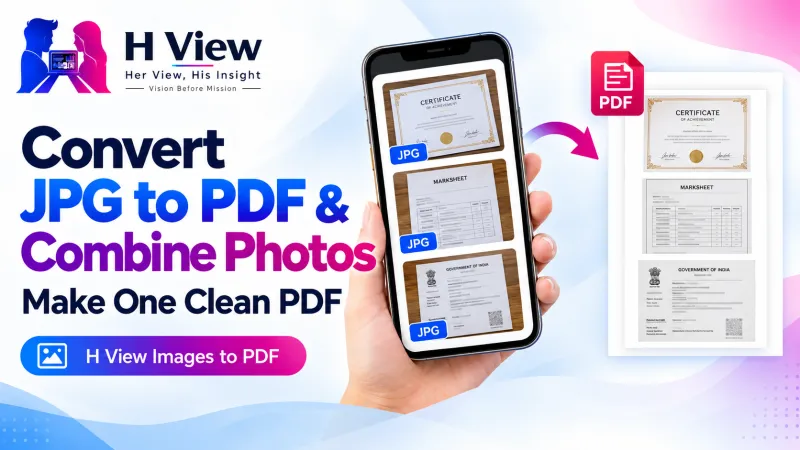 Also readHow to Convert JPG to PDF and Combine Document Photos into One PDF, Free→
Does Merging Reduce Quality?
No. Pages are copied exactly as they are, so text stays selectable and images keep their quality. That is also why merging is fast even for long files. If the merged PDF is too big for an upload limit, shrink it afterwards with Compress PDF; our guide on compressing to 200 KB or 100 KB explains how.
What Are Some Everyday Uses?
- Job applications: merge resume, ID, degree and experience letters into one file.
- Bank or loan paperwork: combine six months of statements downloaded month by month.
- College admissions: extract just the mark sheet page from a set of certificates.
- Rental agreements: rotate the sideways stamp-paper scan and remove blank pages.
If your documents are still photos, turn them into a PDF first with Images to PDF.
Her View
Paperwork is often the invisible work that falls on one person in a family, usually a woman, who keeps track of everyone's certificates, bills and policies. Being able to organise those PDFs neatly on a phone, without asking for help or paying a shop, gives that work the dignity and ease it deserves.
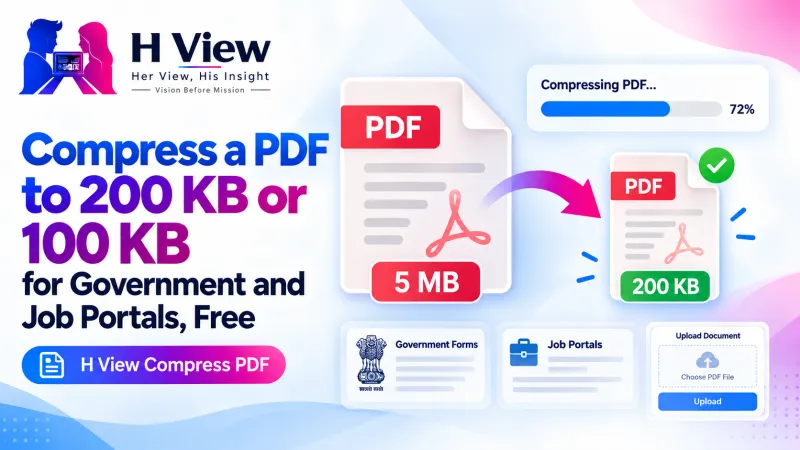 Also readHow to Compress a PDF to 200 KB or 100 KB for Government and Job Portals, Free→
His Insight
The reason this tool shows every page as a thumbnail is simple: most PDF mistakes are wrong-page mistakes. Seeing the actual pages before saving catches the upside-down scan, the duplicate page and the missing back side. PDF is an open ISO standard, as Adobe explains, so the merged file opens identically everywhere. Many government documents can also be fetched as verified PDFs from DigiLocker and merged the same way.
H View Verdict
Merging, splitting and extracting pages shouldn't need paid software or an upload. See your pages, put them in order, choose the right save option and keep your private documents on your own device.
Frequently Asked Questions
How do I merge PDF files into one?
Add all the PDFs, drag the pages into the order you want, keep “One PDF” selected and press Save PDF.
How do I split a PDF into separate pages?
Add the PDF, choose “Every page separately” and press Save PDF. You get a ZIP with one PDF per page.
How do I extract only some pages?
Click the pages to select them and choose “Selected pages only,” or type ranges such as 2-4, 7 under “Page ranges.”
Are my PDFs uploaded?
No. Everything happens in your browser, and the files stay on your device.
Explore all H View free tools.
H View stories follow our editorial policy. Spotted an error? Tell us and we will correct it.
Rate this article
One tap is enough. No comment needed.
Was this article helpful?
Your answer goes straight to our editors.








Comments0
No comments yet. Start the conversation.