
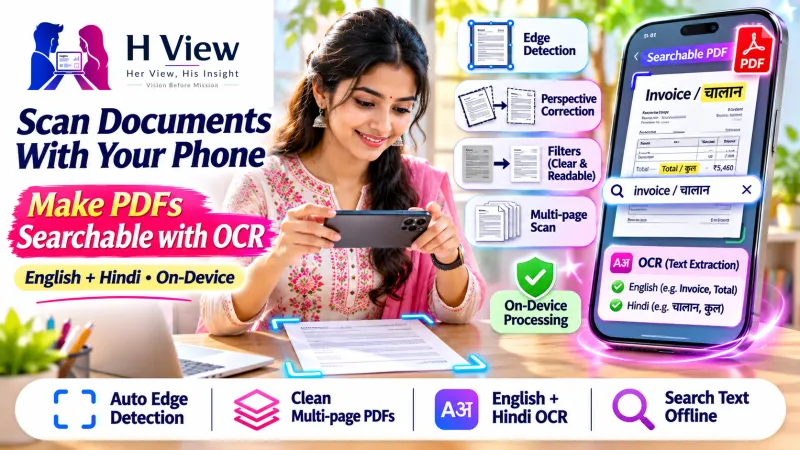
How to Scan Documents With Your Phone and Make Them Searchable (OCR in English and Hindi)
Turn tilted, shadowy phone photos into clean, flat, searchable PDFs. A practical guide to scanning with your phone, plus OCR that reads English and Hindi on your device.
A photo of a document is not the same as a scanned document. Photos come out tilted, with shadows from your hand, a bit of the table at the edge, and text you cannot search. When you need to share it, print it or upload it, those problems show up quickly.
The good news is you do not need a scanner machine anymore. Your phone camera, with the right app, gives you a clean, flat, searchable PDF in seconds. Here is how to do it well, including documents in Hindi.
What makes a good scan?
- Flat and straight. The page fills the frame with no tilt or curve.
- Even light. No shadows, no glare on glossy paper.
- Readable but light. Sharp enough to read, small enough to email or upload.
- Searchable. You can search for a word, or copy text out of it.
The last point is what OCR is for.
What is OCR, in simple words?
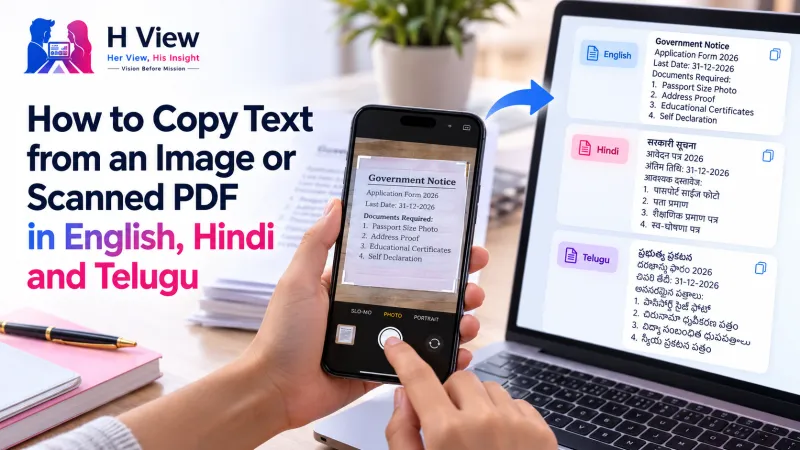
OCR stands for Optical Character Recognition. It looks at the image of your page and works out the letters on it. After OCR, your PDF still looks like the original page, but it now has a hidden text layer behind it. That lets you search the PDF, select text, copy a paragraph, or have it read aloud.
Many OCR tools handle English well but struggle with Indian languages. Cloudfolio supports OCR in both English and Hindi, and it runs on your device.
 Also readCloudfolio: A Free PDF Editor, Scanner and Study App That Keeps Your Files on Your Device→
How to scan with Cloudfolio
- Open the scanner. Go to cloudfolio.app/app/scan on your phone. For the best experience, install Cloudfolio from the browser first (Chrome on Android: Install app; Safari on iPhone: Share, then Add to Home Screen).
- Place the page on a dark, plain surface. A contrasting background helps the scanner find the edges.
- Capture. Cloudfolio detects the edges automatically and corrects the perspective, so the page comes out flat even if you held the phone at an angle.
- Pick a filter. Magic brightens the page and removes shadows. Grey or black and white make text crisp and the file smaller.
- Add more pages. Keep capturing for a multi-page document, or import photos you already took.
- Reorder and rotate. Drag pages into the right order and turn any that are sideways.
- Run OCR. Choose English or Hindi, and Cloudfolio adds the text layer.
- Save. You now have one clean, searchable PDF.
Tips for better results
- Use daylight or a bright room light from above. Avoid using the flash on glossy paper.
- Keep your hands and phone shadow out of the frame. Hold the phone a little to the side if needed.
- Flatten bound books gently and scan one page at a time for the cleanest text.
- Clean the camera lens. A smudged lens is the most common reason for a blurry scan.
- Choose black and white for plain text documents. Keep colour only for photos, stamps or coloured charts that matter.
 Also readHow to Study From PDFs Effectively: Highlights, Notes, Flashcards and AI With Page Citations→
Where this helps in real life
Students
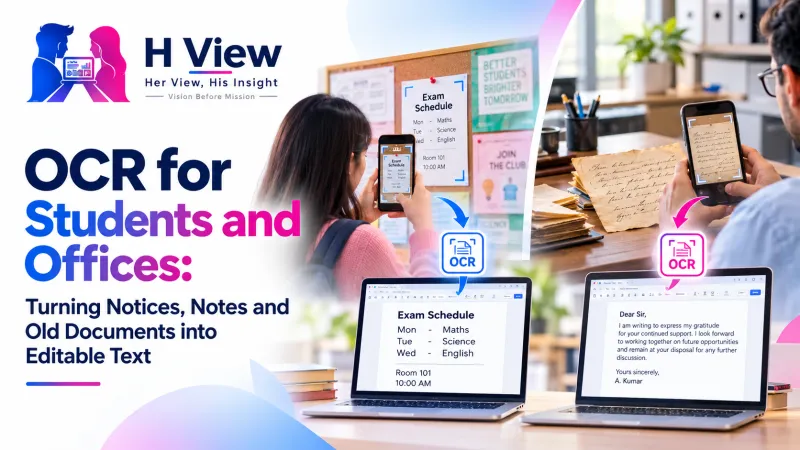
Borrowed notes, printed question papers and handouts become clean PDFs you can search before exams. Type a word like "photosynthesis" and jump straight to the page.
Home and family papers
Property papers, old certificates and medical reports, often in Hindi, become searchable records. They are much easier to find later than a gallery full of photos.
Work
Signed letters, receipts and delivery notes can be scanned, made searchable and attached to email in a minute.
Listening instead of reading
After OCR, Cloudfolio can read the text aloud in English or Hindi at a speed you choose. That helps when you are revising, or for older family members who find small print hard to read.
Is it private?
Scanning and OCR happen on your device. There is no upload and no waiting for a server. Cloudfolio says PDFs are not stored on its servers, and once installed it works offline. That matters, because the documents people scan are usually personal: IDs, certificates, medical papers and agreements.
What is free?
The scanner is included in the free plan, along with 30 OCR pages a month. If you scan a lot, for example a whole semester of notes or office records, the Plus plan at ₹99 a month gives you unlimited OCR and tools.
Try your first scan today at cloudfolio.app. You will find it under Premium Tools → PDF & documents on H View too.
H View stories follow our editorial policy. Spotted an error? Tell us and we will correct it.
Rate this article
One tap is enough. No comment needed.
Was this article helpful?
Your answer goes straight to our editors.






Comments0
No comments yet. Start the conversation.