
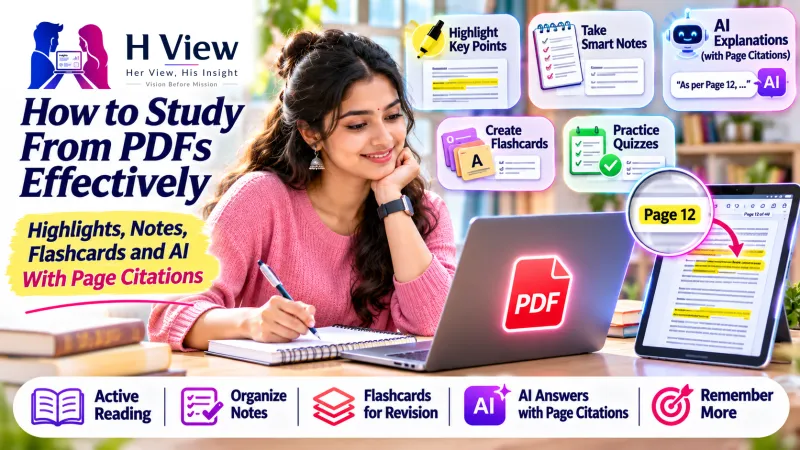
How to Study From PDFs Effectively: Highlights, Notes, Flashcards and AI With Page Citations
Scrolling a 60-page PDF the night before an exam does not work. A five-step method to study from PDFs: active reading, one-page notes, explanations you can check, self-testing and listening.
Most study material today arrives as a PDF. Textbook chapters, lecture slides, previous year papers and notes shared in a class group. But scrolling through a 60-page PDF the night before an exam is one of the least effective ways to learn.
Here is a simple method to study from PDFs properly, and how Cloudfolio helps at each step.
Step 1: Read actively, not passively
Research on learning has shown for a long time that rereading feels productive but sticks poorly. What works better is engaging with the material: marking what matters, writing questions, and testing yourself later.
In Cloudfolio, you can:
- Highlight key definitions in one colour and examples in another.
- Underline lines you want to come back to.
- Add sticky notes with your own questions, like "Why does this happen?" or "Likely 5-mark question."
- Use the pen to circle diagrams or draw arrows between ideas.
Pick a page theme that is easy on your eyes. Sepia and dark modes help during long sessions. Cloudfolio reopens each file on the page where you stopped, so you never waste time finding your place.
Step 2: Collect your notes in one place
The problem with highlights is that they stay scattered across 60 pages. Cloudfolio's notes panel lists every highlight and note in one place. You can export them as Markdown with page references, which gives you a ready-made revision sheet that points back to the exact page.
Turn that list into a one-page summary in your own words. That act of rewriting is where a lot of the learning happens.
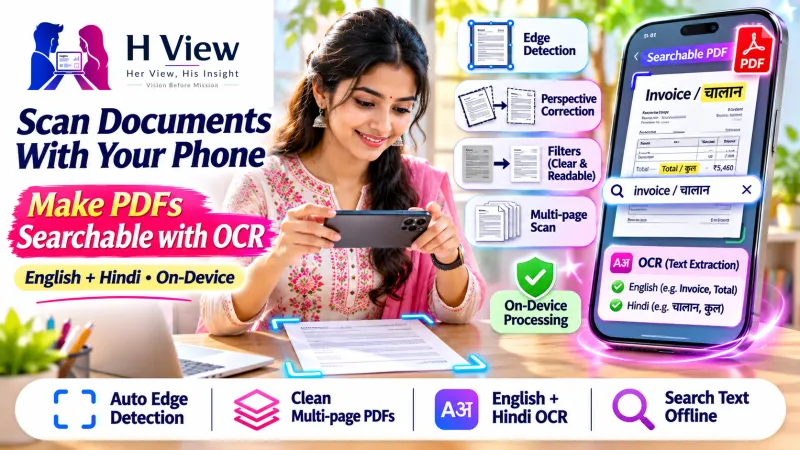 Also readHow to Scan Documents With Your Phone and Make Them Searchable (OCR in English and Hindi)→
Step 3: Get unstuck with explanations
Every chapter has that one paragraph that makes no sense on the first read. With Cloudfolio Pro, select the pages and ask the AI study assistant to explain it in plain language. You can also ask your document a question, like "What are the three causes mentioned here?", and get an answer based only on the pages you chose.
Two things make this more trustworthy than pasting text into a general chatbot:
- Page citations. Summaries and answers point to the page they came from, so you can check them against the book.
- It says when something isn't there. If the answer is not in your PDF, the assistant tells you instead of making something up.
Use AI to understand, not to skip reading. Check the cited page every time. That habit alone will save you from learning something wrong.
Step 4: Test yourself
Testing yourself is one of the most reliable ways to remember what you studied. Cloudfolio Pro can create flashcards and practice quizzes from your chapters, with page references for every question.
A simple routine that works:
- Read and mark up the chapter on day one.
- Do the flashcards the next day, before you look at your notes.
- Take the practice quiz three or four days later.
- For every question you get wrong, open the cited page and reread just that part.
Spacing your revision over several days like this beats one long session before the exam.
Step 5: Use your ears too
Cloudfolio can read pages aloud in English or Hindi at an adjustable speed. Listen to a chapter on your commute, then do the quiz when you get home. It is also helpful for students who find long reading sessions tiring.
 Also readCloudfolio: A Free PDF Editor, Scanner and Study App That Keeps Your Files on Your Device→
Bonus: turn paper notes into searchable PDFs
Got handwritten or printed notes from a friend? Use the camera scanner to make a clean PDF, then run OCR in English or Hindi so you can search printed text. Before exams, type a keyword and jump straight to every page that mentions it.
Your privacy while you study
Your PDFs stay on your device, and once installed, reading and tools work offline. The AI only runs when you press Run, and only the pages you choose are sent for analysis. The rest of your library never leaves your device.
Which plan do you need?
- Free: unlimited reading and annotation, the scanner and 30 OCR pages a month. This covers steps 1, 2 and 5.
- Plus, ₹99 a month: unlimited OCR and tools. No student ID needed.
- Pro, ₹199 a month: adds the AI study assistant with 300 AI actions a month, plus flashcards and quizzes.
Start with the free plan and see how far it takes you. Open your next chapter at cloudfolio.app, or find Cloudfolio under Premium Tools → PDF & documents on H View.
H View stories follow our editorial policy. Spotted an error? Tell us and we will correct it.
Rate this article
One tap is enough. No comment needed.
Was this article helpful?
Your answer goes straight to our editors.






Comments0
No comments yet. Start the conversation.