
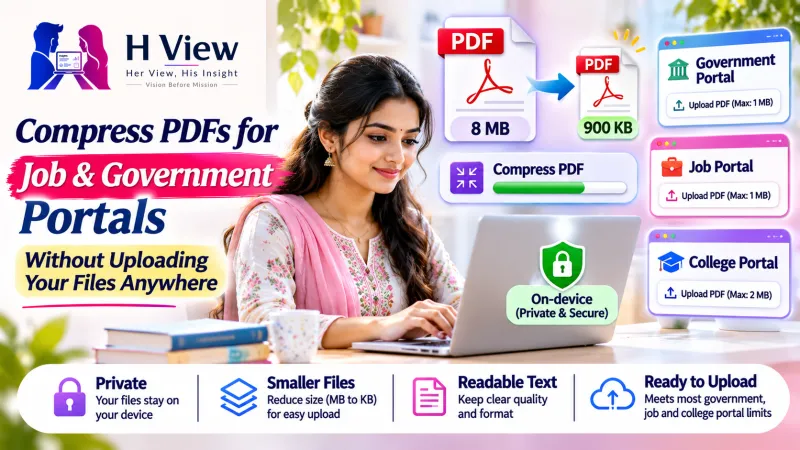
How to Compress a PDF for Government and Job Portals (Without Uploading It Anywhere)
Portal says maximum 200 KB and your scan is 3.8 MB? Here is a simple step-by-step way to shrink a PDF while keeping it readable, and why you should not upload ID documents to random sites.
You have filled the whole form. Name, address, qualifications, all done. Then the last step says: "Upload your documents. PDF only. Maximum size 200 KB." Your scanned certificate is 3.8 MB.
Anyone who has applied for a government job, a passport, a scholarship or a college admission in India knows this moment. This guide shows how to get a PDF under the limit quickly, without uploading your private documents to an unknown website.
Why are scanned PDFs so big?
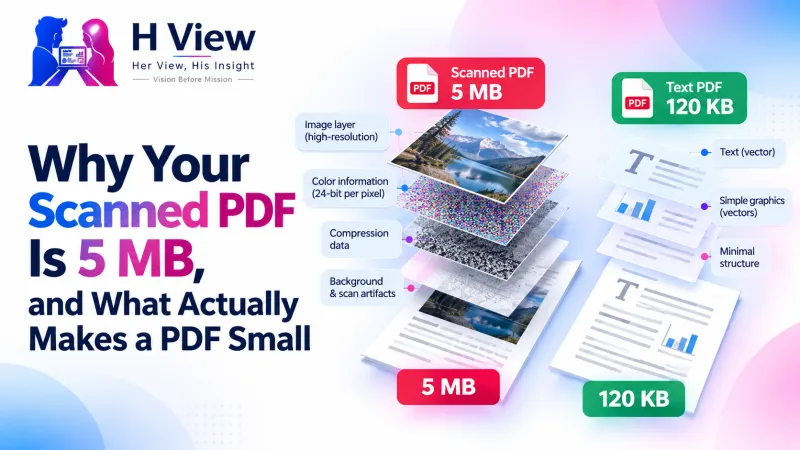
A PDF made from a phone photo is really a set of large images inside a PDF wrapper. Modern phone cameras take photos of 12 megapixels or more. That is far more detail than a portal needs to read your marksheet. Colour adds even more weight. A coloured background, shadows and paper texture are all stored as image data.
So the trick to a small PDF is simple: keep the text readable and throw away the detail nobody needs.
Common portal limits
Every portal sets its own rules, and they change, so always read the instructions on the form. Typical patterns are:
- Certificates and marksheets: often between 100 KB and 1 MB per file.
- Photo and signature: usually separate JPG uploads with their own size and pixel limits.
- Combined documents: some portals want several certificates in one PDF, in a fixed order.
Note the exact limit before you start. You want to land under it, but not so far under that the text becomes blurry.
 Also readCloudfolio: A Free PDF Editor, Scanner and Study App That Keeps Your Files on Your Device→
Step by step: compress a PDF with Cloudfolio
Cloudfolio's Compress tool works in your browser on your phone or computer, and the file stays on your device.
- Open the Compress tool and select your PDF.
- Pick a quality level. There are three levels. Start with the middle one.
- Check the size. Cloudfolio shows the size before and after, so you know straight away if you are under the limit.
- Open the result and zoom in. Can you read the smallest text, like roll numbers and dates? If yes, you are done.
- Still too big? Try the stronger level. If the text gets blurry, use the tips below instead.
Tips when compression alone is not enough
1. Scan in black and white
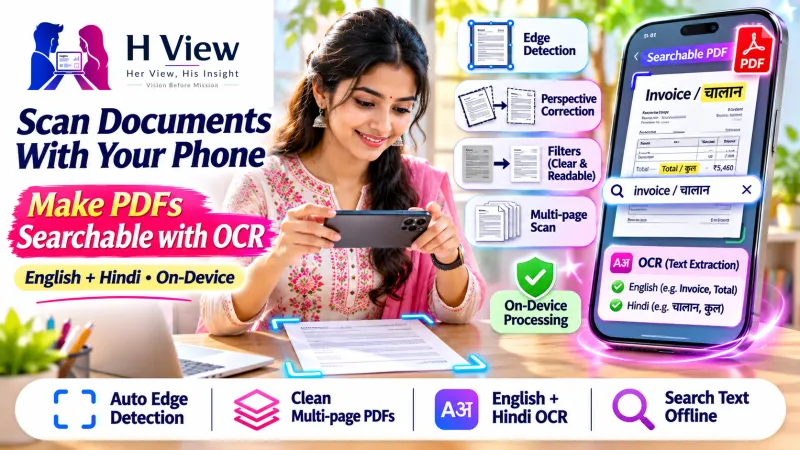
For text documents, colour is the biggest waste of space. When you scan with Cloudfolio's camera scanner, choose the black-and-white or grey filter. The scanner also straightens the page and removes shadows, so the file is cleaner and much smaller before you even compress it.
2. Remove pages you do not need
Many certificates have a blank or instruction-only back page. Use Organise pages to delete it. Every page you remove makes the file smaller.
3. Split one big file into the uploads the portal asks for
If you scanned everything into one PDF, use Split to cut it into separate files by page range, for example pages 1–2 for the 10th marksheet and page 3 for the caste certificate. Then compress each one.
4. Merge in the right order
If the portal wants a single PDF, use Merge to combine your files in the order the instructions list. Compress once more at the end.
5. Convert photos properly
If you only have photos of a document, use Images to PDF rather than putting raw photos into a word processor. You will get a proper PDF that compresses well.
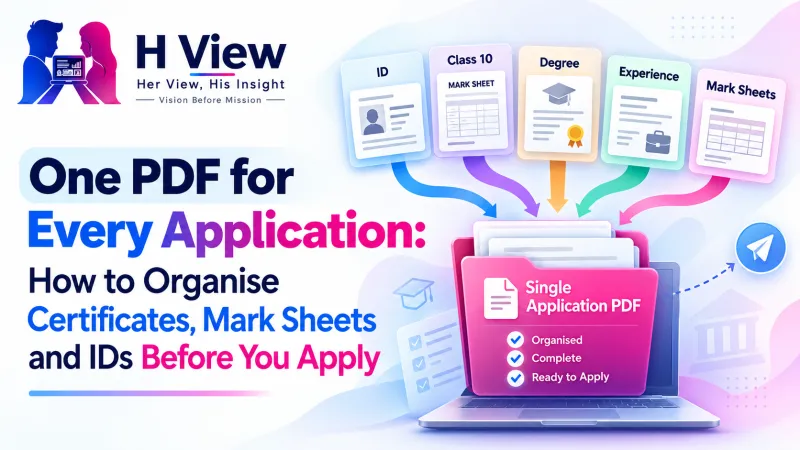 Also readOne PDF for Every Application: How to Organise Certificates, Mark Sheets and IDs Before You Apply→
Why not just use any free website?
Many free compression sites ask you to upload the file to their server first. That might be fine for a menu card. It is a different matter for an Aadhaar copy, a PAN card, bank statements, a salary slip or medical papers. Once a file is uploaded, you have no real control over how long it is kept or who sees it.
Cloudfolio does the work on your device. It states that PDFs are not stored on its servers, and once installed, the tools work even offline. For identity and financial documents, that is a sensible habit to build.
How many files can I compress for free?
The free plan includes 5 PDF tool runs a day, which is usually enough for one application. If you are applying for many forms at once, or you handle documents every day at work, the Plus plan at ₹99 a month gives you unlimited tool runs and OCR.
A quick checklist before you hit Upload
- The file is under the size limit shown on the portal.
- All text, stamps and signatures are readable when you zoom in.
- The pages are in the right order and the right way up.
- There are no blank or extra pages.
- The file name makes sense, for example Name_10th_Marksheet.pdf.
That is it. Next time a portal says "Maximum 200 KB," you will know what to do. Try it at cloudfolio.app, or find it under Premium Tools → PDF & documents on H View.
H View stories follow our editorial policy. Spotted an error? Tell us and we will correct it.
Rate this article
One tap is enough. No comment needed.
Was this article helpful?
Your answer goes straight to our editors.







Comments0
No comments yet. Start the conversation.