
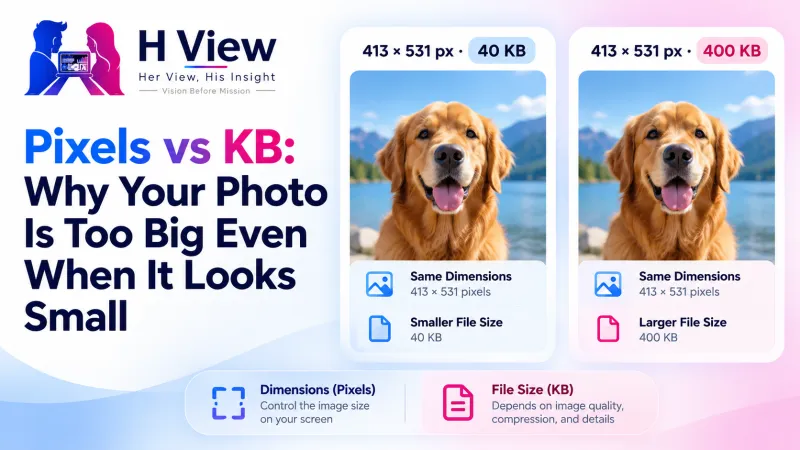
Pixels vs KB: Why Your Photo Is Too Big Even When It Looks Small
Forms ask for "200 × 230 pixels" and "under 50 KB," and those aren't the same thing. Here's a plain guide to image size, file size, quality and compression, so your next upload goes through on the first try.
Image size in pixels and file size in KB are two different things. Pixels describe how wide and tall the picture is (for example 413 × 531); KB describes how much data the file holds, which depends on the pixels and on compression. Two photos with identical pixel dimensions can be 30 KB or 300 KB. That's why forms often specify both.
“Resize your photo to 200 × 230 and keep it under 50 KB.” Most people read that as one instruction. Then they shrink the photo to a tiny thumbnail and it's still 120 KB, or they compress it to 20 KB and the portal rejects it for being the wrong dimensions. Separating the two ideas makes everything easier.
What Is the Difference Between Pixels and KB?
| Image size (pixels) | File size (KB) | |
|---|---|---|
| What it measures | Width × height of the picture | Amount of data stored on disk |
| Example | 1080 × 1350, 413 × 531 | 45 KB, 2.4 MB |
| Changed by | Resizing or cropping | Compression quality, format, and pixel count |
| Tool | Image Resizer | Image Compressor |
Why Can Two Same-Size Photos Have Different KB?
Because of compression and content. A JPG saved at high quality keeps more detail and is bigger; at quality 70–80 it is often 60 to 80 percent smaller with little visible change. A busy photo with leaves and patterns needs more data than a plain face against a white wall. Format matters too: according to Google's WebP documentation, lossy WebP images are 25–34% smaller than comparable JPEGs at equivalent quality.
 Also readHow to Compress a Photo to 50 KB or 20 KB for Exam and Job Forms, Free and Private→
What Is DPI, and Does It Matter for Uploads?
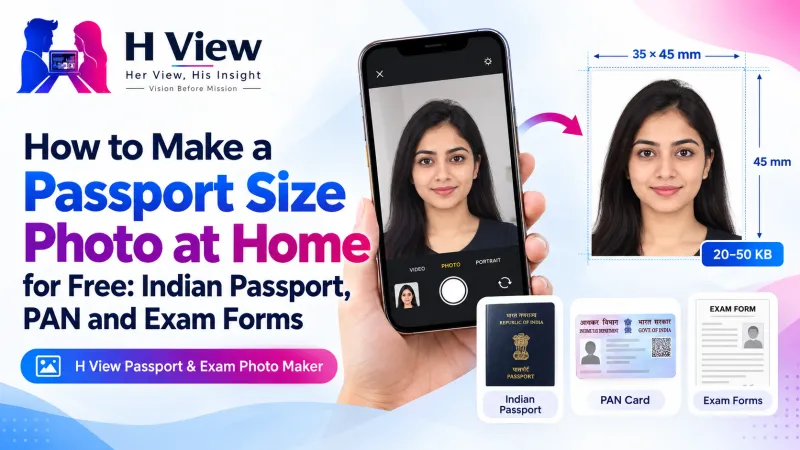
DPI (dots per inch) only matters when you print. A 35 × 45 mm passport photo at 300 DPI works out to 413 × 531 pixels. On a website upload, the portal checks pixels and KB, not DPI. So when a notice gives a size in centimetres, convert it to pixels at the DPI it mentions, or use a preset that already does it.
What Order Should I Follow for a Form Upload?
- Crop and resize to the exact pixel dimensions in the notice.
- Convert to JPG if the form demands it, with the Image Converter.
- Compress to a KB size comfortably inside the range, using “Target size.”
- Check both numbers before uploading.
For passport, PAN and exam photos, the Passport & Exam Photo Maker does all four in one go.
Her View
Technical words like “pixels” and “KB” quietly shut people out. Parents filling school forms, older relatives applying for pensions, first-time job seekers: they all deserve explanations in plain language. Once the idea clicks, they don't need anyone's help again.
 Also readHow to Upscale a Small or Blurry Photo 2× or 4× With Free AI→
His Insight
Think of pixels as the size of the canvas and KB as how heavily it's packed. You can pack the same canvas tightly or loosely. Resizing changes the canvas; compression changes the packing. MDN's image format guide is a good next step if you want the technical detail.
H View Verdict
When a form asks for pixels and KB, treat them as two separate steps: resize first, compress second, and check both. It turns a confusing instruction into a two-minute routine.
Frequently Asked Questions
Why is my small photo still over 50 KB?
Because file size depends on compression as well as dimensions. Use a compressor with a target size to bring it under 50 KB.
Does reducing KB change the pixel size?
Not usually. Compression lowers quality to reduce KB; only if a target can't be reached does a compressor also reduce dimensions slightly.
What is 3.5 × 4.5 cm in pixels?
At 300 DPI, 35 × 45 mm is 413 × 531 pixels.
Do I need DPI for online forms?
Only if the notice mentions it. Portals normally check pixel dimensions and KB.
H View stories follow our editorial policy. Spotted an error? Tell us and we will correct it.
Rate this article
One tap is enough. No comment needed.
Was this article helpful?
Your answer goes straight to our editors.






Comments0
No comments yet. Start the conversation.