

Best Digital Marketing Tools in 2026: What Marketers Actually Need and What They Can Skip
Open LinkedIn for a few minutes and you will probably come across a colourful graphic…
 Harika October 6, 2026
  By HarikaUpdated September 20, 202622 min read56 views
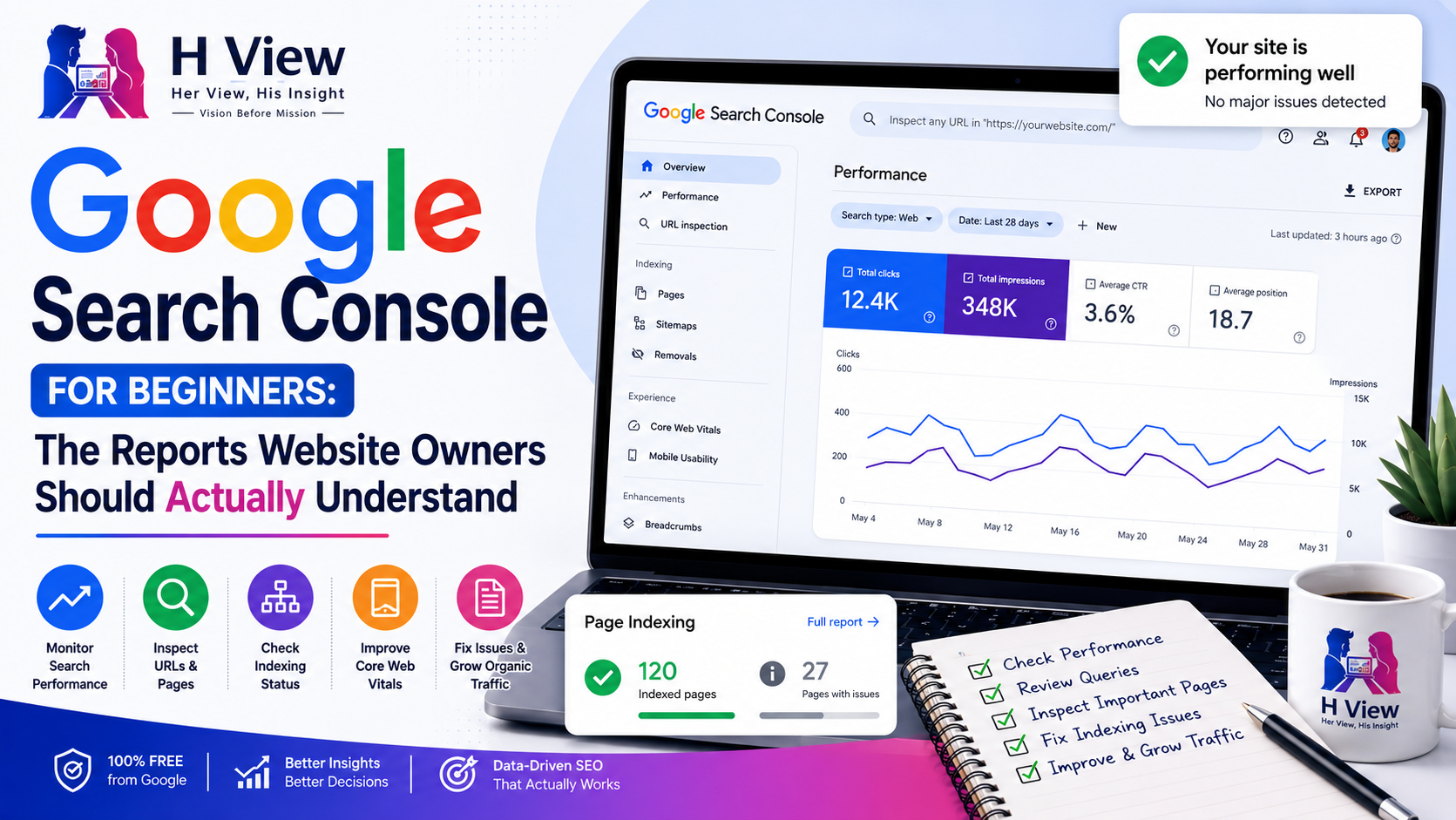
Google Search Console can feel intimidating the first time you open it. There are graphs, indexing reports, sitemap statuses, URL inspection results, Core Web Vitals, search queries, impressions, average positions and enough technical terminology to make a beginner wonder whether they need to become an SEO expert just to understand their own website.
The good news is that you do not need to understand every report on day one.
For most website owners, Search Console becomes useful when it answers a handful of practical questions: Is Google finding my pages? Are those pages being indexed? What searches are making my website appear? Which pages are getting clicks? Which articles are losing visibility? Is there a technical problem preventing an important page from appearing in Search?
That is what this guide focuses on.
Rather than walking through every menu in Search Console, we will look at the reports that actually matter for a normal website, blog or small business and explain what each one tells you, what you should pay attention to and what you should not panic about.
Google Search Console is a free service from Google that helps website owners understand how their site is performing in Google Search and identify certain crawling, indexing and search-performance issues.
It does not tell you everything about your website. Google Analytics, for example, focuses much more on what visitors do after reaching your site. Search Console focuses on what happens between your website and Google Search.
That means Search Console is useful for questions such as:
Google describes Search Console as a way to monitor, maintain and troubleshoot a site’s presence in Google Search. It is important to understand, however, that you do not need Search Console in order to appear in Google. Google can discover and index websites without it, but Search Console gives you much more visibility into what is happening.
One of the first misconceptions beginners should clear up is that Search Console is not an SEO switch.
Adding your website to Search Console does not make it rank higher. Submitting a sitemap does not guarantee that every URL will be indexed. Requesting indexing does not guarantee that the page will appear immediately, and seeing an average position of 20 does not mean there is a button somewhere that can move it to position 5.
Search Console is primarily a measurement and diagnostic tool.
Think of it as the dashboard of a car. The dashboard can tell you your speed, fuel level and warning conditions, but it does not drive the vehicle for you. In the same way, Search Console can show how Google is interacting with your website, but the underlying quality, relevance, technical accessibility and competitiveness of your pages still determine much of what happens in Search.
This distinction is important because many website owners spend too much time refreshing Search Console and too little time improving the website itself.
For most website owners, the Performance report is the most useful place to begin.
Google says the Performance report shows how a site performs in Search results and can help identify where search traffic comes from, which queries show the site and which pages have particularly high or low click-through rates.
At the top of the report, you will usually see four major metrics:
These four numbers can tell you a great deal, but only when you understand what they actually represent.
A click is recorded when someone clicks a link from a Google Search result and reaches your website.
This is probably the easiest metric to understand because it represents actual traffic coming from Search.
If your website receives 1,000 clicks during a month, that means Google Search sent approximately that many recorded clicks during the selected period.
However, clicks should not be viewed in isolation.
A website might have fewer clicks this month simply because search demand for a topic has temporarily fallen. Another page may have more clicks because a seasonal topic became popular. A new article may receive very few clicks but still show strong growth in impressions.
The trend matters more than one isolated number.
An impression generally represents an occasion when a link to your website appears in Google Search under the conditions Google uses for that particular result type.
This metric is extremely valuable because impressions often appear before clicks begin increasing.
Imagine you publish a new article.
During the first week, it receives only 5 clicks but 600 impressions. A month later, it has 30 clicks and 2,500 impressions.
The clicks are still relatively small, but the growing impressions show that Google is displaying the page more frequently.
That can be an encouraging sign.
For a developing website, impressions often tell a more interesting story than clicks because they reveal whether Google is beginning to associate your pages with relevant searches.
CTR stands for Click-Through Rate.
It compares how often your result was shown with how often people clicked it.
A simplified formula is:
Clicks ÷ Impressions × 100 = CTR
If a page appeared 1,000 times and received 50 clicks, its CTR would be 5%.
A low CTR does not automatically mean there is a serious problem. Search position, query intent, competing results, AI features, rich results and many other factors can affect whether users click.
However, Google specifically recommends looking at low-CTR pages because they may indicate that users see the result but do not consider it sufficiently relevant or attractive. In some cases, improving the page title, description or alignment with the actual query can help.
CTR therefore becomes most useful when you examine it alongside the query and page rather than treating the site-wide number as a score.
Average Position is one of the most misunderstood Search Console metrics.
It does not simply mean:
“My page ranks number 8 on Google.”
Search Console position data can be aggregated across multiple queries, locations, devices and appearances. Google also explains that position generally reflects the topmost position of your property or page under its reporting methodology.
That means a single page could rank differently for dozens or hundreds of searches.
For example, an article might rank:
Search Console may then display an average rather than one fixed ranking.
This is why average position should be used mainly to understand trends.
Google itself recommends focusing more on movements in clicks and impressions than obsessing over position alone.
The Queries tab shows searches for which Google displayed your website.
This is one of the most valuable parts of Search Console because it reveals the language real users are using.
Imagine you publish an article called:
What Is SEO and How Does It Work?
You may eventually see queries such as:
You may not have deliberately targeted every one of those phrases.
Search Console is showing you how Google is interpreting the page.
That information can help you improve the content naturally.
If an article is receiving many impressions for a query that it barely discusses, you may have found a useful content gap. You could strengthen that section if it belongs naturally in the article or create a dedicated page if the subject deserves deeper treatment.
This is much more useful than repeatedly guessing what Google might think your page is about.
One of the easiest Search Console opportunities for beginners is finding queries or pages with meaningful impressions but relatively few clicks.
This pattern can mean several things.
The page may be appearing too low in the results. The title may not clearly match what users want. The search itself may naturally produce fewer clicks because Google answers part of the question directly. The page may also be showing for a query that is only loosely related to its content.
Instead of immediately rewriting everything, inspect the query and ask:
The goal is diagnosis, not panic.
The Pages tab allows you to see which URLs receive visibility and traffic from Google Search.
This is where you can discover whether your content strategy is actually working.
Suppose your website has 100 articles, but five of them generate 70% of all organic clicks. That tells you something important about what Google and your audience currently value.
Instead of only celebrating those pages, study them.
Ask what they have in common.
They may target clearer problems. Their titles may better match search intent. They may belong to a stronger topic cluster. They may have better internal links. Perhaps they are older and have simply had more time to establish themselves.
You can also identify pages losing clicks or impressions and compare time periods to see whether the decline appears sudden or gradual.
Google’s Performance report allows date comparisons and query/page filtering, which makes this kind of analysis much easier.
Search traffic naturally fluctuates.
A website might receive 1,000 clicks on Monday and 850 on Tuesday without anything being wrong. Weekend behaviour, seasonality, news cycles and ordinary variation can all affect traffic.
For that reason, daily monitoring often creates unnecessary anxiety.
A better approach is to compare meaningful periods.
For example:
Then look at which pages and queries changed.
A site-wide decline can have a completely different cause from one article losing traffic.
Search Console becomes much more useful when you investigate patterns instead of reacting to individual daily movements.
The Page Indexing report shows URLs Google knows about and whether they have been indexed.
This is where many beginners become worried because they see numbers such as:
Indexed: 120
Not indexed: 150
The immediate assumption is often that 150 pages are broken.
That is not necessarily true.
Google explicitly says website owners should not expect 100% of known URLs to be indexed. Duplicate pages, alternate URLs, redirects, blocked pages and other URLs may legitimately remain outside the index. What matters is whether the canonical versions of your important pages are indexed.
This is one of the most important Search Console lessons to remember.
A large “Not indexed” number is not automatically an SEO emergency.
You generally want important public pages that provide unique value to be eligible for indexing.
Depending on the website, these may include:
You do not necessarily need every URL generated by your content management system to appear in Google.
Depending on how the website is configured, you may have URLs created for filters, parameters, duplicates, archives, internal searches or alternate versions of existing pages.
The real goal is not maximum index count.
The goal is to make sure the right pages are indexed.
Search Console may show a range of reasons why URLs are not indexed.
Some situations deserve attention, while others can be perfectly normal.
Common examples include:
The mistake is treating all of them as equally dangerous.
An alternate page with the correct canonical may be behaving exactly as intended. A redirect URL usually does not need to be indexed because Google should index the destination instead. A 404 for an intentionally deleted page may be completely normal.
On the other hand, if an important article is accidentally marked noindex, blocked from crawling or returning a server error, that deserves immediate investigation.
Search Console requires judgement.
This status creates enormous anxiety for bloggers.
It means Google has crawled the URL but has not currently indexed it.
People often look for a magical fix:
None of these automatically solves the underlying reason.
If Google can access the page but chooses not to index it, review the page itself.
Ask whether it is:
Sometimes the answer is simply to improve the page.
Sometimes the page may be too new and needs more time.
Sometimes Google may decide that another URL better represents the content.
There is no universal button that forces permanent indexing.
This usually indicates that Google knows about the URL but has not yet crawled it sufficiently for indexing.
For newer websites, this can happen while Google is still discovering and prioritizing pages.
If many important URLs remain in this state for a long period, review discoverability and site quality.
Make sure important pages are:
Google notes that even after a URL is discovered, crawling and indexing are not necessarily immediate and may take time.
Submitting a URL tells Google about the page. It does not create an obligation for Google to crawl or index it immediately.
If you want to know what is happening with one particular URL, do not rely only on the Page Indexing overview.
Use URL Inspection.
Google specifically says the Page Indexing report is designed for broader site-level indexing information, while URL Inspection is the appropriate tool for checking a specific page.
Paste the exact page URL into the inspection bar.
Search Console can then show information such as whether Google knows about the page, whether it is indexed and which canonical Google selected.
This is far more useful than staring at the total number of excluded pages.
URL Inspection can show information from two different perspectives.
The normal inspection view reflects what Google’s index currently knows about the URL based on its most recent processing.
The Test Live URL function checks the page as it exists now.
This distinction becomes useful after you fix a problem.
Imagine Google last crawled your page three days ago when it accidentally contained a noindex directive. You remove the directive today.
The indexed information may still show the old problem because that is what Google saw during its previous crawl.
A live test can help confirm whether Google can now access the corrected version.
Google notes that the live test is useful for troubleshooting but does not test every condition involved in indexing, including some duplicate and canonical situations.
So a successful live test means the current page passes many important checks. It does not guarantee immediate indexing.
After inspecting a URL, Search Console may allow you to request indexing.
This sends a signal asking Google to recrawl the page.
It is useful when:
It should not become something you click repeatedly every few hours.
Google does not guarantee immediate indexing after a request, and repeated requests do not turn a weak page into a stronger one.
If an important page continues to remain unindexed, investigate the underlying cause instead of repeatedly pressing the same button.
An XML sitemap is essentially a structured list that helps search engines discover important URLs on your website.
For many WordPress websites, an SEO plugin or the platform itself automatically generates the sitemap.
You can submit the sitemap through Search Console’s Sitemaps report and check whether Google has successfully processed it.
This is especially helpful for larger websites or sites that publish frequently.
However, a sitemap should not be misunderstood as a command.
Submitting 500 URLs in a sitemap does not mean Google must index all 500.
A sitemap tells Google:
“These are URLs I consider important and would like you to know about.”
Google still determines which pages it crawls and indexes.
Google recommends using the Sitemaps report to monitor parsing issues with submitted sitemaps.
A common configuration problem occurs when websites include unnecessary URLs in their sitemap.
Depending on the site, that could include archive pages, low-value tags, internal search pages or other sections the owner does not actually want appearing in Google.
This creates confusing signals.
A healthier sitemap should focus on canonical URLs that you genuinely consider part of your searchable website.
For a typical content site, that might include:
The exact configuration depends on the website.
The principle is simple: do not advertise URLs to Google through a sitemap while simultaneously telling Google elsewhere that those URLs should not be indexed.
Search Console also provides Core Web Vitals information based on real-user experience data when sufficient data is available.
Core Web Vitals are intended to represent important aspects of page experience such as loading performance, responsiveness and visual stability.
These reports can help identify groups of pages with poor experiences.
However, beginners often make the mistake of turning performance optimization into a score-chasing competition.
A website can spend days trying to move a performance score from 94 to 100 while ignoring much larger SEO problems such as poor content, weak internal linking or unclear search intent.
Treat Core Web Vitals as one part of website quality.
If the site is genuinely slow, unstable or difficult to use, fix it.
If the website already provides a strong experience, do not assume that one small metric change will magically transform search rankings.
Depending on your website, Search Console may show additional reports related to structured data or specific search features.
For example, a site may receive reports for structured data types that Google detects.
These reports become useful when you intentionally use that structured data and want to know whether Google can understand it correctly.
You do not need to chase every enhancement simply because Search Console lists one.
Structured data should accurately represent content already visible on the page. It should not be added simply to collect more green check marks.
For beginners, the priority should remain:
Everything else can be learned gradually.
Search Console and Google Analytics are often confused because both deal with website data.
They answer different questions.
Search Console primarily tells you about your visibility and interactions within Google Search.
Google Analytics primarily helps you understand what users do after reaching your website.
For example, Search Console may tell you that an article received 500 clicks from Google.
Analytics may tell you what those visitors did afterward: whether they stayed, visited another page, completed a form or made a purchase.
The two tools become more powerful when used together.
Search Console explains how people found you.
Analytics helps explain what happened after they arrived.
Another common concern appears when Search Console shows one number and Analytics or an SEO tool shows another.
That does not automatically mean one of the tools is broken.
Different platforms measure different things using different methodologies.
Search Console itself explains that much of its reporting may use representative samples or specific aggregation methods, while Page Indexing provides broader totals for known URLs.
The Performance report can also aggregate data differently depending on whether you are viewing property-level or page-level information.
Instead of trying to make every analytics platform produce identical numbers, use each tool for what it does best.
Website owners do not need to spend hours inside Search Console every day.
A simple weekly or fortnightly review is enough for many smaller sites.
Use a routine like this:
This is enough to make Search Console actionable without allowing it to consume your entire SEO workflow.
Search Console can create unnecessary stress if every number is treated as urgent.
You usually do not need to panic because:
SEO data becomes much more meaningful over time.
Look for patterns, not isolated events.
There are situations where Search Console deserves immediate attention.
Investigate when you notice things such as:
noindex or robots rules unexpectedlyIn these situations, compare the timing of the change with anything that happened on the website.
Was a plugin updated?
Was the theme changed?
Did you alter robots settings?
Did URLs change?
Was the site migrated?
Did an important content section get removed?
Search Console works best when combined with knowledge of what changed on the website itself.
Search Console can easily make website owners feel as though something is wrong every time they see a warning or a downward line. The interface contains technical language, and when you are emotionally invested in a website, even a small traffic decline can feel much bigger than it really is.
The healthier way to use Search Console is as an observation tool rather than a source of constant judgement. Check whether important pages are healthy, understand what users are searching for and look for meaningful trends over weeks and months. A website does not need every report to be perfect. It needs the important parts to work properly and the content to continue becoming more useful.
The most valuable Search Console data is rarely the biggest number at the top of the screen.
The real opportunities are often buried underneath it: a query gaining impressions, an article moving closer to page one, an important URL that Google cannot index, or a high-impression page whose title no longer matches what users are searching for.
Search Console becomes powerful when you stop treating it as a scoreboard and start treating it as evidence.
The question should not be:
“Is my Search Console good?”
The better question is:
“What is Google showing me about my website, and what should I improve because of it?”
That shift turns data into strategy.
If you are completely new to Search Console, you do not need to explore everything immediately.
Start with three areas.
First, open the Performance report and understand which pages and queries are creating impressions and clicks.
Second, confirm that your most important pages are indexed. Use URL Inspection when you need information about a particular URL rather than trying to interpret every excluded page in the site-wide report.
Third, make sure your sitemap is valid and Google can process it.
Once those basics become familiar, gradually explore Core Web Vitals, enhancements and deeper query analysis.
Google Search Console is not difficult because the individual reports are impossible to understand. It feels difficult because beginners often try to understand all of them at once.
Focus on the reports connected to actual questions about your website.
That is when Search Console stops being a confusing collection of graphs and starts becoming one of the most useful SEO tools you have.
Google Search Console helps website owners monitor how their site performs in Google Search, including clicks, impressions, queries, indexing status and certain technical issues. It can also help troubleshoot individual URLs and monitor submitted sitemaps.
Yes. Google Search Console is a free service provided by Google for website owners and administrators.
No. Adding a website to Search Console does not directly increase rankings. The platform primarily provides search-performance and technical information that can help you identify opportunities and problems.
An impression generally means a result from your website appeared in Google Search under Google’s reporting conditions. A click means someone clicked the result and went to your website.
Pages can remain unindexed for many reasons, including duplication, redirects, noindex directives, crawling problems, quality considerations or because Google has discovered but not yet processed them. Not every non-indexed URL represents a problem.
No. Google specifically says website owners should not expect 100% indexing. Duplicate pages, alternate URLs, redirects and intentionally excluded URLs may legitimately remain outside the index. The priority is getting the canonical versions of important pages indexed.
Use the URL Inspection tool inside Search Console. Google recommends URL Inspection when you need to investigate the status of a specific page.
No. A sitemap helps Google discover URLs and provides information about pages you consider important, but Google does not guarantee that every submitted URL will be indexed.
For many small websites, checking once a week or every couple of weeks is sufficient. During a migration, indexing problem or sudden traffic drop, more frequent monitoring can be useful.
Harika is the co-founder of H View and covers AI, technology, gadgets, digital tools, online platforms, and modern internet trends. Her articles focus on simplifying complex topics with practical explanations, balanced opinions, and reader-first insights.
Share your real experience and help other readers decide better.
No community views yet. Be the first to share yours.
Open LinkedIn for a few minutes and you will probably come across a colourful graphic…
Harika October 6, 2026 
When an employee resigns, many organisations move quickly into replacement mode. The manager informs HR,…
Harika October 6, 2026 
For many corporate employees, the workday begins long before they actually start working. They wake…
Harika October 5, 2026 
Many projects begin with an assumption that sounds reasonable on paper: the client will explain…
Harika October 1, 2026