

Nothing OS 4.1 Explained: New Features, Eligible Phones and Should You Update?
Nothing OS has become one of the strongest reasons to consider a Nothing phone. The…
 Harika August 10, 2026
  By HarikaUpdated August 4, 202611 min read74 views
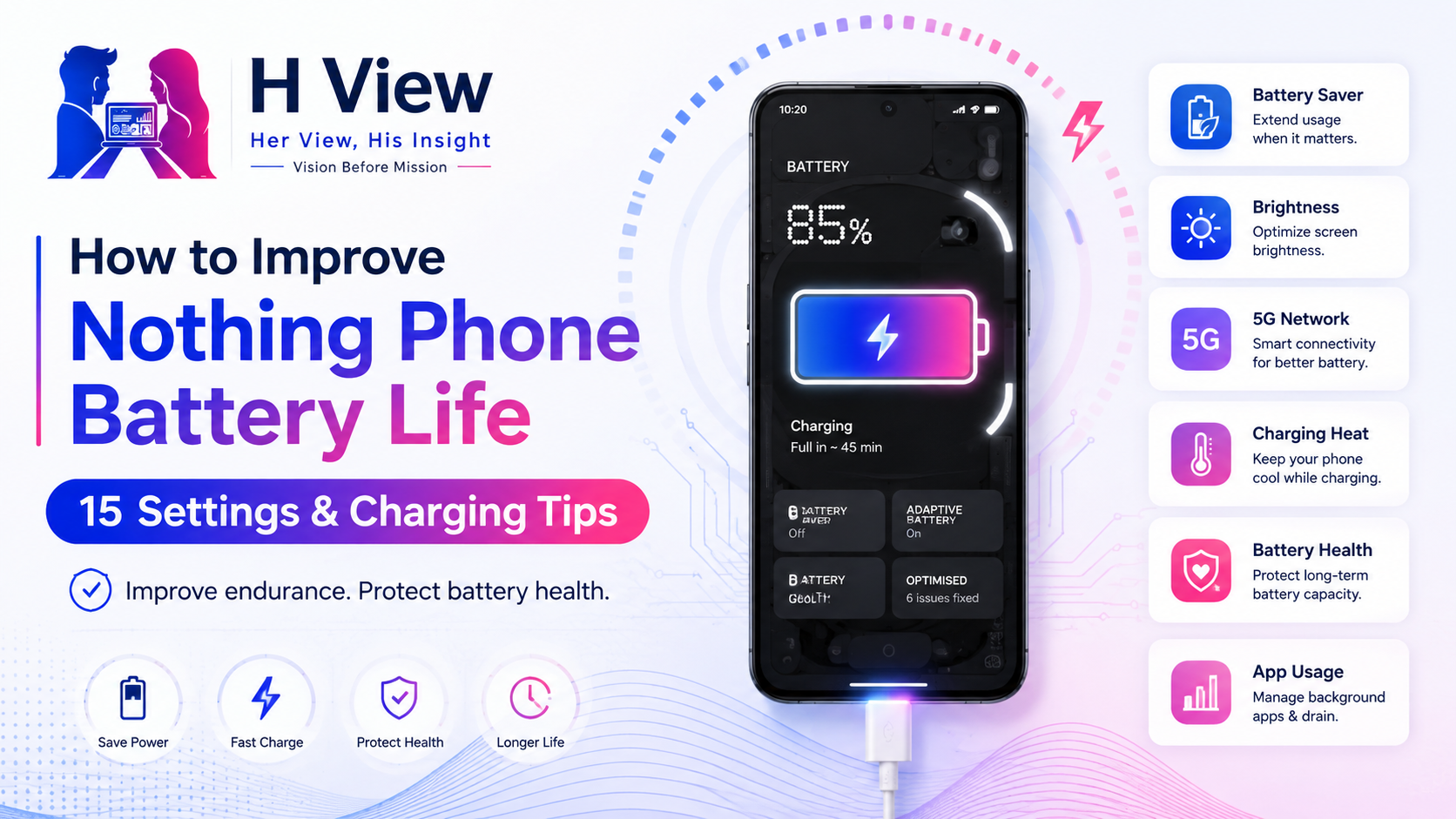
A Nothing phone should comfortably support communication, social media, photography, navigation and entertainment throughout the day. When the battery begins draining unusually quickly, however, even the most attractive Glyph design or clean Nothing OS interface becomes difficult to enjoy.
Battery life and battery health are related, but they are not the same.
Battery life describes how long the phone lasts between charges.
Battery health describes how much charging capacity the battery retains as it ages.
A few settings can improve daily endurance, while better charging habits may reduce unnecessary long-term battery wear.
Nothing officially recommends charging regularly rather than repeatedly allowing the battery to become completely empty, charging between approximately 15°C and 35°C, using a reliable compatible charger and limiting heavy phone use while charging.
Here are 15 practical ways to improve your Nothing Phone’s battery life and protect its battery health.
Do not begin by disabling random features.
First, identify which applications and system functions are using the most energy.
Open:
Settings → Battery → Battery usage
Nothing’s support guidance recommends using this screen to review detailed power consumption.
Look for:
High consumption is not always a problem. A navigation app used for two hours should naturally consume significant battery. The warning sign is an app using substantial power without a clear reason.
Messaging, navigation and email applications may need background access. Many shopping, entertainment and rarely used applications do not.
Open the application’s information page and review its battery setting. Depending on your Nothing OS version, you may see options such as:
Use Restricted carefully. It may delay notifications, uploads or background syncing.
A safer approach is:
Do not restrict banking, authentication or work applications without checking whether it affects alerts and security functions.
Battery Saver reduces selected background activity and power consumption when the battery is running low.
To add it:
Current Nothing support guidance says compatible phones may prompt users to enable Battery Saver when the battery drops below 20%, though the threshold has differed on older models.
Battery Saver is useful during:
It may delay background activity, reduce visual effects or limit selected performance behaviour.
The display is often one of the largest battery consumers.
Automatic brightness can reduce power use by adapting the screen to surrounding light. However, it may occasionally keep the display brighter than necessary.
To improve endurance:
Extremely low brightness is not always better if it causes eye strain. The objective is comfortable visibility without unnecessary power consumption.
Higher refresh rates make scrolling and animation feel smoother, but they can also consume more power.
Nothing phones may offer options such as:
The exact options depend on the model.
Use a dynamic setting when available because it can lower the refresh rate during less demanding activities. Consider a standard refresh rate when:
Users who value smooth scrolling or gaming may prefer the higher setting and accept the additional battery use.
Always-on display features allow the phone to show time, notifications and other information while locked.
The power impact may be modest on an OLED display, but it still accumulates over many hours.
Consider:
A lock screen should show useful information, not become a second home screen running continuously.
Glyph lighting is one of Nothing’s most recognisable features.
Occasional call, notification or timer patterns are unlikely to be the largest source of battery drain. Frequent lighting effects, music visualisation and repeated decorative activity can still consume additional power.
To reduce unnecessary usage:
Glyph should make information easier to understand, not flash for every minor notification.
Nothing’s support documentation notes that 5G usage can increase power consumption because the phone may also maintain supporting 4G connectivity.
Consider switching to 4G when:
A typical path is:
Settings → Network & internet → SIMs → Preferred network type
The wording may differ by model or carrier.
Keep 5G enabled when you genuinely benefit from its speed and coverage. Disabling features automatically is not useful when they support your actual needs.
Wi-Fi, Bluetooth, hotspot, location and NFC are efficient when operating normally, but continuous scanning or active sharing can increase consumption.
Useful habits include:
There is usually no need to switch Wi-Fi or Bluetooth off every few minutes. Focus on high-consumption functions such as hotspots, navigation and repeated scanning.
Some applications request permanent location access even though they need it only occasionally.
Open:
Settings → Location → App permissions
Review applications under categories such as:
Weather, delivery and travel applications may need location access. Games, shopping apps or social-media services may not need permanent access.
Where possible, use:
Restricting unnecessary access improves both privacy and potential battery endurance.
Gaming, video recording, navigation and camera use generate heat. Charging also generates heat.
Using demanding applications while charging can increase temperature and may slow the charging process. Nothing recommends avoiding high-power applications such as games, videos and the camera while charging.
Better practice:
Heat is one of the most important factors affecting lithium-ion battery ageing.
Nothing recommends charging within an environment of approximately 15°C to 35°C. Charging can slow down or stop when the device becomes too hot or too cold.
In warm climates:
In cold conditions, battery percentage may fall more quickly temporarily. Nothing says this can normalise when the device returns to a suitable temperature.
Nothing recommends its official charger and cable, while also noting that mainstream compatible chargers may work. Poor-quality or incompatible equipment can cause slower charging, unstable power delivery or safety concerns.
Nothing’s 45W charger supports USB Power Delivery 3.0 and PPS charging.
When buying a third-party charger, check for:
A 100W charger does not force 100W into the phone. Compatible devices negotiate the amount of power they support. However, cheap chargers may fail to implement charging standards safely or reliably.
Charging speed also differs between Nothing models, so check the official specifications for your specific phone.
There is no need to wait until the phone reaches 0% before charging.
Nothing recommends charging regularly and avoiding frequent complete depletion because deep discharge can increase lithium-battery wear.
A practical routine is:
Many users follow an approximate 20%–80% range to reduce extended time at very high or low charge levels. This can be a helpful guideline, but it should not become inconvenient.
Battery management should support your life, not control it.
Modern smartphones manage charging electronically and do not continue forcing power into a full battery indefinitely.
Overnight charging is generally practical when:
The main concern is not an immediate “overcharge.” It is prolonged heat and spending many hours at a high state of charge.
Check your Nothing Phone for settings related to:
Names and availability vary across Nothing OS versions and models.
For maximum longevity, charge earlier in the evening and disconnect when convenient. For most users, reliable overnight charging with proper equipment is more reasonable than waking up repeatedly to manage percentages.
Battery use can temporarily increase after a major Nothing OS or Android update.
The system may be:
Nothing says higher battery consumption after an update may settle after two or three days of normal use. Its support guidance recommends restarting and allowing the device time to complete optimisation.
Do not immediately factory-reset the phone after one day of higher consumption.
First:
Slow charging may be caused by:
Nothing recommends testing another charger and cable, avoiding demanding applications during charging and charging in a suitable environment.
If the phone becomes unusually hot, stop using it and allow it to cool.
Do not insert metal objects into the USB-C port. Use professional support when debris or physical damage is suspected.
Battery calibration does not restore lost physical battery capacity.
Occasionally allowing the phone to complete a normal charge cycle may help the software estimate percentage more accurately when the reading appears inconsistent. It cannot reverse chemical ageing.
Avoid repeatedly draining the battery to zero in the belief that it will improve battery health. Nothing’s own guidance recommends avoiding frequent deep discharge.
A battery that has physically degraded requires replacement, not calibration.
Seek further troubleshooting when:
A swelling battery requires immediate caution. Stop using and charging the phone, keep it away from heat and contact authorised support.
Do not press a lifted rear panel back into place.
Before contacting support:
A factory reset should be a last resort, not the first battery solution.
Open Settings → Battery → Battery usage to review application and system power consumption.
Occasional full charging is normal. For long-term health, avoid unnecessary heat and frequent deep discharge. A partial charging routine can be helpful when convenient.
Modern phones regulate charging. Overnight charging is generally practical with a safe compatible charger, proper ventilation and available charging-protection settings. Excessive heat remains the larger concern.
No. Frequent complete discharge can increase lithium-battery wear, and calibration does not restore physical battery capacity.
The phone may be optimising applications and system data. Nothing says consumption can settle after approximately two or three days of normal use.
Possible causes include an incompatible charger, damaged cable, high temperature or heavy use while charging. Nothing recommends testing the charger and cable and avoiding demanding applications during charging.
It can, particularly when coverage is weak or the device maintains supporting network connections. Nothing’s support documentation notes increased consumption during 5G use.
Harika is the co-founder of H View and covers AI, technology, gadgets, digital tools, online platforms, and modern internet trends. Her articles focus on simplifying complex topics with practical explanations, balanced opinions, and reader-first insights.
Share your real experience and help other readers decide better.
No community views yet. Be the first to share yours.
Nothing OS has become one of the strongest reasons to consider a Nothing phone. The…
Harika August 10, 2026 
Typing is not always the fastest way to express an idea. A message that takes…
Harika August 9, 2026 
Nothing has gradually expanded from a small design-focused smartphone brand into a company serving several…
Harika August 6, 2026 
Screenshots, voice notes, saved links, photographs and reminders accumulate quickly on a smartphone. We capture…
Harika August 3, 2026