
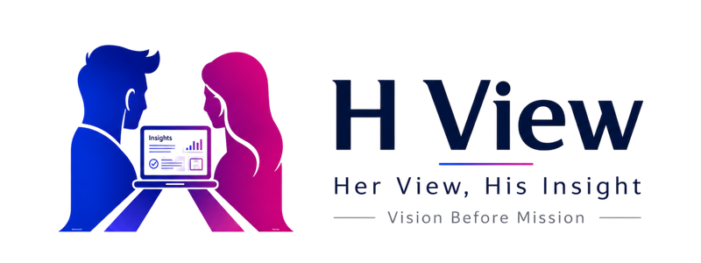
Nothing OS 4.1 Explained: New Features, Eligible Phones and Should You Update?
Nothing OS has become one of the strongest reasons to consider a Nothing phone. The…
 Harika August 10, 2026
  By HarikaUpdated September 21, 202610 min read62 views
Nothing phones attract attention through their transparent-inspired design and Glyph lighting, but the software contains several useful features that owners may never fully explore.
Nothing OS is designed to feel clean and simple. That minimal appearance can sometimes hide tools related to privacy, productivity, battery management, customisation and device sharing.
Some of these are exclusive Nothing features. Others come from Android but are presented through Nothing OS. Knowing the difference matters because ordinary Android functions should not be described as Nothing inventions.
Feature availability can also vary according to the phone model, region and Nothing OS version. Newer devices running Nothing OS 4 or later may include features that are unavailable on older Nothing and CMF phones.
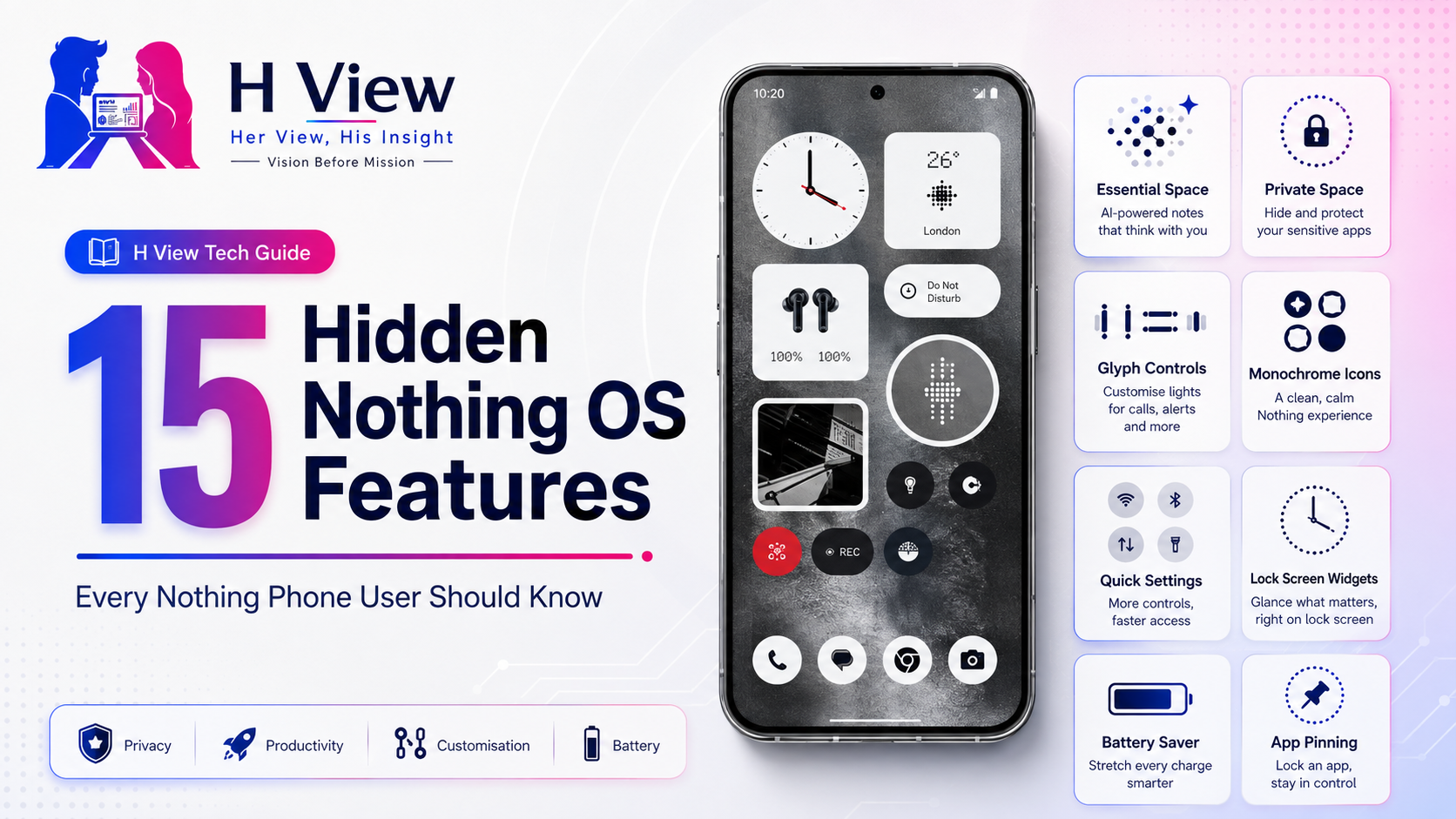
Here are 15 Nothing OS features worth understanding and enabling when they match your needs.
Essential Space is one of Nothing’s most important recent software additions.
On supported phones with an Essential Key, you can capture screenshots, voice notes and useful information before organising them inside Essential Space. Nothing describes Essential as a collection of AI tools intended to help users capture, find, remember and create with less effort.
Double-pressing the Essential Key opens Essential Space. Access to its full functionality requires signing in to a Nothing account.
This can be helpful for:
The feature becomes valuable only when you review the captured material. Otherwise, Essential Space may become another folder filled with forgotten screenshots.
Where to find it: Double-press the Essential Key on supported models.
Availability: Only on compatible Nothing phones with Essential hardware and software support.
Essential Search is Nothing’s AI-supported search experience.
On supported phones, you can swipe up from the home screen and begin typing in the search bar. Nothing says Essential Search can provide direct responses for searches such as news, recipes and translations instead of only presenting a list of links.
It can reduce the effort involved in:
AI-generated answers should still be verified when accuracy matters, especially for medical, financial or legal information.
Where to find it: Swipe up on the home screen and use the available search field.
Availability: Depends on the phone, region and Nothing OS version.
Private Space creates a separate protected environment for applications, files and photographs.
Nothing says applications placed inside Private Space can remain hidden from the normal application list, recent-app screen and notifications. Access requires additional authentication such as a password, code or pattern.
This is useful for:
Private Space offers stronger separation than merely hiding an icon from the launcher.
Where to find it: Open the app drawer and swipe towards Private Space. The swipe direction may vary by region.
Important: Do not forget the authentication method used for Private Space.
App pinning allows one application to remain fixed on the screen until the device is deliberately unpinned.
This can help when:
Nothing warns that a pinned application may still access personal information or open other applications. For more secure device sharing, a guest user may be safer.
After app pinning has been enabled, open the recent-app overview, tap the application icon and choose Pin. Swipe up and hold to unpin it.
Where to find it: Search for “App pinning” in Settings.
Origin: This is an Android privacy feature, not a Nothing-exclusive invention.
Nothing OS allows compatible widgets and shortcuts to appear directly on the lock screen.
Depending on the model and software version, you may be able to add controls for:
Nothing’s newer software emphasises customisable home and lock screens with flexible layouts and widgets.
The best lock screen should provide only information you genuinely need. Adding too many widgets can defeat the purpose of a calmer interface.
Where to find it: Long-press the lock screen or open the lock-screen customisation section in Settings.
Nothing OS can apply a monochrome visual treatment to supported application icons.
Colourful icons are useful for instant recognition, but they can also make the home screen feel visually noisy. Nothing’s monochrome style creates a more consistent appearance that matches its widgets and dot-inspired design.
Consider enabling it when you:
Avoid it when you depend heavily on icon colour to find apps quickly.
Where to find it: Long-press an empty home-screen area and open Customisation.
Nothing OS allows folders to become larger visual blocks on the home screen.
An enlarged folder can display several applications without requiring you to open a traditional small folder first. This is useful for grouping applications such as:
Place only frequently used applications inside enlarged folders. A large folder containing dozens of apps becomes another application drawer.
Where to find it: Create or long-press a folder and choose the available enlargement or layout option.
Availability: The exact folder options depend on the Nothing Launcher version.
The Quick Settings panel can be rearranged so that the tools you use most appear first.
Useful tiles may include:
To edit the panel, swipe down twice, tap the pencil icon and drag useful tiles into the visible area.
Nothing’s support instructions use this method for adding features such as Battery Saver and Screen Cast.
Remove tiles you rarely use. A shorter Quick Settings panel is faster to navigate.
Battery Saver reduces selected background activity and power consumption when the battery becomes low.
Nothing phones can prompt users to enable it when the charge falls below 15%, and the Battery Saver tile can be added manually through Quick Settings.
It is useful during:
Battery Saver may delay notifications, restrict background syncing or reduce certain performance behaviour. It should not remain enabled permanently unless extended battery life is more important than immediate background activity.
Where to find it: Settings → Battery → Battery Saver, or add its Quick Settings tile.
On compatible Nothing phones, Flip to Glyph provides light-based alerts when the phone is placed face down.
This can help during:
Instead of repeatedly checking the display, you can use selected Glyph patterns to recognise priority alerts.
Glyph features differ significantly between models. Some phones offer full rear lighting systems, while others use smaller Glyph arrangements, Glyph Matrix or Glyph Bar implementations.
Where to find it: Settings → Glyph Interface on supported models.
Best use: Assign only a small number of meaningful alerts. Too many patterns become difficult to remember.
Newer Nothing devices can present real-time information across the lock screen, status area, notifications and supported Glyph hardware.
Nothing says newer software can show progress for rides, deliveries, navigation and timers, with integrations including services such as Uber, Google Calendar, Zomato and Google Maps on supported devices.
This can reduce repeated app opening when you only want to check:
Availability: This is highly model-, region- and application-dependent.
Screen casting mirrors supported phone content on a compatible television or display.
Nothing’s official instructions recommend adding the Screen Cast tile through the Quick Settings editor and ensuring both devices are connected to the same local network.
Casting can help with:
Some streaming services restrict screen mirroring because of content-protection rules.
Where to find it: Quick Settings → Screen Cast, or Settings → Connected devices → Connection preferences → Cast.
Origin: This is based on Android casting functionality.
Long-pressing an application icon can reveal shortcuts to frequent actions.
Depending on the application, these may include:
You can sometimes drag an individual shortcut onto the home screen.
This is a standard Android capability, but it fits Nothing OS particularly well because it helps maintain a minimal home screen without sacrificing quick access.
Where to find it: Long-press a supported application icon.
Nothing OS 4 introduced greater visibility into AI usage.
Nothing says supported devices can show which language model is active when features such as Essential Space or Essential Search are processing information. An AI usage dashboard can provide daily and weekly information about AI-service activity.
This is useful because AI features should not operate invisibly.
Review the dashboard to understand:
Where to find it: Search Settings for the AI usage dashboard or inspect Essential-related settings.
Availability: Nothing OS 4 and compatible devices only.
Newer Nothing OS versions may include access to Google Gemini and ChatGPT integrations through supported widgets, audio products or system experiences.
Nothing describes ChatGPT as integrated across supported Nothing experiences through widgets, audio and watch interactions, while Gemini is available as Google’s built-in AI assistant on newer devices.
These tools can help with:
Do not send passwords, confidential business data, financial credentials or highly sensitive personal information to any AI assistant without understanding how the service handles data.
Availability: May depend on device model, application installation, account, region and software version.
Start with features that solve an actual problem.
For privacy:
For productivity:
For convenience:
For focus and battery:
Enabling every available feature at once may make the phone more complicated. Nothing OS works best when its clean design is preserved.
No. Availability depends on the phone model, hardware, Nothing OS version, region and application support.
Essential Space is primarily designed for supported devices with compatible Essential hardware and software. Older models may not receive the complete experience.
No. Private Space adds authentication and separates supported content from the normal application list, recent apps and notifications.
No. Features such as app pinning, casting and Battery Saver come from Android. Essential Space, Nothing widgets and Glyph integrations are more closely associated with Nothing’s own software and hardware.
Nothing says full Essential Space functionality requires users to sign in to a Nothing account.
Yes. Compatible Nothing phones provide controls for enabling, disabling and customising supported Glyph functions.
Harika is the co-founder of H View and covers AI, technology, gadgets, digital tools, online platforms, and modern internet trends. Her articles focus on simplifying complex topics with practical explanations, balanced opinions, and reader-first insights.
Share your real experience and help other readers decide better.
No community views yet. Be the first to share yours.
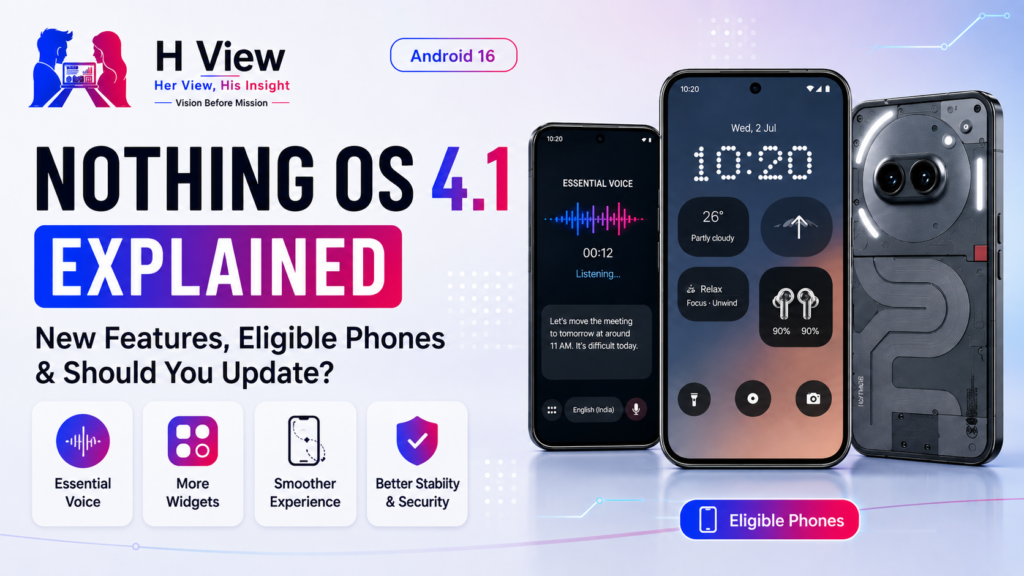
Nothing OS has become one of the strongest reasons to consider a Nothing phone. The…
Harika August 10, 2026 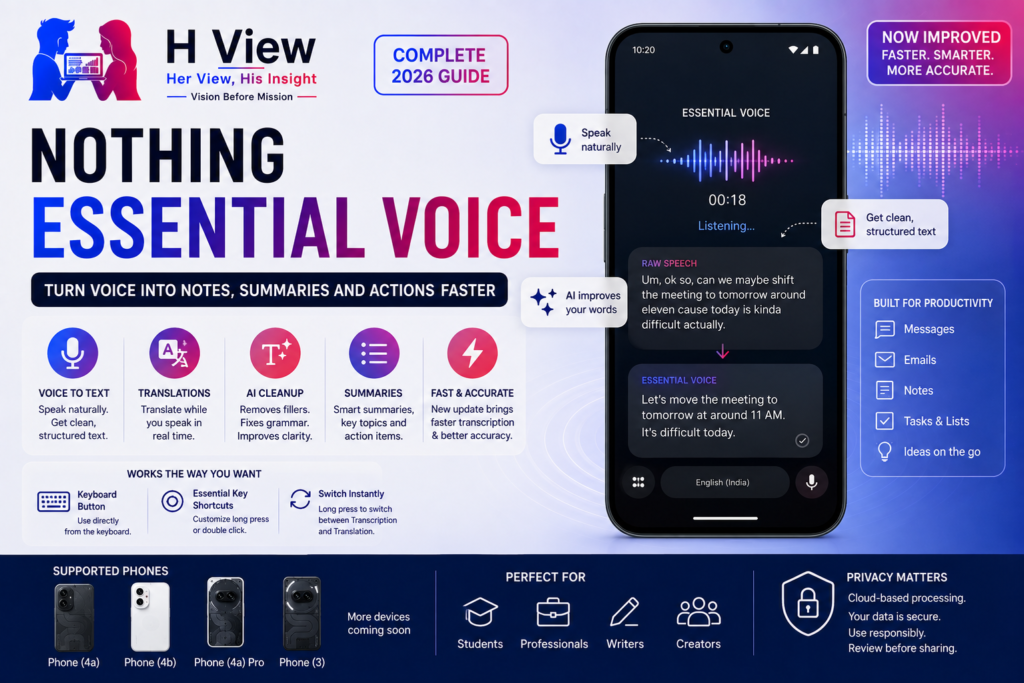
Typing is not always the fastest way to express an idea. A message that takes…
Harika August 9, 2026 
Nothing has gradually expanded from a small design-focused smartphone brand into a company serving several…
Harika August 6, 2026 
A Nothing phone should comfortably support communication, social media, photography, navigation and entertainment throughout the…
Harika August 4, 2026