

Best Digital Marketing Tools in 2026: What Marketers Actually Need and What They Can Skip
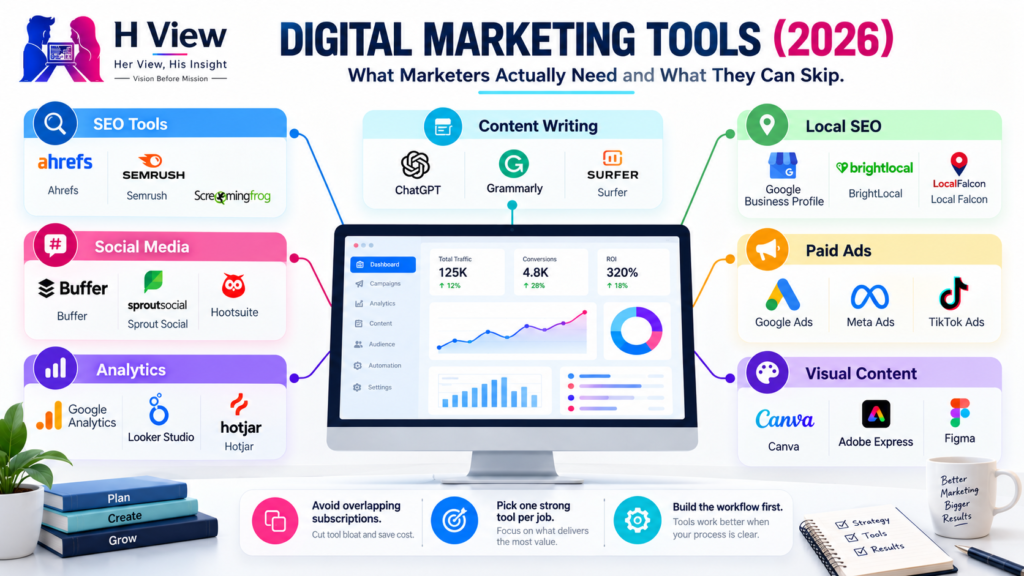
Open LinkedIn for a few minutes and you will probably come across a colourful graphic…
 Harika October 6, 2026
  By HarikaUpdated August 12, 202614 min read44 views
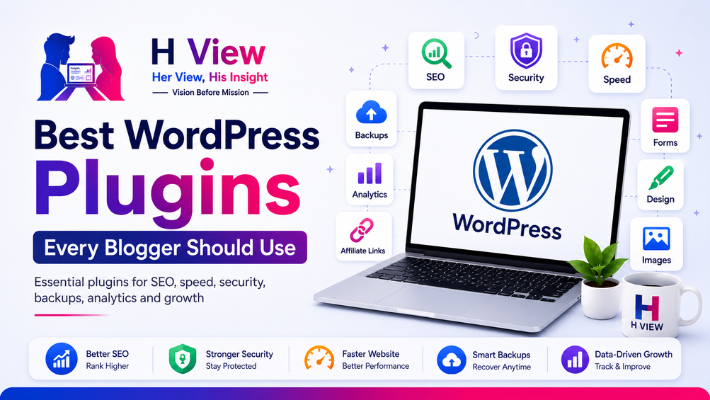
Installing WordPress is the easy part. The confusion usually begins a little later, when you open the plugin directory and realise there seems to be a plugin for almost everything.
There are plugins for SEO, security, speed, backups, forms, analytics, images, social sharing, affiliate links, tables, pop-ups, design, redirects and dozens of smaller jobs you may not even have thought about yet. For a new blogger, that can create the impression that a professional website needs twenty or thirty plugins before the first article is published.
It does not.
A plugin should earn its place on your website by solving a real problem. If WordPress, your theme or your hosting already handles that problem well, adding another plugin simply because somebody recommended it can create more work rather than less.
That is the approach I would use when choosing the best WordPress plugins for a new blog. Start with the jobs your website genuinely needs to perform, choose one reliable solution for each, and leave everything else until there is a reason to add it.
Plugins are one of the reasons WordPress is so flexible. Instead of hiring a developer every time you want a contact form, backup system or SEO controls, you can usually add the functionality yourself.
That convenience also makes plugins extremely easy to overuse.
A new blogger may install one plugin for SEO, another for schema, two for speed, a security suite, a separate login-security plugin, three Elementor add-ons, two image optimisers and several tools that were installed during tutorials but are no longer being used.
The website may still work, but every extra plugin becomes another piece of software that needs updates and maintenance. Some plugins load scripts on the front end. Others add data to the WordPress database. Two plugins trying to perform the same task can even interfere with each other.
There is no magic number such as “never use more than 15 plugins.” A well-built website can legitimately need more than that. The better rule is much simpler: do not keep a plugin unless you know why it is there.
For beginners, a small set of carefully chosen plugins is usually easier to manage than a large collection assembled from different recommendation lists.
If your blog depends on people discovering articles through search, an SEO plugin is one of the first additions worth considering.
WordPress itself already gives you many of the foundations needed to publish searchable content, but an SEO plugin makes common tasks easier to manage. Rank Math, for example, currently provides tools for SEO titles, metadata, XML sitemaps, schema and other on-page settings from within WordPress.
What I like about using an SEO plugin is not the coloured score that appears beside an article. Those scores can become distracting if a writer starts changing natural sentences simply to turn every indicator green.
The real value is control.
You can decide how the article title should appear in search, write a useful meta description, manage indexing settings and keep the technical structure of the website more organised.
For a beginner blog, Rank Math can do a lot in one place, which reduces the need to install separate plugins for several basic SEO jobs.
If you already use Yoast SEO or another established SEO plugin and it is working properly, there is usually no reason to change simply because another plugin appears on a “best plugins” list. Use one primary SEO plugin, understand it well and avoid stacking several tools that attempt to control the same metadata.
Small blogs are not too insignificant to attract unwanted login attempts, automated bots or malicious traffic. In many cases, attackers are not personally interested in the website at all; automated systems simply look for vulnerable WordPress installations wherever they can find them.
Wordfence remains one of the established security options for WordPress and currently combines an endpoint firewall, malware scanning and login-security features.
That sounds reassuring, but installing a security plugin should not create a false sense that the rest of website maintenance no longer matters.
Security begins with keeping WordPress, plugins and themes updated. Use strong passwords, enable two-factor authentication where practical, avoid installing abandoned plugins and choose hosting that takes server security seriously.
A security plugin adds another layer to that foundation.
Wordfence can be particularly useful if you want scanning, firewall controls and login protection in one place. Some beginners may find the dashboard more technical than other plugins, so there is no need to adjust every advanced setting on the first day.
Install it with a purpose, learn the main alerts and avoid changing options you do not understand simply because a tutorial told you to.
Performance plugins are an area where bloggers can easily create unnecessary problems.
It is tempting to believe that enabling every optimisation switch will make the website faster. In practice, aggressive CSS or JavaScript settings can sometimes break layouts, menus or other interactive elements.
LiteSpeed Cache is a strong option when your hosting environment uses LiteSpeed. The plugin currently combines server-level caching with a collection of optimisation features. Its main server cache depends on LiteSpeed technology, although the plugin contains other optimisation functions as well.
If your hosting already recommends LiteSpeed Cache, it makes sense to begin there rather than installing several caching plugins together.
The plugin can help, but remember that caching does not compensate for every performance problem. A 5 MB featured image is still a 5 MB image. A page filled with animations, advertising scripts and unnecessary widgets can remain heavy even with excellent caching.
For most bloggers, the best speed strategy is a combination of decent hosting, a reasonably lightweight theme, optimised images and one properly configured caching solution.
If you are still choosing where to host your site, our guide to the best WordPress hosting for beginners in India explains why the hosting environment and the plugin setup should be considered together.
Backups have very little emotional appeal until the day you need one.
Imagine spending six months publishing articles and adjusting the website, then installing an update that creates a serious problem. Even if the issue can eventually be fixed, knowing that a recent backup exists immediately changes how stressful the situation feels.
UpdraftPlus provides backup, restore and migration functionality for WordPress and can be used to schedule backups or create them manually.
Whether every blogger needs a separate backup plugin depends partly on the hosting provider.
Some hosts already provide reliable automatic backups and convenient restoration. If your hosting system does this well, you may decide that an additional plugin is unnecessary for a very small site. For a website that has become important, however, keeping an independent backup outside the hosting account can provide useful protection.
This is one place where duplication can actually be intentional. A server problem that affects both the website and backups stored on the same account is much easier to deal with when another copy exists elsewhere.
Before making a major design change, migration or plugin update, taking a fresh backup is one of the simplest good habits a WordPress owner can develop.
It is difficult to improve a blog if you have no idea how people are finding it.
You may personally love one article while another article quietly attracts most of the website’s search traffic. You may assume readers are coming from social media when Google Search is actually doing most of the work.
Site Kit by Google is Google’s official WordPress plugin for connecting and surfacing information from Google services within the WordPress dashboard.
For a beginner, that makes analytics less intimidating. You can begin seeing useful information without immediately becoming an expert in every Google interface.
Over time, though, I would still learn to use Google Search Console and analytics tools directly. Search Console in particular can show which search queries are generating impressions, which pages are being discovered and whether Google is reporting indexing problems.
The plugin gives you convenient visibility. The deeper tools help you understand what the numbers mean.
A contact page is easy to underestimate when a blog is new. Once the website starts becoming visible, it may become the place where readers, businesses or potential partners try to reach you.
WPForms currently provides a drag-and-drop system for building contact, feedback, subscription and other forms inside WordPress.
For most bloggers, a basic contact form is enough.
You usually do not need fifteen fields asking for information before somebody is allowed to send a message. A name, email address, subject and message can cover most ordinary enquiries.
If the website later starts accepting advertising requests, review submissions or business leads, separate forms can be created for those purposes.
Also pay attention to spam protection and email delivery. A beautiful contact form is not useful if genuine messages disappear or the inbox becomes overwhelmed with automated spam.
For a new blog, keep the contact experience uncomplicated.
Images are often responsible for a large part of a blog page’s weight.
A blogger may carefully optimise WordPress and then upload a 4,000-pixel photograph directly from a camera or design application. Do that several times in one article and the page can become unnecessarily heavy.
ShortPixel is one option designed specifically for image optimisation and currently supports compression along with modern image formats such as WebP and AVIF.
The plugin is useful, but I would not rely on it as the first step.
Resize images to sensible dimensions before uploading when possible. There is little benefit in storing an enormous original file if the website will only display it at a much smaller width. Then allow the optimisation tool to reduce the remaining weight.
This becomes especially important for review sites and technology blogs where screenshots, product photographs and large featured images appear frequently.
A small improvement repeated across hundreds of images can make a meaningful difference to the overall website.
A table of contents can make a long article easier to navigate, particularly when the reader has arrived looking for one specific section.
Easy Table of Contents currently generates a contents list from headings used in WordPress posts, pages and custom post types.
That can be useful for detailed tutorials, long reviews and comparison guides.
It does not mean every 600-word article needs a table of contents.
If the article is short enough that readers can understand its structure immediately, another navigation block simply adds clutter. Use it when the length and structure of the content justify it.
This is a good principle for plugins generally: the feature should serve the reader rather than exist because the plugin is available.
Elementor was included in the original plugin list, but I would place it in a different category from SEO, backups or security.
A page builder is a design choice, not an essential blogging requirement.
If you want to create a highly customised homepage, landing pages, an advertising page or visually distinctive layouts without coding, Elementor can be extremely useful. WordPress’s own block editor, however, has become capable enough that many blogs can operate perfectly well without a separate page builder.
If you do use Elementor, avoid the temptation to install multiple large add-on packs merely to gain one or two widgets. Page builders can become heavy when complex layouts, animations and extensions accumulate.
Use the design freedom where it improves the website. Keep ordinary articles focused on reading.
Pretty Links and similar tools can be useful for bloggers who manage many affiliate URLs. They make it easier to organise links and update destinations from one place rather than editing old articles individually.
But if your blog has not joined any affiliate programmes yet, there is little reason to install an affiliate-management plugin just because monetisation may happen someday.
The same applies to advertising managers, newsletter systems, pop-up builders and advanced schema tools.
Add them when the website reaches the stage where the problem exists.
This habit keeps the initial WordPress installation simpler and makes troubleshooting much easier.
If I were starting a normal WordPress blog today, I would not begin by installing ten plugins from a checklist. I would first look at what the theme and hosting already provide.
Then the starting setup might look something like this:
After that, I would stop.
A table of contents, Elementor, affiliate-link management and other specialist tools can be added when the site actually needs them.
That is a much healthier WordPress setup than installing twenty plugins in the first afternoon.
For a beginner, plugins should make WordPress feel easier rather than turn the dashboard into another technical problem.
It is surprisingly easy to spend an entire weekend configuring tools when the blog still has only two articles. Every plugin seems important when you are watching a tutorial about it, but most readers will never know which plugins you use. They will notice whether the site loads properly, whether the article is easy to read and whether the information is worth their time.
I would therefore keep the first setup deliberately simple.
Get the essentials working, publish your content and learn WordPress through actual use. You will understand what you need much better after running the website for three months than you will on the first day.
The most important plugin strategy is avoiding unnecessary overlap.
You rarely need two SEO plugins controlling the same metadata. You should not normally run several full-page caching systems at the same time. If the hosting provider already performs a task effectively, another plugin may add complexity without meaningful benefit.
Before installing something, check when it was last maintained, whether it supports your version of WordPress and whether the developer has a credible history. Then ask one final question: what happens if I do not install this?
If the answer is “nothing important,” you probably do not need it yet.
That discipline improves security and makes the website much easier to maintain over the long term.
There is no correct numerical limit. A blogger should use as many well-maintained plugins as the website genuinely requires and no more. Seven carefully chosen plugins can be enough for one site, while another legitimate project may need considerably more.
Usually not at the beginning. Modern SEO plugins such as Rank Math already include schema-related functionality. Add a separate schema solution only when you have a specific requirement that your existing tool cannot handle.
The plugin contains optimisation features that can work in different environments, but its exclusive server-level caching requires LiteSpeed Server technology. If your host uses a different server stack, check which caching solution the provider recommends.
Not necessarily. A good hosting backup system may be sufficient for a small blog. An independent backup can still be valuable when the website becomes important or when you want copies stored separately from the host.
No. Elementor is useful when you need more visual design control, but a normal WordPress blog can be built using the block editor and a good theme. Install a page builder because you need its design capabilities, not because every blog supposedly requires one.
There is no universal first plugin. After WordPress is set up, identify what your hosting and theme already provide. SEO, backups, security, analytics and performance are usually among the first areas worth reviewing.
The best WordPress plugins are not necessarily the ones that appear on the longest recommendation lists.
They are the ones you barely notice because they quietly solve a problem.
An SEO plugin gives you control over how your content is presented to search engines. A backup tool gives you a way back when something breaks. A caching plugin helps reduce unnecessary loading work. Analytics tells you whether people are actually finding what you publish.
Those are useful jobs.
Installing another plugin simply because it promises a slightly higher score, another design effect or a feature you may use someday is different.
If you are building your first blog, keep WordPress boring in the beginning. Choose a reliable theme, use one plugin for each important task and spend the majority of your time on the part no plugin can do for you: creating something people genuinely want to read.
As the blog grows, your plugin stack can grow with it.
There is no prize for installing everything on day one.
Harika is the co-founder of H View and covers AI, technology, gadgets, digital tools, online platforms, and modern internet trends. Her articles focus on simplifying complex topics with practical explanations, balanced opinions, and reader-first insights.
Share your real experience and help other readers decide better.
No community views yet. Be the first to share yours.
Open LinkedIn for a few minutes and you will probably come across a colourful graphic…
Harika October 6, 2026 
When an employee resigns, many organisations move quickly into replacement mode. The manager informs HR,…
Harika October 6, 2026 
For many corporate employees, the workday begins long before they actually start working. They wake…
Harika October 5, 2026 
Many projects begin with an assumption that sounds reasonable on paper: the client will explain…
Harika October 1, 2026